

The Short Version
On Android, select None as your digital assistant; classic Assistant is not a fallback once its mobile access is removed. On iPhone and Mac, delete the Gemini app.
- App removal, assistant settings, and data controls are separate. ADB removal targets one Android user – not the whole system.
- AI Overviews in Search have no official off switch; the
udm=14web filter is the workaround. - Keep Activity off limits future history and model improvement, but service and safety processing – including human review – still happens.
- Gmail and Workspace have separate smart-feature and admin controls; there is no universal off switch. Full step-by-step for every device below.
There is no single switch that turns Google Gemini off. That's the first thing to understand, and honestly, it explains most of the frustration around this topic. Google has spread Gemini across five separate layers – the Android assistant, the apps themselves, Gmail and Workspace, Chrome, and Search – and every layer has its own control, its own quirks, and its own fine print.
The short version: on Android you set the default assistant to None and deal with the app separately; in Gmail you choose which smart-feature controls to turn off; on iPhone and Mac you delete Google's app; and in Chrome you manage its entry points and AI features separately. For AI Overviews in Google Search, there is no official off switch at all. None of those steps deletes your saved Gemini chats. That is a separate account action – and even the privacy controls are not a promise of zero processing.
I went through every one of these switches on my own accounts while writing this. Here's the map first, then the details.
| Where | Fastest off switch | What it stops | What keeps running |
|---|---|---|---|
| Android assistant | Settings → Default digital assistant app → None | Gemini as your default assistant | The app stays installed; account activity is unchanged |
| Android app | Settings → Apps → Gemini → Uninstall, or Disable if offered | The installed app or its ability to run | The default assistant can remain; account history is separate |
| Gmail / Workspace (user) | Workspace smart features off; other smart-feature controls separately | Gemini experiences included in the Workspace smart-feature setting | Other smart features have their own controls; some conveniences are lost |
| Workspace (admin) | Admin console → Generative AI → Gemini app → Off | Gemini app access for affected Workspace accounts | AI inside Gmail/Docs needs separate controls; subscription pricing is unchanged |
| iPhone / Mac | Delete the Gemini app | The local Google app only | Saved Google account activity; Apple Intelligence/Siri where available |
| Chrome | Gemini preferences; individual AI features; System → On-device AI | Selected entry points/features and downloaded local models | Google Search and cloud AI are separate; some local scam warnings depend on the model |
| Google Search | Web filter / udm=14 as default search engine | AI Overviews you see | No real off switch exists; queries still go to Google |
| Your data (personal account) | myactivity.google.com/product/gemini → Keep Activity off | Saving future chats in Gemini Apps Activity; model improvement when you do not submit feedback | Up to 72-hour service/safety retention; human review for protection; reviewed copies up to 3 years |
What "Turning Off Gemini" Actually Means: Hide, Disable, or Remove
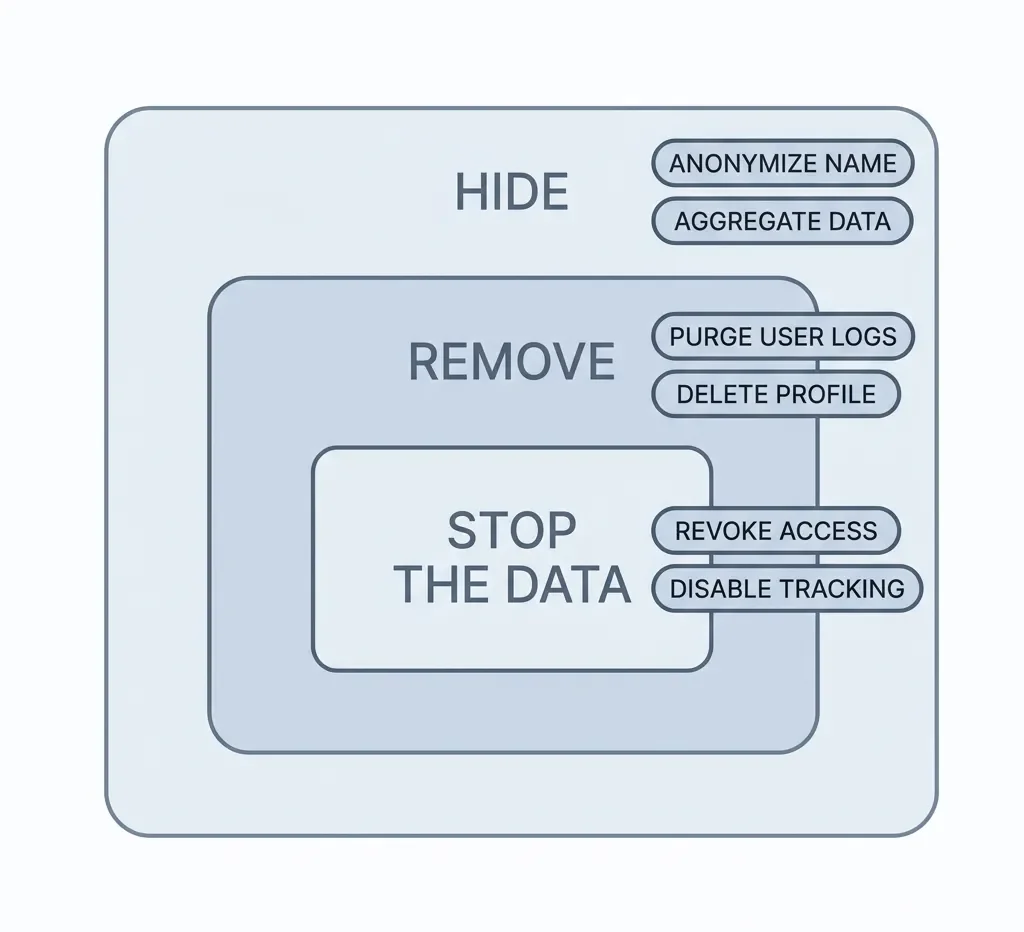
Before you start flipping switches, decide what you're actually trying to achieve. There are three levels here, and they're not the same thing.
Level one: hide it. The assistant switch, the Gmail checkboxes, the Chrome toggles. These remove Gemini from your face. Fast, reversible, and for most people, enough.
Level two: remove the app. On iPhone and Mac, that means uninstalling Google's app. On Android, the normal uninstall option or the ADB route deals with the app for the relevant user. If it is a system app, the system copy can remain. Removing that package is not the same as removing every Gemini feature from the device.
Level three: limit data use. Keep Activity controls saved Gemini activity and model improvement, while connected apps and Workspace features have separate settings. None is a blanket 'Google processes nothing' switch. Hiding a button, uninstalling an app, and changing how chats are handled are three different jobs.
Quick naming note, because it matters for finding these settings later: Gemini is the product formerly known as Bard, renamed in February 2024. The chat-history control once called Gemini Apps Activity is now Keep Activity. If a menu looks different, check the current instructions for your device and account – the names and available controls can change.
How to Turn Off Gemini on Android
Some context first, because it explains why Gemini suddenly showed up on your phone: Google announced its upgrade from Google Assistant to Gemini in March 2025. The transition ran past its original deadline, but classic Assistant is no longer a fallback you should rely on. In its mobile withdrawal announcement, Google scheduled a phased removal of Assistant access to begin in early September 2026, taking a few weeks to reach everyone. Once access is removed from your phone or tablet, you can no longer use or switch back to Assistant. PCMag's reporting on Google's user email corroborates that change. This isn't just a new icon with the old assistant waiting behind it.
The same announcement covers paired Wear OS watches, compatible headphones and earbuds, and Android Auto projected from your phone. Cars with Google built-in and Nest/Home speakers and displays are outside that specific mobile withdrawal. Don't confuse losing Assistant on your phone with every Google device losing it at once.
Switch Off Gemini as Your Default Assistant
Want Gemini to stop answering as your default assistant? Go to Settings → Apps → Default apps → Digital assistant app → Default digital assistant app → None. Manufacturer menus vary; if you cannot find it, search Settings for "digital assistant app." Google's assistant-settings guide documents this option. It changes the default assistant, not your account activity. Deleting the Gemini app does not automatically remove Gemini as your default assistant.
The old off-ramp was Switch to Google Assistant in Gemini's profile menu. Google's general help page still describes it, but its mobile withdrawal announcement says you cannot switch back once Assistant access has been removed. If that old option still appears, treat it as a legacy option, not a dependable alternative. Disabling or uninstalling Gemini will not restore classic Assistant after Google has removed its access.
If you want to keep Gemini but stop it from ambushing you, the same settings guide documents the halfway options: remove it from the power button, turn off "Hey Google" for Gemini, or block lock-screen activation. Those change how Gemini opens; they do not bring the old Assistant back.
Disable or Uninstall the Gemini App
If Gemini arrived via the Play Store, check whether you can uninstall it like any other app. On phones where it is preinstalled or protected, you may get Disable instead. Samsung users have reported disable-only options – but what your phone offers depends on its model and software, not simply the logo on the back.
Disabling addresses that installed app; it leaves the package on the device and does not necessarily change the assistant setting described above. Users have also reported updates changing which assistant is selected. Unfortunately, you gotta treat “check my assistant settings” as a post-update ritual. Annoying? Hell, yes. But neither disabling nor an ADB uninstall is a universal guarantee that the preference will never change.
Remove Gemini for Your Android User Profile with ADB (Advanced)
ADB (Android Debug Bridge) lets you uninstall a package for a specific Android user without root. The fun detail: Google's Gemini Play Store listing still uses the Bard package name. But per-user removal of a system app does not erase its system copy. Think "uninstalled for this user," not "every trace permanently removed."
Enable Developer options by tapping Build number seven times, then turn on USB debugging. The location varies: on Samsung phones, Build number can be under About phone → Software information. Android's developer-options guide documents those differences.
Install Google's Platform Tools on your computer, connect the phone, accept the debugging prompt, and verify the connection with adb devices. If nothing shows up, suspect the cable before anything else – a charge-only cable won't register, so use a proper data-rated USB-C cable and try again.
Confirm the package name: adb shell pm list packages bard. This uses Android's package filter rather than relying on a computer-side grep command.
For Android user 0, run adb shell pm uninstall --user 0 com.google.android.apps.bard. The --user 0 flag specifies the target user; do not assume it targets a secondary or work profile. Android's ADB documentation explains the per-user syntax.
Two warnings. First, removal can fail. Ars Technica's reporting describes a DELETE_FAILED_INTERNAL_ERROR on a Pixel without establishing its cause. Do not assume that every error is a missing flag, or that one walkthrough predicts your firmware's behavior. Second, recovery: you can try reinstalling from the Play Store. If the system copy is still available, adb shell cmd package install-existing com.google.android.apps.bard is a restoration method documented on XDA. That is community guidance, not a guarantee for every device.
Even a successful per-user uninstall deals with this app package only. It does not guarantee a change to your default assistant or disable Gemini in Gmail, Chrome, and Search. Those are separate controls.
How to Turn Off Gemini in Gmail, Docs and Google Workspace
On a Personal Google Account
Google documents three separate smart-feature controls, not two boxes that all do the same thing. In Gmail on the web, open the gear icon → See all settings → General.
For Gemini experiences inside Workspace, open Manage Workspace smart feature settings, switch off Smart features in Google Workspace, and click Save. Google lists Workspace Gemini features under that control. The two other choices are independent:
Turn on smart features in Gmail, Chat, and Meet controls conveniences such as automatic categories, Smart Compose, Smart Reply, and summary cards. Uncheck it if you want those off too.
Smart features in other Google products, inside the Workspace settings dialog, controls cross-product experiences. It is a separate choice, not another mandatory box for the Workspace Gemini switch.
If you want all three groups off, turn off all three controls. If your concern is specifically Gemini inside Workspace, start with the Workspace setting rather than sacrificing unrelated features by accident. Google also documents mobile controls, though labels and availability can vary by app version. Repeat for each Google account; a choice for one account is not a choice for all of them.
The honest trade-off: turning off Workspace smart features also removes experiences such as Gmail events appearing in Calendar and personalized search in Drive. The Gmail/Chat/Meet control affects the conveniences listed above. You're not unchecking an 'AI only, please' box. You're choosing which bundles to lose.
One genuinely useful regional quirk: in the EEA, UK, Japan, and Switzerland these smart features are off by default – sitting here in Germany, mine were never on, and checking that box was the first time I'd ever seen the setting. Elsewhere, including the US, defaults are generally on. But prior choices and Workspace administrator settings can change what you see, so check the account instead of assuming.
As a Workspace Admin
I run my blog and freelance business on Google Workspace, which makes me the world's smallest IT department – admin, user, and help desk, population one. The admin-side switch lives at admin.google.com: Menu → Generative AI → Gemini app → Service status → Off for everyone (or per organizational unit), then Save. Google's documentation makes the scope clear: this controls Gemini app access for the affected Workspace accounts, including the web and mobile apps and Gemini in Chrome. It does not turn off Gemini inside Gmail or Docs. Those services have separate Gemini for Workspace → Feature access controls where your Workspace edition supports them; do not assume that panel exists on every plan.
It wasn't always this civilized. In January 2025, some admins had no Gemini controls at all and had to chat with Google support to get the off switches added to their console. The controls now ship by default – progress, of a sort.
The kicker: Gemini was bundled into Workspace plans in that same January 2025 wave, alongside a price increase. Turning it off does not lower your bill. You're paying for AI you've disabled – my six years of law school would call that an interesting contract structure.
How to Turn Off Gemini on iPhone and Mac
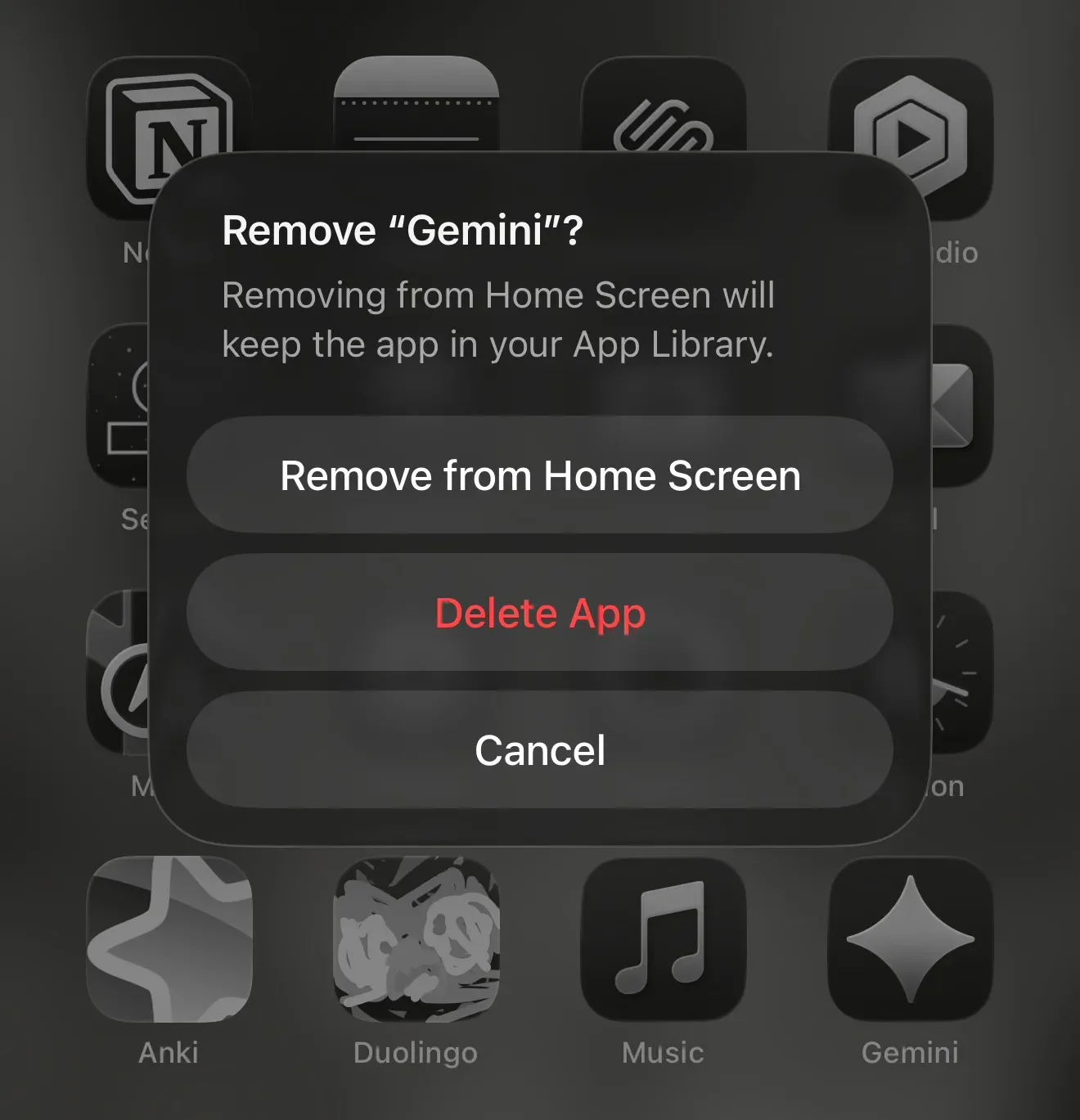
This is the easy section. On iPhone, Gemini is a normal App Store app: long-press the icon, Remove App, delete. No system hooks, no ADB, no drama. Running a tech blog, I’ll say this much: “how do I get rid of this” is a question I see constantly, and on iOS the answer is refreshingly boring.
Same story on the Mac: Google shipped a native Gemini app for macOS in April 2026, with a global Option+Space overlay. Google's current requirements specify macOS 15 or later, Apple silicon, and at least 8 GB of RAM. It is a regular user-installed app: quit it, drag it to the Trash, and its app shortcut goes with it.
Two asterisks. First, deleting Google's app does not delete your saved Gemini activity. Your account history is managed at myactivity.google.com, and deleting that activity is a separate action we'll cover below.
Second, Apple's Gemini-based Siri layer is not Google's removable app. Apple's launch announcement describes Siri AI rolling out in beta in English on supported devices running iOS 27, iPadOS 27, macOS 27, watchOS 27, and visionOS 27. Availability is limited: Apple says the initial rollout excludes the EU on iOS, iPadOS, and watchOS. Apple also says its Gemini-based foundation models run on-device and through Private Cloud Compute. Do not read that as 'every Apple device already has the same Siri.'
Bloomberg reported a figure of roughly $1 billion a year for a 1.2-trillion-parameter model – treat those numbers as reporting, not confirmation. Either way, deleting Google's Gemini app is not a way to remove the models behind Apple's Siri. For that layer, use Apple's Siri and Apple Intelligence controls for your installed OS version. Apple's iPhone guide documents an Apple Intelligence off switch, but turning that off is broader than uninstalling Gemini. Check the controls for the OS version you actually use rather than assuming there is one switch for every Apple feature.
How to Turn Off Gemini in Chrome
Chrome's AI surfaces have multiplied quietly, and the controls are scattered across three places. Hiding an entry point is not the same as shutting down every AI feature.
Settings → AI innovations → Gemini in Chrome → Preferences: turn off Show Gemini at the top of the browser. Switch off the Mac menu-bar or Windows system-tray and keyboard-shortcut preference separately if you want those entry points gone too. You can also unpin the browser button. These are Google's documented display controls, not a blanket AI shutdown. Features such as History search, powered by AI have their own controls; review the features offered by your build.
Settings → System → On-device AI: if your device offers it, turning this off deletes the downloaded local models and prevents re-downloads while it stays off. Google's documentation calls this the supported method, rather than manually deleting model files. The trade-off matters: features depending on those models stop working, including supported local scam warnings. This setting is per user and device, and it does not switch off cloud-based AI features.
chrome://flags: The Register's December 2025 walkthrough documented an AI Mode Omnibox entrypointflag. If your installed build still offers it, setting it to Disabled is an experimental way to hide that entry point. Do not treat the flag's name, availability, or effect as permanent.
And if disabling these features still leaves Chrome feeling too tangled up with your Google identity, the more thorough move is to remove the Google account from Chrome entirely.
How to Turn Off AI Overviews in Google Search
Let's start with Google's official position, because it's admirably blunt: AI Overviews are a core Search feature, and Google's own help page says these features can't be switched off. That's it. That's the setting. Turning off a Search Labs experiment is not the same as disabling core AI Overviews. The Web filter below changes the results you see instead.
What you can do is route around them. Google's Web filter shows a classic links-only results page, and it maps to a URL parameter – udm=14 – that you can bake in as your default. In Chrome: Settings → Search engine → Manage search engines → Add, with the URL {google:baseURL}search?q=%s&udm=14. Save the entry, then open its three-dot menu and choose Make default. Ars Technica covered the trick when it surfaced, and tenbluelinks.org maintains per-browser setup instructions. There are also extensions that hide the Overview block with CSS, which works visually and changes nothing underneath.
Be clear-eyed about what this is: a presentation filter, not a data opt-out. Your queries still go to Google; the Web filter changes which results you see. For day-to-day sanity, the cleaner results page may be enough. For principle, it may not be.
How to Limit Gemini's Use of Your Data
Here's the section I'd actually bookmark, because hiding Gemini and limiting chat storage are different jobs – and it's where my law-school habit of reading retention policies earned its keep. If you want the bigger picture behind why a search company cares this much about your chat logs, The Age of Surveillance Capitalism is the book that reframed how I think about it.
The control is now called Keep Activity, formerly Gemini Apps Activity. It lives at myactivity.google.com/product/gemini, and Google's activity guide also explains how to reach it inside Gemini. For personal-account users aged 18 or over, it is on by default, with an 18-month auto-delete unless you change it. It controls saved Gemini activity and model improvement – not every kind of processing Google does.
Using a work or school account? Check its rules separately. Workspace accounts can have administrator-managed history and different data protections depending on the edition. The consumer settings below are not a Workspace-wide privacy switch.
Now the fine print, straight from Google's privacy documentation:
With Keep Activity off, future chats are not saved in Gemini Apps Activity or used to improve Google's AI models if you do not submit feedback. Google still retains conversations for up to 72 hours for the service and safety. That processing can include human reviewers.
Feedback is an exception. If you send it with Keep Activity off, Google can use the feedback, associated conversations, and other included context to maintain and improve Gemini. Reviewed feedback and associated data can be retained for up to three years.
Conversations already sampled for review can also be kept for up to three years, disconnected from your account. Deleting your activity does not remove those reviewed copies.
Turn off is not Delete. To remove saved activity as well, choose Turn off and delete activity, or Delete → All time. Export anything you want to keep before deleting it. That still does not erase the reviewed copies above.
Audio and Gemini Live videos/screenshares have a separate improvement setting, which is off by default. Do not assume a single chat-history switch governs every input or every Google service.
One more setting deserves attention: on Android, Device assistance, Phone, Messages, and WhatsApp can work with Keep Activity off. Disconnect unwanted apps separately: open Gemini → menu → your profile → Connected Apps. If that entry is missing, first open Personal Intelligence → Connected Apps, then switch off the apps you do not want connected. The web app has its own Connected Apps settings for connections available there. And if you're slamming that door, it's worth shutting the same one on Meta's own AI across WhatsApp and Instagram. Opting out once is apparently a lifestyle, not a decision.
If you want a middle path, Temporary Chats stay out of your recent chats and Gemini Apps Activity and are not used to train Google's AI models. Google still retains them for up to 72 hours for responses and safety, including possible human review. Useful for keeping a conversation out of saved history? Yes. A confidential channel or a promise that every related record vanishes? No.
Should You Turn Gemini Off? What I Switched Off and What I Kept
My own setup, for transparency. My Workspace smart features were off by default under Google's regional defaults, and they stayed off. The Gemini app is switched off in my Admin console – a one-person org-wide policy decision I made over coffee. Chrome's AI toggles are off, mostly because I want my browser to be a browser. But the Gemini app itself? Still on my iPhone. I write about this stuff, I need to see what it does – I just run it with Keep Activity off and Temporary Chats for anything I wouldn't pin to a public corkboard. Those choices limit saved activity; they do not eliminate Google's service and safety processing.
That's the honest takeaway: this isn't really an on/off question, it's a which level question. If you just want the buttons and summaries out of your face, the controls for those specific apps are the place to start. If your concern is data, Keep Activity and connected-app permissions matter more than whether you deleted an icon – and it's worth thinking clearly about how much to trust these assistants with your data in the first place. On Android, even an ADB uninstall affects a specific package for a specific user, not Google's entire AI ecosystem. And if the deeper itch is that your devices have just gotten too eager to help in general, Digital Minimalism is a calmer take on deciding what tech earns a place on your home screen.
Whatever level you pick, put a reminder in your calendar to re-check after major updates. Users have reported assistant settings changing after updates – useful as a warning, not proof that every phone behaves the same way. If Gemini reappears, it can feel like a houseplant you decided to stop watering – somehow thriving. Re-check the assistant, app, and feature controls separately rather than assuming one failed switch explains the whole thing.
Have you found a setting that actually sticks, or one that keeps flipping itself back on? Tell me which device and which switch in the comments below – I keep this guide current as Google shuffles things around, and reader reports are how I catch the changes fast.
And if you'd rather not babysit Google's settings on your own, I run a tech newsletter that tracks exactly these quiet AI changes: what got switched on, where the off button moved, and whether it's worth your afternoon. You can subscribe here.










FAQ
-
No – they're separate products. Google is replacing mobile Assistant with Gemini, but that does not leave classic Assistant waiting as a backup. Google's withdrawal announcement says that once access is removed, you can no longer use or switch back to Assistant on your phone or tablet. To stop Gemini answering as your default assistant, select None instead. Uninstalling Gemini will not restore the withdrawn Assistant, and changing the default assistant does not delete your saved Gemini activity.
-
No. As I found on my own Workspace account, disabling the Gemini app in the Admin console stops the feature but not the billing – Gemini was bundled into the plan price back in January 2025, and switching it off doesn't unbundle it. You're paying for it whether you use it or not.
-
No. Removing Google's Gemini app and deleting saved conversations are separate jobs. Manage your Gemini activity at myactivity.google.com. To delete saved activity, use Delete → All time or Turn off and delete activity, as Google's instructions explain. Turn off alone is not the delete command, and previously reviewed copies can remain separately.
-
Because disabling isn't the same as removing, and system updates frequently re-enable it. This was the single most common complaint I ran into while researching this guide, Samsung phones especially. The only reliable fix is full removal via ADB, and even that can be undone by a big enough update, which is why a periodic re-check is your friend.
-
Partly. There's no official off switch, but you can tack the udm=14 parameter onto a search URL for a one-off classic results page, or use a browser extension that hides the Overview block visually. Setting it as your default search engine just saves you from doing that every single time.
-
Keep Activity is the account setting for saving future Gemini activity and model improvement. With it off, future chats are not used to improve Google's AI models if you do not submit feedback; turning it off does not itself delete old activity. Temporary Chats is a per-conversation option that keeps that chat out of recent chats and Gemini Apps Activity and out of model training. Both still involve service and safety processing, including possible human review and up-to-72-hour retention. Neither is a promise of zero processing.
-
Generally yes under Google's default setup outside the EEA, UK, Japan, and Switzerland. But a default is not proof of what is currently enabled in your account: earlier choices and Workspace administrator settings can change it. Google documents the regional defaults and three independently scoped controls. Check each relevant setting instead of assuming that two boxes must be checked.








I've used Gemini image generation almost daily for months. Here's how to create and edit images, what the free limits really are, and my best prompts.