
Apple Pencil Not Working? Here's How to Fix It on Any iPad (2026)
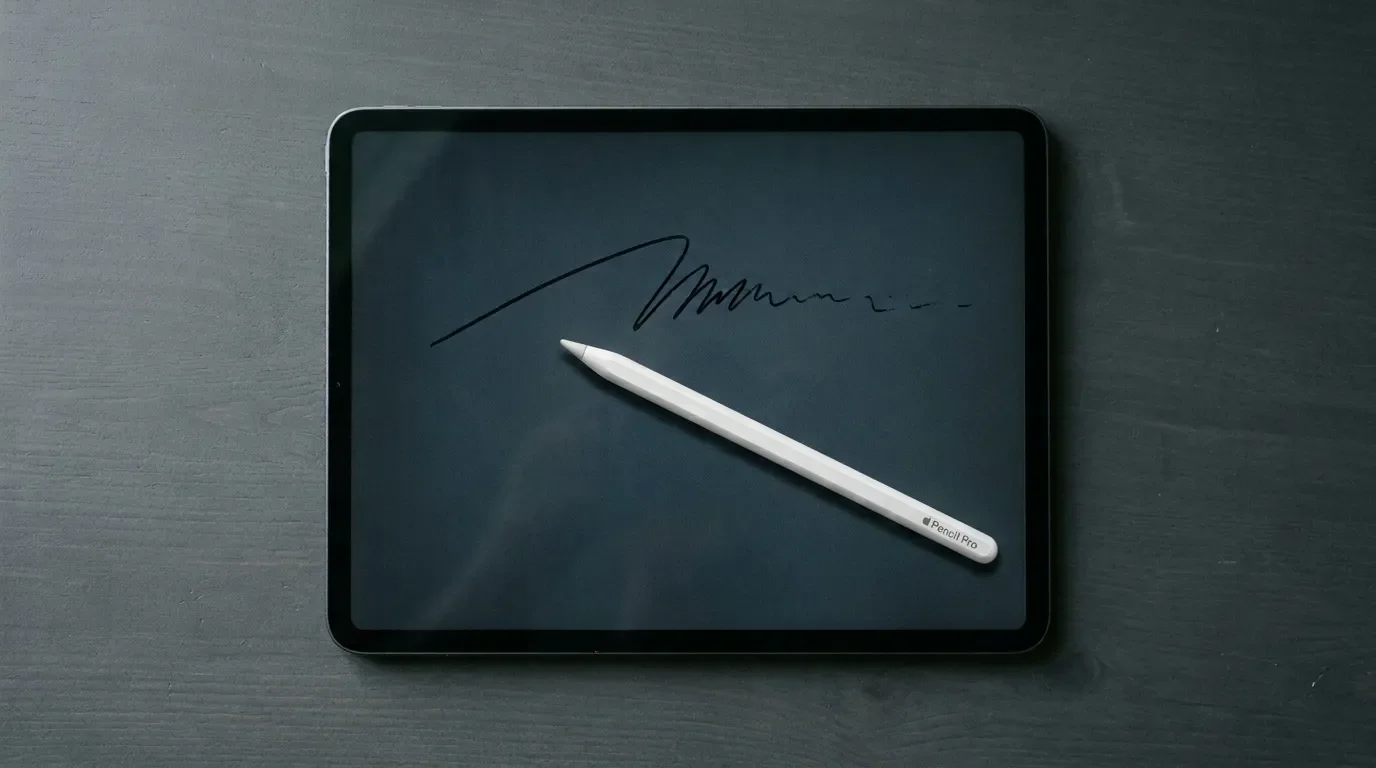
work part time in tech support, and "my Apple Pencil is not working" is easily one of the sentences I hear most on the shop floor. Here's the reassuring part: most of those Pencils aren't actually broken. They're flat, unpaired, or attached to an iPad they were never compatible with in the first place.
The short answer:charge your Pencil for at least a minute, make sure Bluetooth is on, then go to Settings > Bluetooth, tap "Forget This Device" next to the Pencil, and pair it again. That sequence comes straight from Apple's official troubleshooting guide, and in my experience it revives most "dead" Pencils before the customer has even finished telling me the story. If yours still won't cooperate, keep reading – below is every fix worth your time, sorted by symptom, for all four Pencil generations.
The Fast-Fix Checklist (Do This First)
If you only have two minutes, run this list top to bottom. It's Apple's own sequence, plus a few hard-earned notes from the shop floor:
Check Compatibility
Every Apple Pencil works only with specific iPads. Look up your iPad under Settings > General > About (here's how to identify your model) and compare it against Apple's compatibility list.
Charge It for at Least One Minute
A completely flat Pencil won't even show the Pair button, so don't declare it dead too early – Apple explicitly says to wait.
Update iPadOS
Apple treats a current OS as a precondition for its own troubleshooting steps. The Pencil Pro needs iPadOS 17.5 or later, the USB-C model 17.1.1 or later.
Restart the iPad
While the Pencil stays connected or attached.
Confirm Bluetooth Is On
You can do so under Settings > Bluetooth.
Forget and Re-Pair
Tap the (i) next to your Pencil, choose "Forget This Device," reconnect the Pencil the way your model expects, and tap Pair when the button appears.
Take the Case Off
On the magnetic models (2nd generation and Pro), a chunky case or cover can block the connector. Apple lists this step itself.
Still nothing? Then let's figure out which problem you actually have.
Why Is My Apple Pencil Not Working?
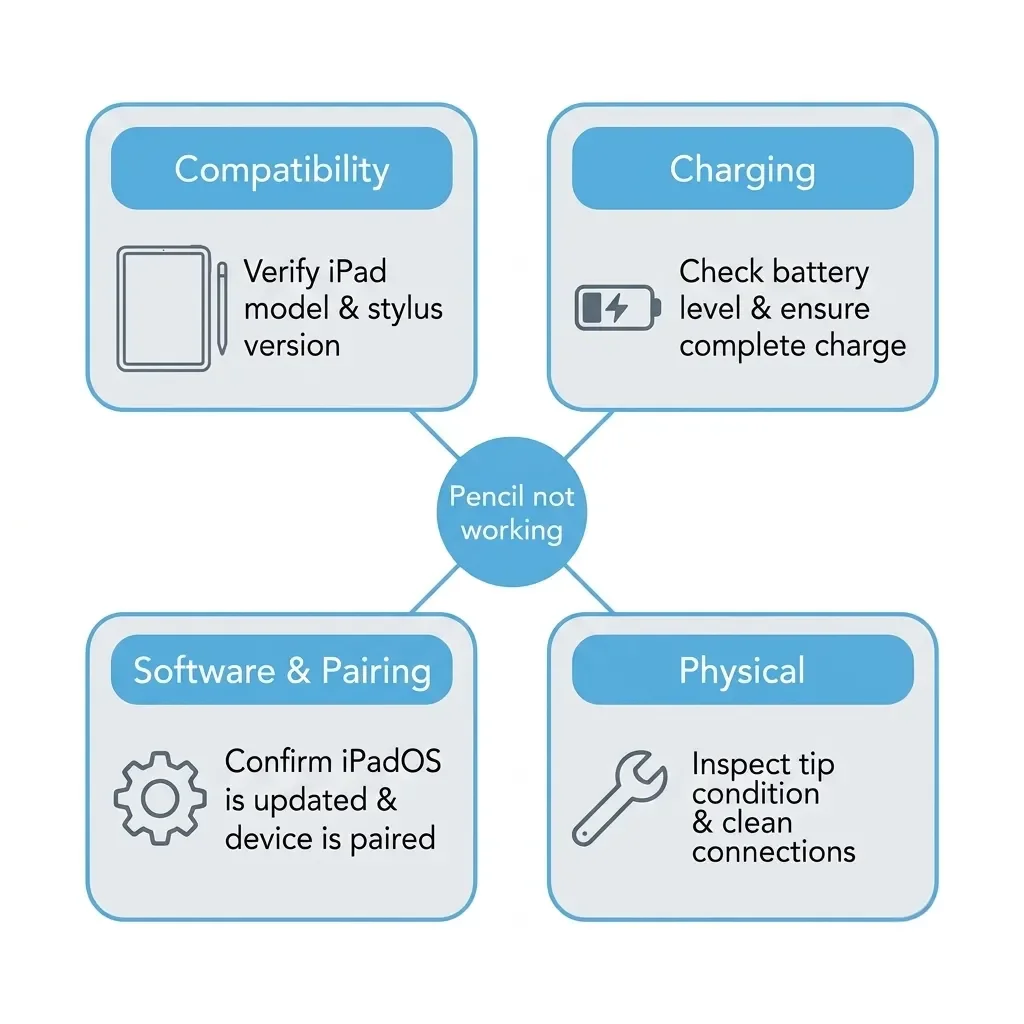
The frustrating thing about the Pencil is that it can't tell you what's wrong. No display, no LED, no error tone. It just lies there, looking expensive. In practice, though, nearly every case I see falls into one of four buckets:
A compatibility mismatch. Each of the four Pencil models supports a strict list of iPads – and an unsupported combination simply won't connect.
A charging problem. The battery is flat, you're using the wrong charging path for that model, or – worst case – the Pencil sat in a drawer so long it now refuses to charge at all.
A software or pairing hiccup. Outdated iPadOS, Bluetooth switched off, or a pairing that needs a full reset.
Something physical. A loose or worn-down tip, a case blocking the magnetic connector, or – anecdotally – a screen protector getting in the way.
The sections below map to exactly those buckets. Start with compatibility, because everything else is wasted effort if the match is wrong.
Which Apple Pencil Works with Which iPad?
This is a step many people skip, and I get it – it feels like it shouldn't matter. It does. Apple has shipped four Pencils across three different pairing mechanisms since 2015, and none of them work everywhere. An unsupported Pencil-and-iPad combo is like a Lightning cable in a USB-C port: nothing is defective, it's just never going to fit.
| Model | Pairs & charges via | Works with (short version) | Watch out for |
|---|---|---|---|
| Apple Pencil (1st gen) | Plugs into the iPad's Lightning port | iPad 6th–9th gen, iPad mini 5, iPad Air 3, early iPad Pros | On iPad (10th gen) and iPad (A16) it needs Apple's separate USB-C adapter just to pair and charge |
| Apple Pencil (2nd gen) | Magnetic connector on the iPad's long edge | iPad mini 6, iPad Air 4/5, iPad Pro 11-inch (1st–4th gen), iPad Pro 12.9-inch (3rd–6th gen) | Cases and covers can block the magnetic connector |
| Apple Pencil (USB-C) | Cable into its own USB-C port | Works with a wide range of modern iPads, including iPad (10th gen) and iPad (A16), supported M-series Pros and Airs, and both recent minis | The magnet is for storage only – it does not charge there. Also no pressure sensitivity |
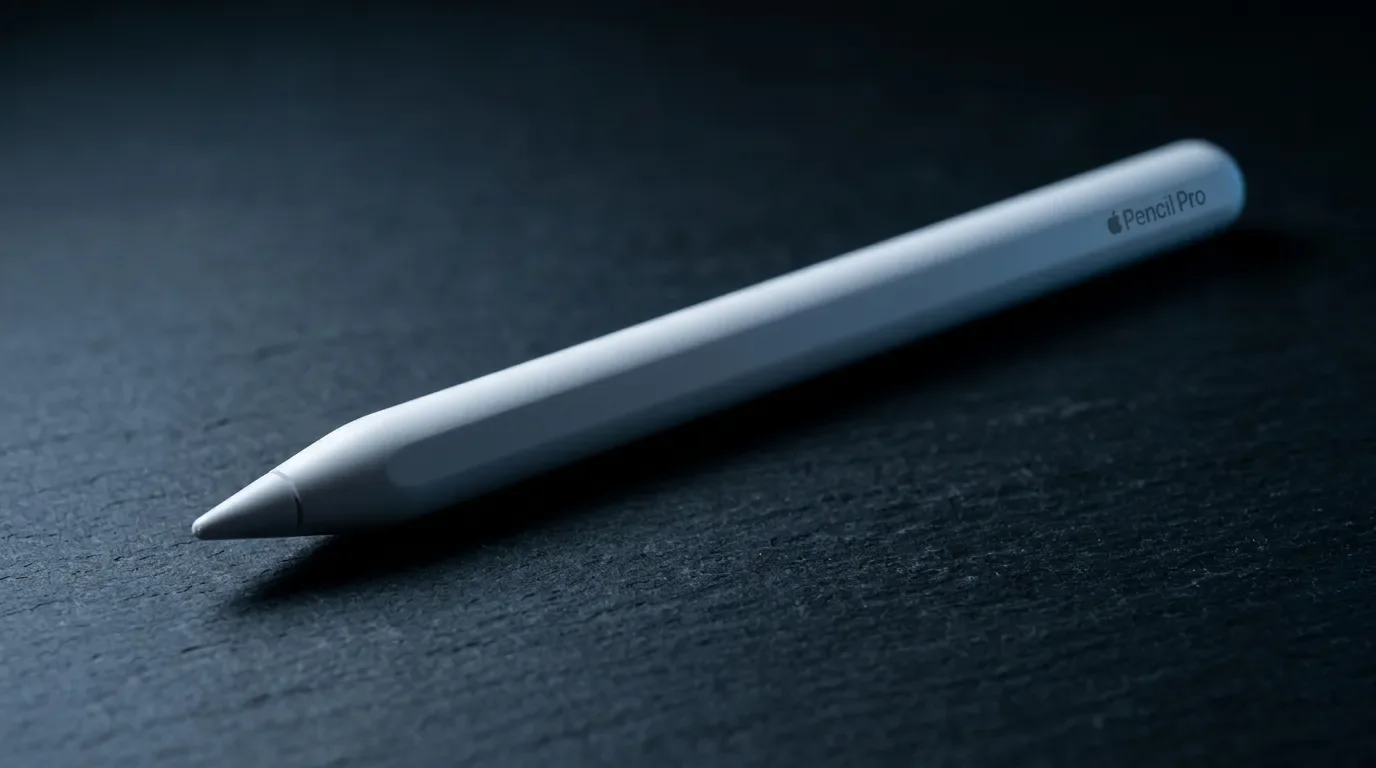
| Apple Pencil Pro | Magnetic connector on the iPad's long edge | Only iPad Pro (M4/M5), iPad Air (M2–M4), and iPad mini (A17 Pro) | Requires iPadOS 17.5 or later |
The full, current lists live on Apple's compatibility page – check them against your exact iPad model before doing anything else. If your combination isn't on the list, stop troubleshooting. No amount of restarting will fix an unsupported pairing.
Fix It by Symptom
Your Apple Pencil Won't Connect or Pair
Run Apple's official pairing sequence in order: connect the Pencil the way your model expects (Lightning port, magnetic connector, or USB-C cable), restart the iPad, confirm Bluetooth is on, forget the device, and pair again. If no Pair button shows up, let the Pencil charge for a minute and retry. On the magnetic models, do this with the case off.
Apple also publishes short per-model guides – for example for the Pencil Pro and the 1st generation – which are worth a look if you're not sure what "connect" means for your Pencil.
One extra trick from the community: some users report that a force restart worked where a normal restart didn't (this r/iPadPro thread is fairly emphatic about it). Apple doesn't document that distinction, so treat it as a free last attempt rather than gospel. It costs you nothing but thirty seconds.
It's Connected but Not Writing
Paired, battery fine, and still nothing on screen. This one is maddening, and it's also the case where I can save people the most time at the store.
First, test in Apple Notes. If the Pencil writes there but not in your favorite drawing app, the problem is the app, not the Pencil – check the app's settings and updates before blaming the hardware.
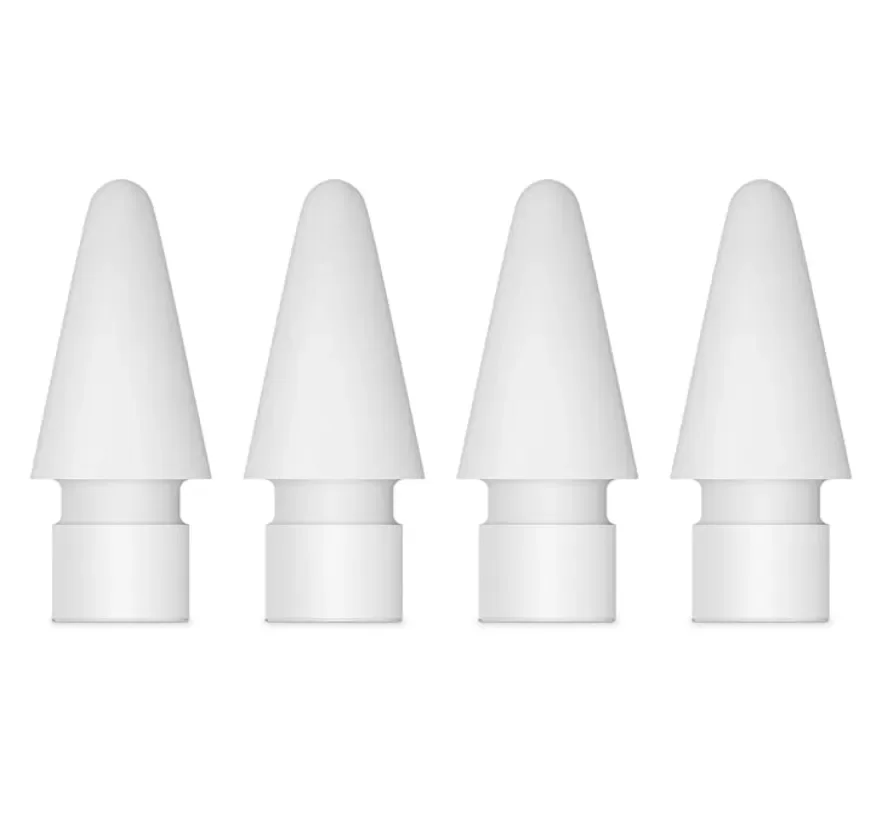
Second, check the tip. Unscrew it and thread it back on finger-tight. A long-running Apple Community thread on exactly this symptom – over a thousand "me too" votes – includes widely endorsed advice from a veteran contributor: seated correctly, you should see a tiny gap about the thickness of a sheet of paper. That's community wisdom rather than an official Apple spec, but a loose tip genuinely does come up. If the tip is visibly worn down, Apple sells an official 4-pack of replacement tips.
Third, do the forget-and-re-pair cycle from the checklist anyway. "Connected" in the Bluetooth menu doesn't guarantee the pairing is healthy.
It Writes, but It Skips or Lags
Usually this is the tip, the surface, or the software – in that order of suspicion.
The tip: worn or loose tips cause exactly this. Reseat first, and if the tip looks flattened or feels scratchy, swap it – a 4-pack of genuine Apple Pencil tips is cheap insurance and takes ten seconds to screw on. If you burn through tips fast, a budget AWINNER tip multipack writes almost identically for a fraction of the price.
The surface: screen protectors are a gray area. One Apple Community user found Pencil input came back on the area where a protector was lifted, and paper-textured protector users on Reddit report chewing through tips noticeably faster. Both are anecdotes, not lab data – but if you can reproduce skipping in several apps, the protector is a fair suspect. If you want the paper feel without fighting the Pencil, a purpose-built option like Paperlike is the one protector I'd trust to keep latency low.
The software: update iPadOS. Individual users have blamed specific iPadOS 26 updates for Pencil weirdness, but the reports don't establish a pattern, and Apple's advice remains to stay current. I side with Apple here: staying two updates behind out of superstition causes more problems than it prevents.
One non-bug worth knowing: the USB-C Pencil has no pressure sensitivity at all, per Apple's tech specs. If your lines don't vary with pressure on that model, nothing is broken. That's the product.
It Won't Charge or Is Stuck at 0 %
Start with the charging path, because every generation is different: Lightning port (or Apple's USB-C adapter) for the 1st gen, the magnetic connector for the 2nd gen and Pro, a cable into the Pencil's own port for the USB-C model. I've watched more than one customer patiently "charge" a USB-C Pencil on the magnetic strip, where it only ever sticks for storage. You can check the battery level via the iPad's Batteries widget or Settings – Astropad has a solid rundown of where it shows up for each generation.
If the level sits at 0 % for hours despite a correct connection, you're in less comfortable territory. There's a massive Apple Community thread – over a thousand of "me too" votes – describing Pencils that never climb past zero, often after months in storage. The community's usual explanation is a deeply discharged battery; Apple's public documentation neither confirms that nor promises a way back. Some users report recovery after hours on a wall charger, others never see the Pencil wake up again. Run Apple's pairing sequence one more time, give it a genuinely long charge, and if nothing changes, it's a case for service.
What I See Most at the Store
A few patterns come up again and again at work, and they're worth more than any spec sheet:
The drawer Pencil. Someone finishes a semester of note-taking, drops the Pencil in a drawer, and pulls it out half a year later at 0%. Sometimes a long charge brings it back; sometimes it's gone for good. My boring but honest advice: don't store a Pencil empty for months. I top mine up now and then the same way I rotate my camera batteries – unglamorous, effective.
The wrong Pencil. Usually a well-meaning gift. A 2nd generation Pencil and an iPad (10th gen) will never work together, and nobody is at fault except the compatibility matrix. Thirty seconds on Apple's list before buying spares you the return trip.
The blocked connector. Rugged case, magnetic Pencil, no connection. Case off, Pencil pairs, everyone feels slightly silly. It's the cheapest fix in this entire article.
And my one genuine gripe, as someone who cares about repairability: the battery is sealed. Getting at it means destroying the Pencil, so there's no DIY battery swap – when the cell is truly done, service or replacement are the only real options. I'd love to tell you otherwise. I can't.
I'll also be straight with you about what I can't claim: nobody – including Apple – publishes numbers on which fix works how often. But if I had to bet on any three, it's compatibility, charge, and a clean re-pair.
Repair or Replace?
If you've worked through everything above and the Pencil still won't cooperate, here's how the money side looks:
Within the first year: Apple's accessory warranty covers defects in materials and workmanship for one year – a Pencil that dies through no fault of yours belongs on that counter, not in your trash.
With AppleCare: Apple's current US fee schedule lists $29 for eligible iPad accessory damage under covered plans. Coverage and fees vary by plan and country, so check yours.
Out of warranty: get a real quote through Apple's repair portal before assuming anything – final pricing can require an inspection and varies by service provider.
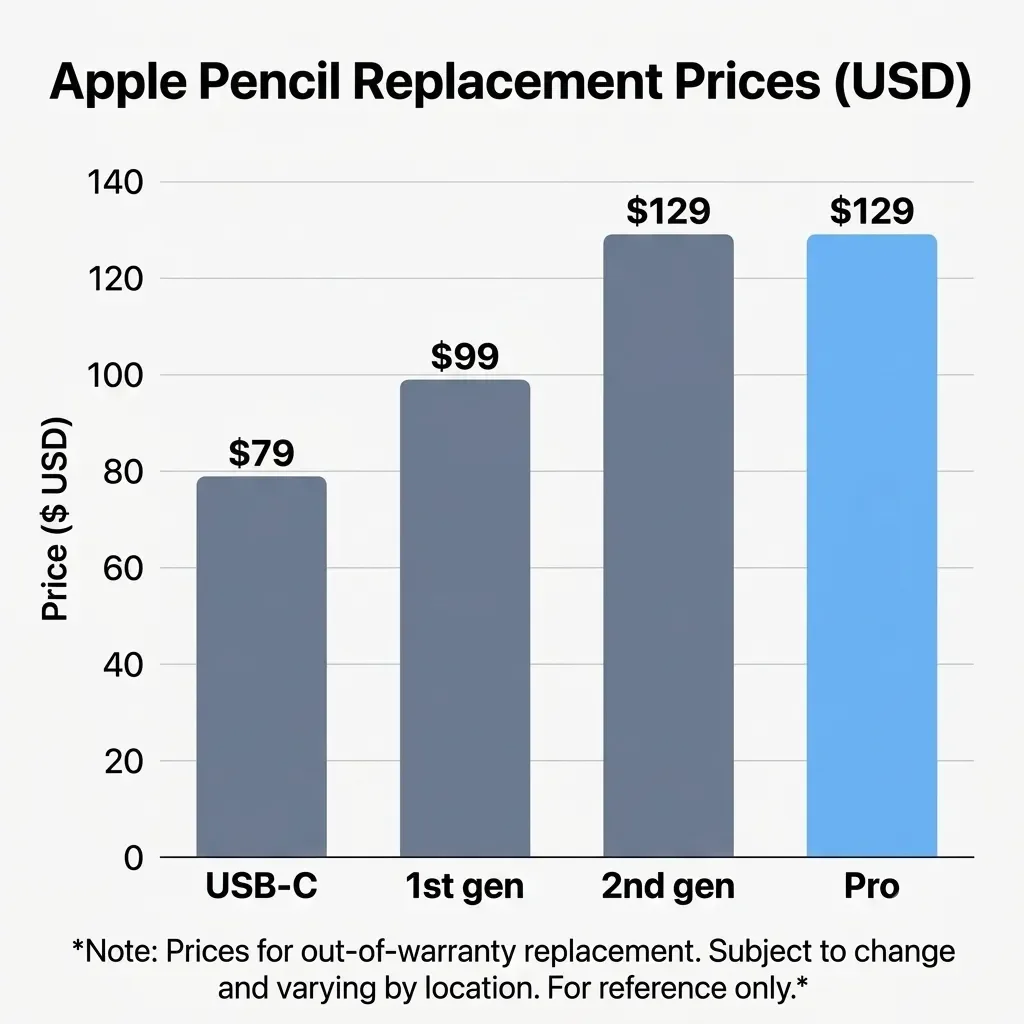
Compare against a new one: at the time of writing, Apple's model picker lists the USB-C Pencil at $79, the Pencil Pro at $129, the 1st generation at $99, and the 2nd generation at $129 in the US. Depending on the quote, replacement can be the rational choice – I just recommend making that call with a number in hand, not a guess.
Only the tip is worn? The official tips 4-pack is by far the cheapest fix on this list.
Before you spend a cent on a replacement, wipe the tip and screen down with a basic screen cleaning kit – dust and skin oil cause more skipping than most people expect.
The Bottom Line
Most "broken" Apple Pencils come down to three things: an incompatible iPad, an empty battery, or a pairing that needs a reset. Check compatibility first, charge for at least a minute, then forget and re-pair – that's Apple's own sequence, and it's the same one I run at the store. The genuinely bad case is the Pencil stuck at 0% that no charger can save; that one goes to service, ideally with a warranty or AppleCare claim attached.
And if your Pencil is back to writing: keep it charged, keep the tip snug, and maybe don't exile it to a drawer for six months. It holds grudges.
For more Apple troubleshooting, have a look at my other guides on the tech blog.
Which fix finally did it for you, or are you stuck with the stubborn 0% kind that won't wake up no matter what? Tell me what you tried in the comments below, especially if you found a step I missed.
And if you'd like the next shop-floor troubleshooting guide to reach you before your gear acts up, subscribe to the tech newsletter for practical Apple and gadget fixes written in plain English, no filler.


FAQ
-
Match it to how it charges. The 1st generation has a removable cap over a Lightning plug, the 2nd generation and Pro charge on the magnetic side of the iPad, and the USB-C model has a small sliding cap hiding a USB-C port. If you're still unsure, Apple's compatibility page shows which Pencil belongs with each iPad.
-
No. The Apple Pencil is built for iPad only, and no iPhone supports it – there's no pairing option and no digitizer designed for it. If you want to sketch or jot on an iPhone, you're looking at a basic capacitive stylus, not a Pencil.
-
Usually it's a nearly empty battery, Bluetooth interference, or a case nudging the magnetic connector out of position on the newer models. Run the full forget-and-re-pair from the checklist above, keep the Pencil topped up, and test it without a case. If it only drops out in one app, suspect the app before the hardware.
-
Give it a minute on its charging method before you try to pair it. As I noted earlier, a dead Pencil won't show the Pair button at all, and a brand-new one can arrive with very little charge in the box. That short top-up is usually enough to get you through setup.
-
You can, but you give up the things that make the Pencil worth the money – pressure and tilt support, reliable palm rejection, and low latency all vary wildly on cheaper styluses. For scrolling and the odd note they're fine. For drawing or serious handwriting, I'd stick with a genuine Pencil. If you just want something serviceable for notes and scrolling without paying Apple prices again, the Logitech Crayon is the one non-Apple stylus I'd actually recommend.
-
Mostly, with caveats. Some metal tips run noisier and, as one long-time art reviewer documented, can risk wearing the screen coating over time. I use Apple's official tips for peace of mind, but a well-made third-party tip won't wreck your Pencil.
-
Add the Batteries widget to your Home Screen or Today View, where a connected Pencil shows its charge. On the 2nd generation and Pro, snapping it onto the magnetic connector pops the level up on screen. Astropad has a clear walkthrough if you can't spot it.





MacBook not turning on? Step-by-step fixes for MacBook Air, Pro, Neo and Intel models – from force restart and charger checks to when you actually need a repair.