
Why Does My Phone Say SOS? What "SOS Only" Means & How to Fix It (2026)
Credit: Apple
The Short Version
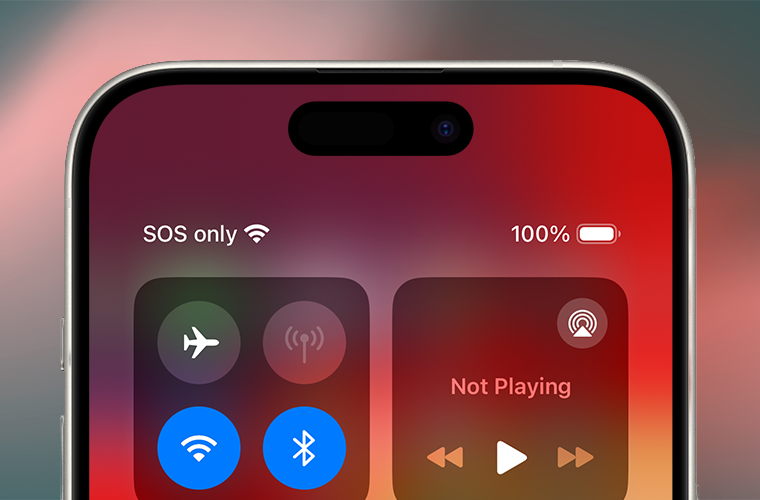
If you're seeing that little SOS where your signal bars usually sit, your phone is fine. It didn't call 911, and nobody's on the way to your door. All it means is that your phone can't reach your carrier right now – though it could still get through to emergency services on another network if you ever needed it to. It's just a status message, not something your phone went and did.
So there's no need to worry.
The good news: most cases clear in about twenty seconds. Here's the ladder, gentlest fix first:
- Toggle Airplane Mode – on for about 15 seconds, then off. Fixes most cases.
- Restart the phone if the toggle doesn't do it.
- Check your SIM or eSIM – reseat or re-add it.
- Update your carrier settings and software.
- Reset network settings – last resort only.
I'll walk you through every step below, on both iPhone and Android.
What Does "SOS" or "SOS Only" Actually Mean?
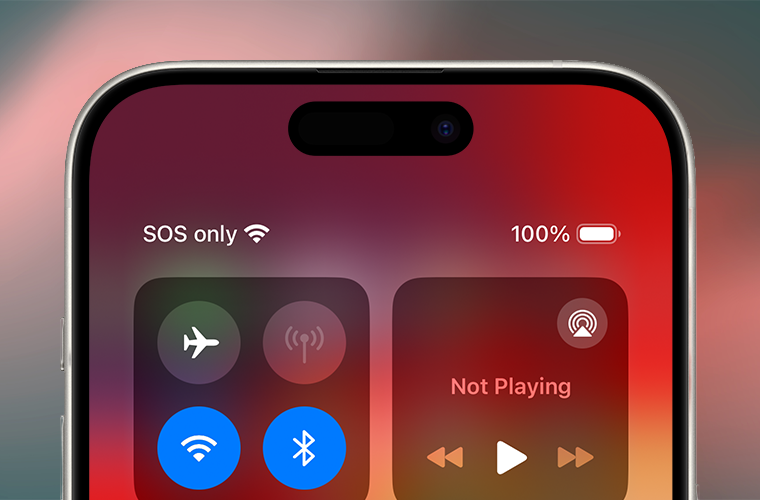
"SOS Only" means your phone isn't connected to your carrier, but it can still make emergency calls on any available network. That's the whole story. Your iPhone normally shows your carrier's name and a few signal bars up in the corner. When it loses that home connection – dead zone, outage, a SIM that's acting up – it doesn't just go dark. It quietly keeps a thin lifeline open so you can still reach 911, and it tells you so by swapping the carrier name for "SOS" or "SOS Only." Android does the same thing, it just usually phrases it as "Emergency calls only," as Samsung describes in its own troubleshooting guide.
Now the single most important sentence in this entire article:
The "SOS" status indicator is not the same thing as the Emergency SOS feature.
One is passive. One is active. The status indicator is your phone telling you it can't find your carrier. The Emergency SOS feature is the thing that actively places a call to emergency services when you hold the side and volume buttons, or press the side button five times. Same three letters, completely different situations. Some people see "SOS" in the status bar and assume their phone secretly rang the police. It didn't. Nothing was sent. No call was placed.
Quick fun fact: SOS isn't an abbreviation for "Save Our Souls" or "Save Our Ship." Those are charming backronyms invented after the fact. It's a Morse-code distress signal – three dots, three dashes, three dots – standardized internationally back in 1906–1908 precisely because the pattern is impossible to mistake for anything else. Apple and Google reused it as shorthand for "emergency-only" because it instantly reads as distress. Useful trivia for the next time someone at dinner insists it stands for something.
One more myth I'll kill here: a lot of people think "SOS" arrived with the iPhone 14. It didn't. The emergency-calls-only state has existed for years – you can find Apple Community threads from 2020 describing it. What changed in 2022 was the display: with iOS 16, Apple started showing "SOS" prominently in the status bar where the carrier name lives, which the long-running Apple publication TidBITS documented happening on an older iPhone 13 Pro after the update, not just on the shiny new 14. So if your three-year-old iPhone suddenly started "saying SOS," it isn't broken and it isn't new – you're just seeing a label Apple made louder.
"SOS Only" vs "No Service" vs Normal Signal
This is the question I get asked to clarify more than any other, so here's the whole status-bar vocabulary in one place.
| What you see | What it means | Normal calls, texts, data? | Emergency calls? | Usual cause |
|---|---|---|---|---|
| SOS / SOS Only (iPhone) | Not connected to your carrier, but can reach emergency services through other networks | No | Yes | Weak or no signal, carrier outage, SIM/eSIM issue |
| Emergency calls only (Android) | Same situation, Android's wording | No | Yes | Signal problem, missing or faulty SIM |
| No Service | Not connected to any cellular network at all | No | Possibly – a 911 call can still go through if any tower is reachable | Out of range, hardware, account or SIM problem |
| Searching | Actively hunting for a network to join | Not yet | Possibly – same as No Service | Usually temporary, entering or leaving coverage |
| Bars + carrier name | Registered and connected to your carrier | Yes | Yes | Everything's working |
A small but real distinction worth knowing: with No Service and Searching, your phone isn't holding onto any network. With SOS Only, it's specifically holding an emergency-only attachment. In the US, that emergency lifeline is backed by an FCC rule requiring carriers to route every 911 call to a dispatch center regardless of whether you're a paying subscriber. That's the legal plumbing behind why your phone can still reach help even when it's frozen you out of everything else.
Worth flagging for my European readers: Apple documents the cross-carrier "SOS only" emergency calling – the status-bar feature, not the separate satellite service I cover later – specifically for Australia, Canada, and the United States. Over here, phones more often just say "No Service" or "Emergency calls only" instead. Same underlying behavior, different label depending on where you bought the phone.
Why Is My Phone Stuck in SOS Mode?
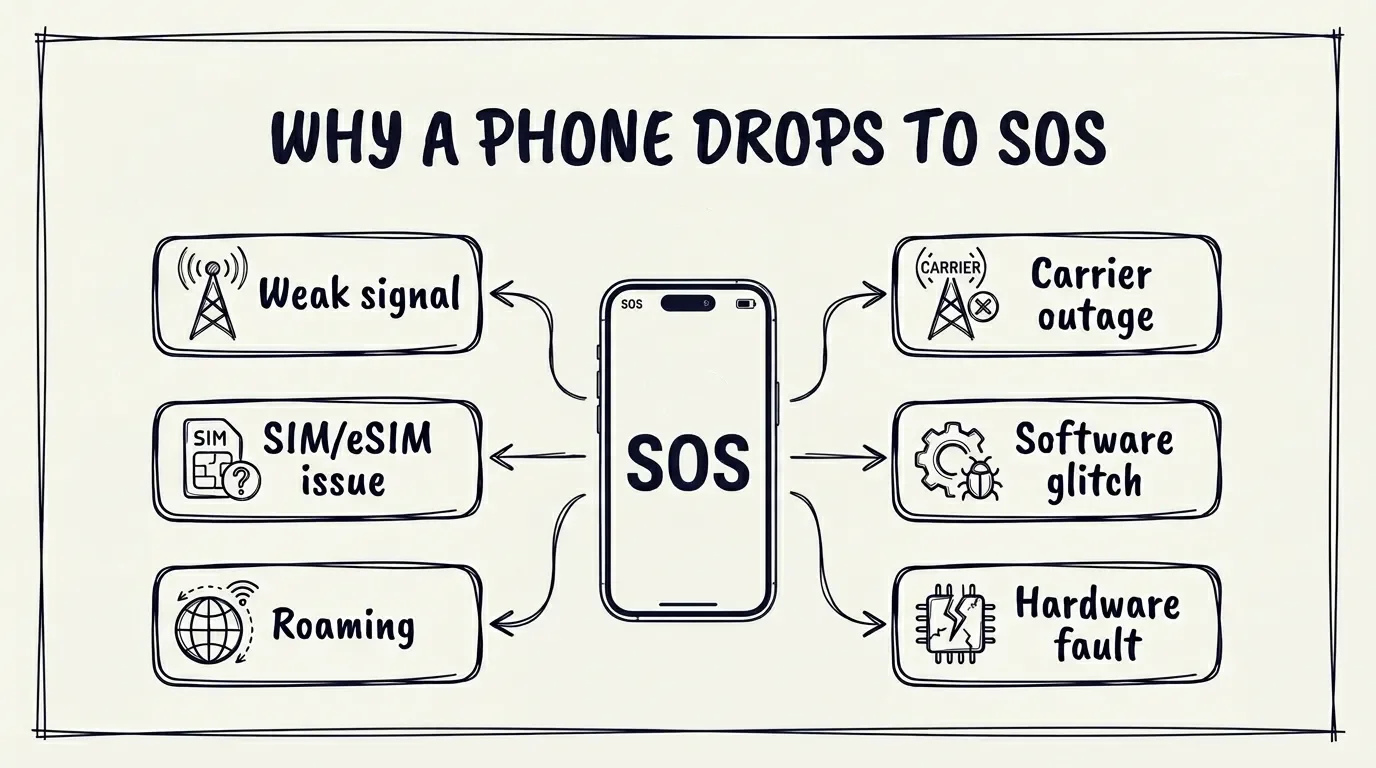
In my experience, almost every "SOS Only" case traces back to one of a handful of culprits. It's rarely the dramatic one people fear (a dead phone). Here's what's actually going on, roughly in order of how often I see it:
Weak or No Carrier Signal
Basements, elevators, rural stretches, the dead middle of a concrete parking garage. Your phone simply can't see a tower it's allowed to use. This is the boring, common answer. If your home or office is a permanent dead zone rather than a one-off, a cell signal booster like the weBoost Home MultiRoomcan pull in a usable signal where your phone otherwise sits on SOS all day.
A Carrier Outage
When your carrier's network goes down in your area, every phone on it can drop to SOS at the same moment. More on this below, because it causes mass panic.
A SIM or eSIM Problem
An unactivated, loose, damaged, or poorly migrated SIM/eSIM is a top offender – especially right after switching phones or carriers.
A Software or Carrier-Settings Issue
Sometimes a pending iOS update or an out-of-date carrier-settings bundle leaves the radio confused.
Travel and Roaming
Land in a new country, and your phone has to find and register on a partner network. While it's sorting that out, SOS or "Searching" can flash up.
The "Stuck" Phenomenon
This one's sneaky. Even after the network recovers, a phone can fail to re-register and just sit in SOS until you force the radio to reconnect. CNET noted exactly this, and I've seen it firsthand: two phones, same plan, same kitchen table – one snaps back instantly, the other clings to SOS until you toggle Airplane Mode. Maddening, but harmless.
An Actual Hardware Fault
Less common, but real. A bent SIM tray, a physically damaged SIM, or an antenna issue can keep a phone in SOS no matter how many times you restart it. This is usually what's left once every software fix has failed.
If you can roughly guess which bucket you're in, you'll fix this faster. Outage? Wait and check status pages. Just switched phones? Look hard at the SIM. Otherwise, start at the top of the ladder below and work down.
How to Get Your Phone Out of SOS Mode (Step-by-Step)
The golden rule here: start with the gentlest fix and only escalate if you have to. I've watched people jump straight to "reset all network settings" and wipe every saved Wi-Fi password in the house to solve a problem that a 15-second Airplane Mode toggle would've cleared. Don't be that person. Work down the ladder in order.
On iPhone
Move
Step outside, walk to a window, get out of the basement. If it's a coverage problem, geography fixes it for free.
Toggle Airplane Mode
Turn it on for at least 15 seconds, then off. This forces your phone to drop the radio and hunt for a fresh connection. It's also Apple's first recommended step, and honestly it's the one that works most often in my day-to-day at the store.
Restart the iPhone
Old advice, still good advice. Power all the way off, give it a few seconds, power back on. If the screen's frozen and a normal restart won't go through, force restart instead: press and release Volume Up, press and release Volume Down, then hold the Side button until the Apple logo appears. It doesn't erase anything.
Check Your Cellular Line
Go to Settings > Cellular, confirm cellular data is on, and toggle it off and back on. On a dual-SIM phone, tap the affected line and make sure it's turned on.
Look at the SIM or eSIM
Reinsert the physical SIM, or re-add your eSIM. Check that the tray isn't bent and the card isn't scratched up. As Technical Support Specialist for a major consumer electronics brand I've fixed plenty of "broken" phones by simply reseating a SIM that had jostled loose in a pocket.
Update Carrier Settings
Go to Settings > General > About and wait a few seconds – if a carrier-settings update is waiting, a prompt appears. People forget this one constantly.
Update iOS.
Settings > General > Software Update. You'll need Wi-Fi for this if you've got no cellular, which is fine.
Reset Network Settings
This is the nuclear option: Settings > General > Transfer or Reset iPhone > Reset > Reset Network Settings. Fair warning – it wipes your saved Wi-Fi passwords, cellular settings, and VPN configs. Only do this once the easier steps have failed.
Call Your Carrier
If you're still stuck, it's on the network side. Have them confirm your account is active and in good standing, there's no local outage, your device isn't barred, and your line is provisioned correctly.
If you've climbed all nine rungs and SOS is still there, that's when I start suspecting hardware – and that's a Genius Bar or repair conversation, not a settings one.
On Android (Samsung, Pixel & Others)
The logic is identical, the menus just sit in different places. Most of the time "Emergency calls only" on Android is a signal or SIM problem.
Check Your Coverage
Same as iPhone – move somewhere with better signal first.
Toggle Airplane Mode On and Off
Simple but effective. Just wait about 15 seconds before turning Airplaned Mode off again.
Restart, or Force Restart if It's Frozen
A normal restart is the first move. If the screen won't respond, force restart by holding Power + Volume Down for about 30 seconds on most Samsung phones. Neither one erases your data.
Confirm the SIM Is Detected
On Samsung, head to Settings > Connections > SIM manager and make sure your SIM shows up and is switched on.
Check the SIM or eSIM Physically
Reseat a physical SIM, confirm an eSIM is actually activated, and look for damage.
Reset Mobile Network Settings
On Samsung: Settings > General management > Reset > Reset mobile network settings. Like on iPhone, this one can't be undone, so save it for last.
Update Android / Your Phone’s Software
Go to Settings → Software update (Samsung) or Settings → System → System update (Pixel). Install pending updates and reboot afterward. Software updates often include modem (baseband) fixes and updated carrier profiles that can stop the phone from getting “stuck” in an emergency-only state.
Call Your Carrier (or Visit a Carrier Store) if It’s Still Stuck
Ask them to verify:
your line is active and provisioned correctly (no suspension / unpaid balance / SIM not fully activated)
there’s no local outage affecting your area
your device/IMEI isn’t blocked (lost/stolen list) and is allowed on the network
your SIM/eSIM is healthy – request a replacement or a fresh eSIM re-provision if needed
If the carrier confirms everything looks good and SOS persists across locations, that’s when it starts to look like a hardware/antenna issue rather than a settings one.
One honest caveat: The exact recovery menus shift between Android versions, so if your screen doesn't match mine, the order of operations above still holds – signal, airplane mode, restart, SIM, reset, carrier.
One thing you don't need on either platform: a full factory reset. Wiping the phone won't bring back a carrier signal – the problem is the network or the SIM, not your data – so you'd lose everything for nothing. Save that drastic step for genuine software corruption, not an SOS badge.
"But I Have Wi-Fi!" – Why SOS Only Still Shows
This is the objection I hear within about ten seconds of explaining SOS to someone: "That can't be right, my Wi-Fi is working fine."
Right – and that's the trap. Wi-Fi and cellular are two completely separate radios doing two completely separate jobs. Your Wi-Fi can be flawless while your cellular connection is dead in a ditch. The SOS indicator is only reporting on the cellular side. Your Netflix streaming away in the background has nothing to say about whether your phone can reach a cell tower.
The thing that can bridge the gap is Wi-Fi Calling – it lets you place and receive regular calls and texts over your Wi-Fi connection even while the status bar still reads SOS. NBC covered this during a wireless outage, and it's genuinely useful – if it's turned on and your carrier actually connects it. The frustrating part, and I'll be straight with you here, is that it doesn't always switch over on its own. People on Reddit described having to build a Shortcut just to force it, grumbling that "Apple and Verizon point the finger at each other." That's a single anecdote rather than documented behavior, so take it as a heads-up, not gospel.
But the practical takeaway is solid: switch on Wi-Fi Calling before you ever need it (on iPhone: Settings > Cellular > Wi-Fi Calling). That way, when SOS strikes during an outage, you're not cut off – you're just routed through your router. And because Wi-Fi Calling is only as good as the Wi-Fi behind it, solid whole-home coverage from something like an eero 6+ mesh system keeps you reachable in the spots where your carrier signal drops to SOS.
Carrier Outages & Network Issues (Verizon, AT&T, T-Mobile)
Here's the scenario that turns one panicked person into a hundred panicked people at once: a carrier outage.
When a major carrier's network goes down across a region, every phone on it can flip to SOS simultaneously. It feels like a personal phone failure, but it's a network failure that you happen to be sharing with thousands of strangers. The Verizon outage on January 14, 2026 was a textbook case – phones across the country dropped into SOS Only at the same time – an outage significant enough that the FCC opened a formal inquiry into it. There was nothing wrong with any individual phone. The network was down, full stop.
The move during an outage is not to climb the whole troubleshooting ladder – you'll just exhaust yourself resetting network settings on a problem you can't fix from your couch. Instead:
Check whether it's just you. Ask someone nearby on the same carrier. If they're down too, it's an outage.
Check your carrier's status page (Verizon, AT&T, and T-Mobile all publish one) or a third-party outage tracker.
Lean on Wi-Fi Calling to stay reachable while you wait, per the section above.
Then wait. When the network comes back, your phone usually reconnects on its own – and if it gets "stuck," a quick Airplane Mode toggle nudges it home. And since a phone stuck hunting for signal chews through battery, keeping a compact power bank like Anker's MagGo 10K in your bag means a long outage doesn't also leave you with a dead phone.
SIM & eSIM Problems That Cause SOS
If you just switched phones, swapped carriers, or migrated from a physical SIM to an eSIM and then started seeing SOS – stop and look here first. In my experience this is the single most common counter visit that isn't an outage.
You've already reseated and re-added the SIM up in the step-by-step, so I won't repeat those motions here. This section is about something different: working out whether a SIM problem is really what you're dealing with – and what actually fixes it for good.
The tell is in the symptoms. A SIM-driven case usually reads as "No SIM available," a SIM that simply won't activate, or a phone that keeps dropping into SOS every few hours for no obvious reason – very often starting the same day you changed something. If that's your pattern, here's how I sort it out:
Rule It In or Out First
Signal and outage problems come and go with where you are and what time it is. A SIM problem follows the phone everywhere and almost always traces back to a recent swap, port, or migration. If yours does, you're in the right section.
Confirm the eSIM Is Genuinely Activated
Not just half-set-up. Interrupted migrations are the quiet culprit behind a huge share of "it worked for an hour, then SOS" cases.
When in Doubt, Swap to eSIM
This is the fix that actually sticks. I've lost count of the customers whose recurring SOS vanished the moment we retired a flaky physical SIM for an eSIM. Reddit is full of the same story – one guy wrote that "both times, we fixed it by going to Verizon and they replaced the physical sim with an ESIM." That matches what I see at my job almost exactly.
If a fresh eSIM or a carrier-issued replacement SIM still lands you back on SOS, that's your strongest sign yet that this is a hardware diagnosis, not something you'll fix in Settings.
Bonus: How to Turn Off Emergency SOS (Stop Accidental 911 Calls)
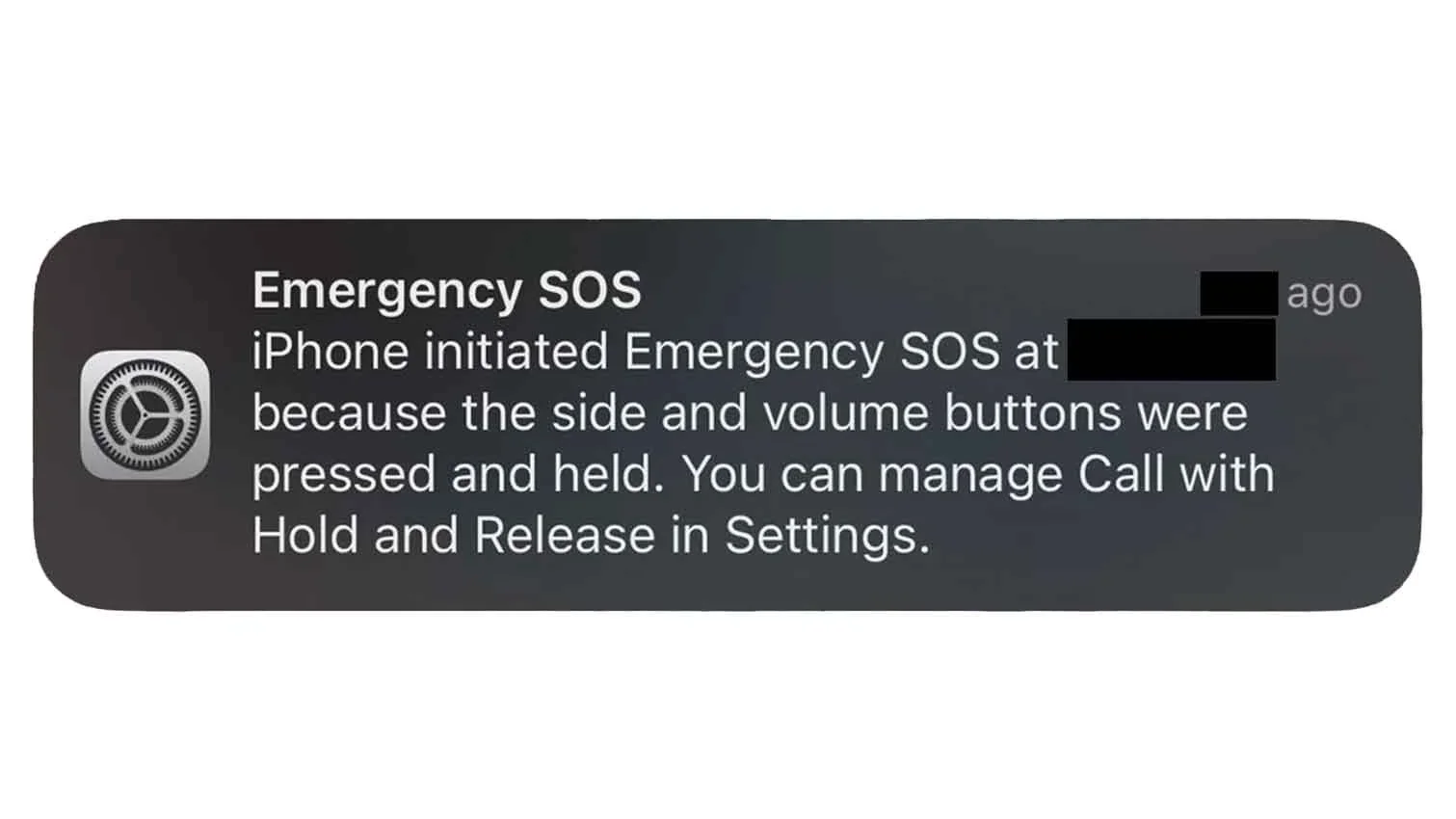
Quick but important pivot, and I'm putting up a flag before we start: this section is about a different feature than everything above.
Everything so far has been about the status indicator – your phone telling you it lost signal. This is about the Emergency SOS feature – the thing that actively dials emergency services when you mash the buttons. People land on this looking to stop accidental pocket-dials to 911, which is a real and surprisingly common headache (ask anyone whose phone has "butt-dialed" dispatch from a jacket pocket on a cold day).
Here's how to tame it:
iPhone
Go to Settings > Emergency SOS. You can turn off Call with Hold and Release, Call with 5 Button Presses, and Call Quietly. Switching these off stops the accidental triggers – and importantly, the manual Emergency SOS slider still works if you ever deliberately need it, per Apple.
Samsung
Settings > Safety and emergency > Emergency SOS. Depending on your One UI version you may be able to switch it off entirely; on phones updated after June 2023 you can't fully disable auto-dialing, but you can set a null emergency number to neutralize it and stretch out the countdown.
Pixel / Other Android
Settings > Safety & emergency > Emergency SOS. One caveat worth knowing: per the emergency-services trade body NENA, Android's Emergency SOS can't be fully disabled, but on most modern phones the auto-call countdown now defaults to off – so a five-press prompts you rather than silently calling.
And while we're near the topic, since iPhone 14+ owners sometimes conflate all of this: Emergency SOS via satelliteis yet another separate feature, for contacting help when you're genuinely off-grid with no signal at all. It's free for two years after you activate an iPhone 14 or later, and Apple has extended that free window more than once – currently keeping it free until at least November 2026 – with no post-free pricing announced yet. It has nothing to do with the "SOS Only" badge that brought you here – it just shares the unfortunate name. If you're on Android or spend real time off-grid where even "SOS Only" disappears, a dedicated communicator like the Garmin inReach Mini 2 gives you two-way messaging and an SOS button over satellite, no carrier required.
The Bottom Line
If you take one thing away: "SOS" or "SOS Only" is your phone reporting that it can't reach your carrier – not your phone calling for help. It's a status, not an emergency, and it's almost always fixable in a couple of minutes.
Run the ladder in order. Move, toggle Airplane Mode, restart, check the SIM, update carrier settings, and only reset network settings if you truly have to. If you're in the middle of a carrier outage, skip the gymnastics, lean on Wi-Fi Calling, and wait it out. And if you've done all of that and the badge won't budge – especially if your phone's had a rough physical life – that's your cue to call your carrier or book time with Apple or Google support rather than keep fighting it alone.
Most of the time, though? Fifteen seconds of Airplane Mode and you're back to bars. Not bad for something that looked, for a moment, like a real emergency.
Have you had your own standoff with a phone stuck on SOS – an outage that knocked out a whole room at once, or a SIM swap that finally broke the loop? Tell me what actually worked for you in the comments below, and flag whether you're on iPhone or Android, since I'm always collecting more first-hand Pixel and Galaxy cases.
If you'd rather have this kind of plain-English phone troubleshooting in your pocket before the next outage catches you out, my tech newsletter walks through one real-world fix like this every week (and much more). See you there. :)

FAQ
-
Yes, usually. A phone that's constantly hunting for a network it can't reach keeps its radio working overtime, and that burns through battery quicker than a normal day. If you know you're stuck in a dead zone or waiting out an outage, switching on Airplane Mode actually conserves power until there's a signal worth chasing.
-
Not over cellular. Regular SMS and cellular iMessage won't leave your phone in this state. But if Wi-Fi Calling is switched on and connected, calls and texts can still go through over Wi-Fi, and iMessage will send over any working Wi-Fi network. As I covered above, that Wi-Fi handoff isn't always automatic, so it's worth confirming it's enabled before you actually need it.
-
No, and it's an easy mix-up. Airplane Mode is something you deliberately switch on to cut every wireless radio at once, while SOS Only happens on its own when your phone loses your carrier but keeps an emergency lifeline open. The tell is simple: Airplane Mode shows a small airplane icon and blocks emergency calls too, whereas SOS Only still lets you dial 911.
-
No. It's purely a network-connection status, not a security alert, and it has nothing to do with malware or someone getting into your phone. If you see SOS, point your attention at signal strength, your SIM, and your carrier's status page, not your antivirus app.
-
It depends entirely on what's causing it. A dead-zone case clears the second you walk back into coverage, an outage lasts until your carrier patches it, and a "stuck" phone snaps out of it as soon as you toggle Airplane Mode or restart. If it drags on for days while everyone around you has full bars, treat that as your cue to check the SIM or call your carrier.
-
They can. An expired prepaid balance, a line that was deactivated, or a phone that was never fully activated all leave the device with no carrier to register on, which lands it in SOS or "No Service." If you just picked up a used phone or let a prepaid plan lapse, start by confirming the account and SIM are actually active before you troubleshoot anything else.





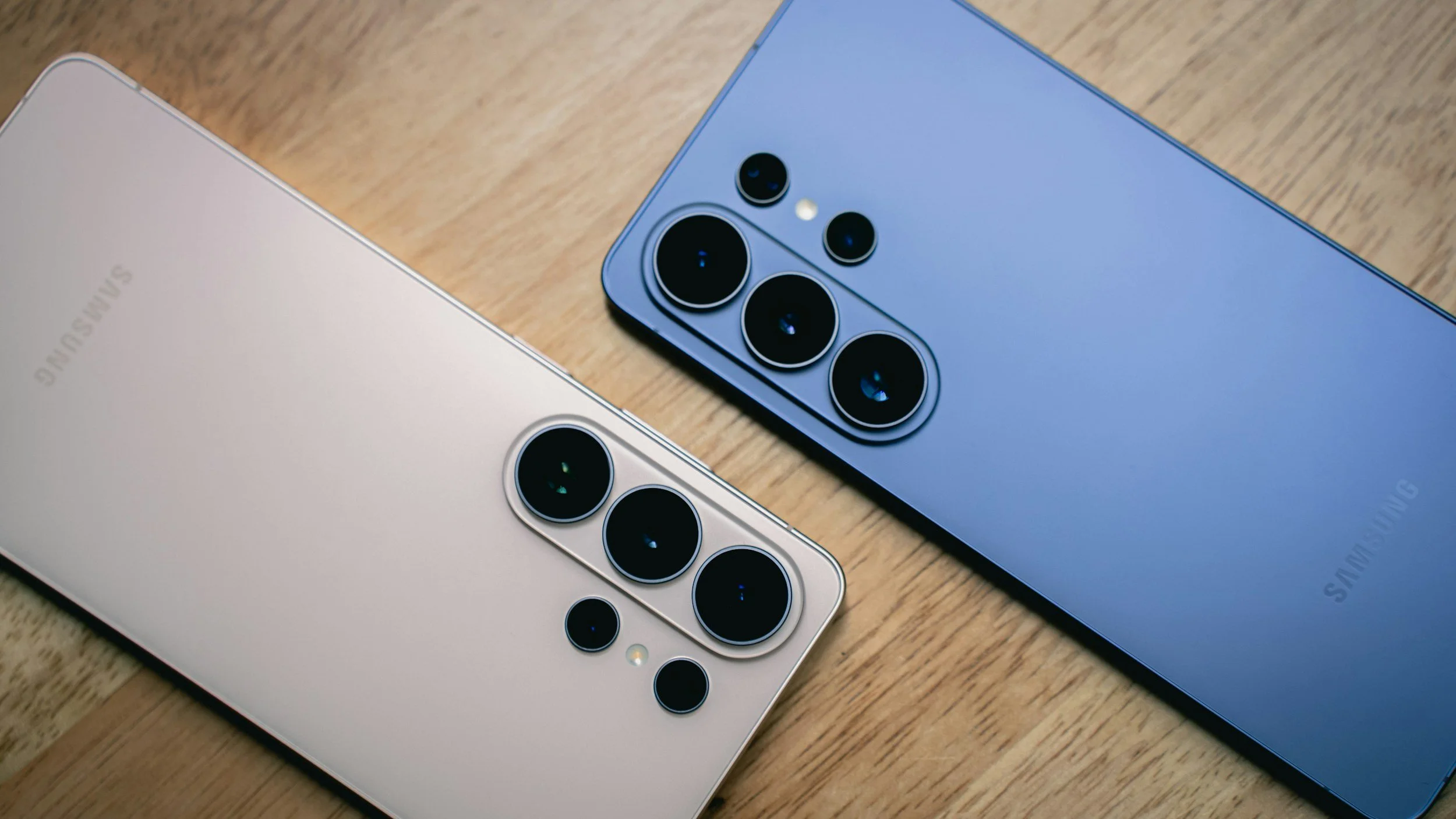



Every Galaxy S flagship since the S7 is IP68 rated – but IP68 isn't waterproof. See the exact rating for every Samsung Galaxy model and what really voids it.