
iPhone Won't Turn Off? Here's How to Fix It on Any Model (2026)
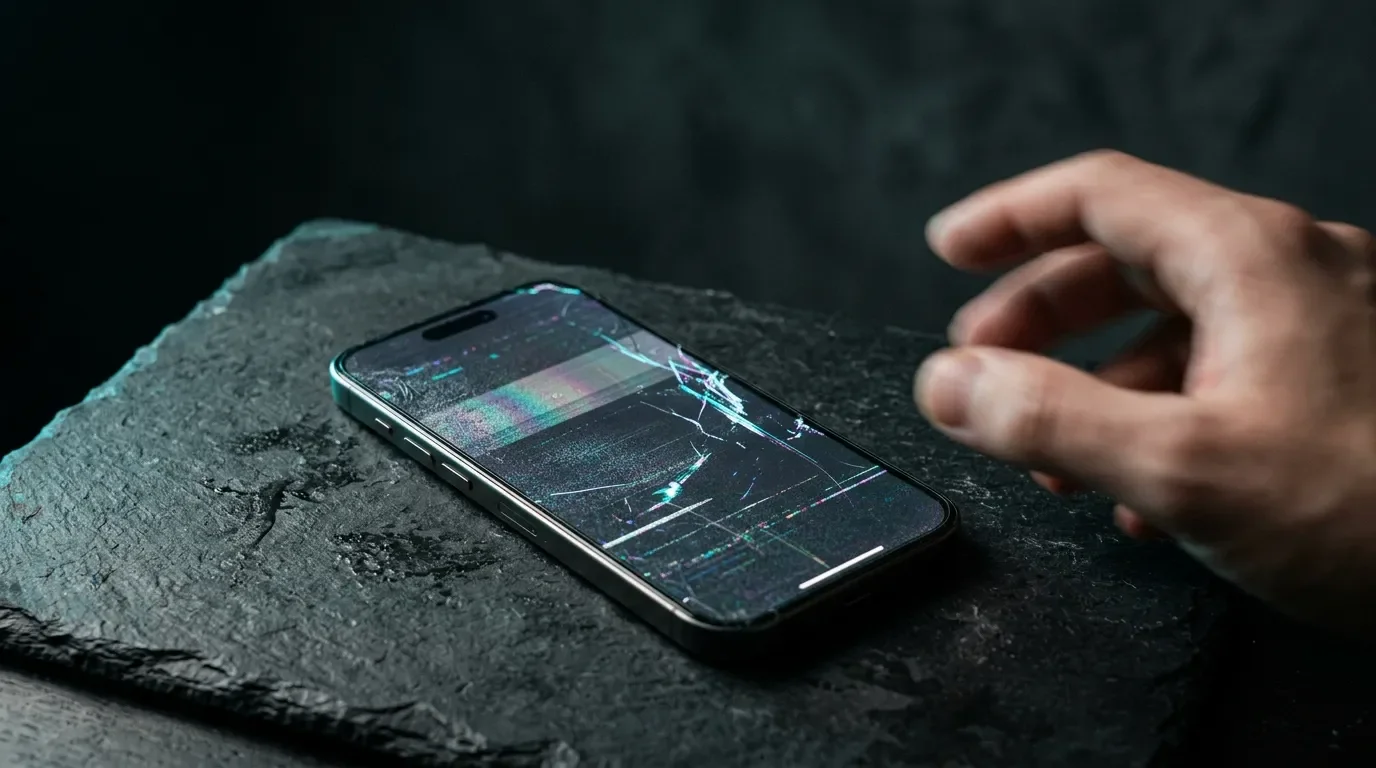
An iPhone that won't turn off is somehow more annoying than one that won't turn on. The screen is stuck, the buttons feel useless, and the one thing you're asking your phone to do – just shut down – is the one thing it refuses. I work part-time in technical support, and this exact problem lands in front of me almost every week. The good news? In most of those conversations, the fix takes about fifteen seconds. You just have to know the sequence – and, more importantly, the timing.
The Quick Fix: Force Restart Your iPhone
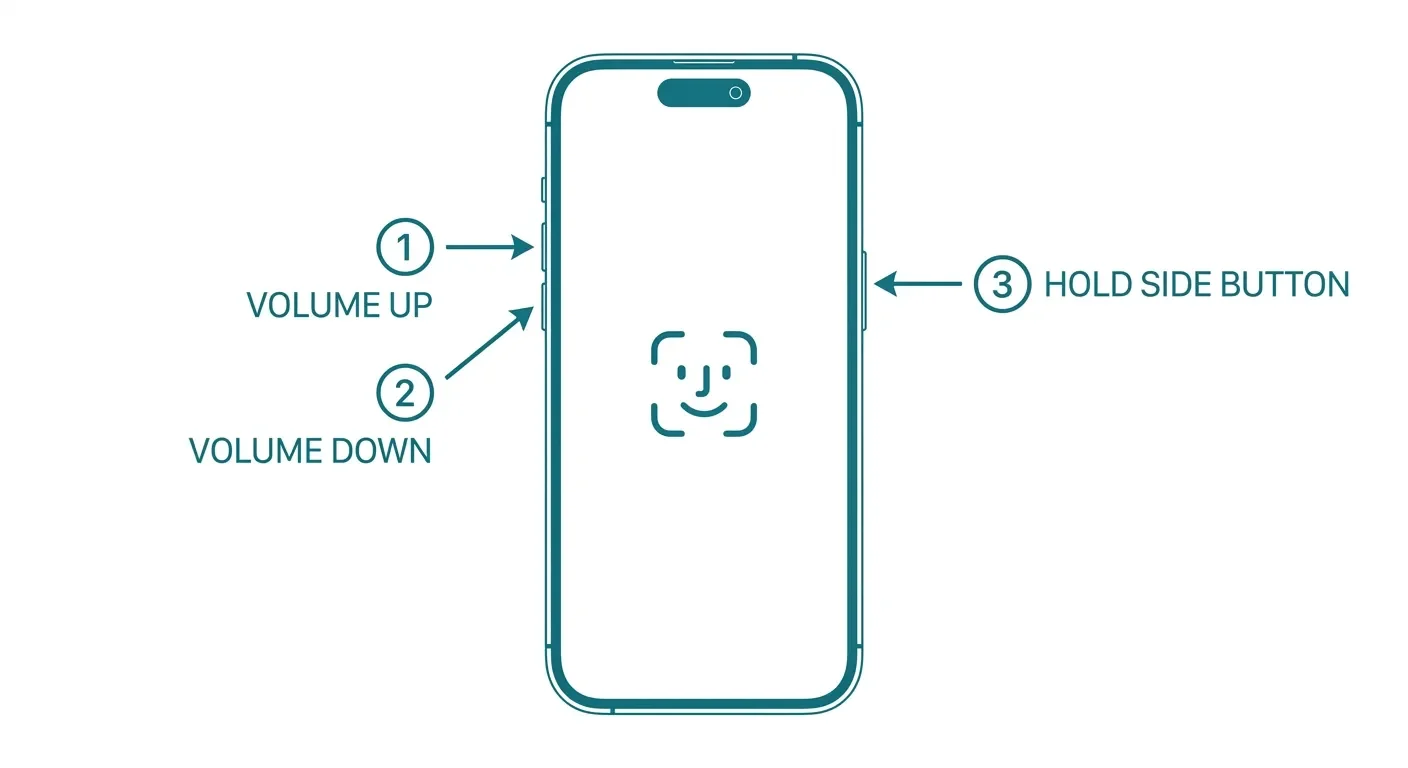
If your iPhone is frozen and won't turn off, here's what to do on an iPhone 8 or newer (that includes every Face ID model):
Press and quickly release the volume up button.
Press and quickly release the volume down button.
Press and hold the side button.
Keep holding until the Apple logo appears, then let go.
That's the whole trick. It's called a force restart, and it's Apple's documented procedure for an iPhone that isn't responding and can't be turned off normally. One thing Apple itself points out: that final hold on the side button can take longer than 10 seconds. Don't give up early. And if the "slide to power off" screen flashes by while you're holding – ignore it and keep holding. More on that in a minute, because it's the single most common mistake I see.
A force restart is basically the iPhone equivalent of holding down the power button on a crashed laptop. It skips the polite conversation. It's also not a reset: Apple documents erasing your iPhone as a completely separate, deliberate procedure. A force restart is just a restart.
Why Your iPhone Won't Turn Off in the First Place
A normal shutdown depends on your screen cooperating. On an iPhone with Face ID, you hold either volume button together with the side button, wait for the power-off slider, drag it, and then give the phone up to 30 seconds to actually shut down. See the problem? If the software is frozen, the slider either never shows up or won't respond to your finger – and the regular off-switch is out of reach.
That's exactly the scenario the force restart exists for. Apple's consumer documentation doesn't explain what happens under the hood, so I won't pretend to know the internals either. Practically speaking: the normal shutdown asks your iPhone nicely, and the force restart doesn't ask.
There's a second possibility worth naming early: it's not the software, it's the hardware. A failing screen or a stuck side button produces very similar symptoms. I'll cover how to tell the difference further down.
Force Restart Steps for Every iPhone Model
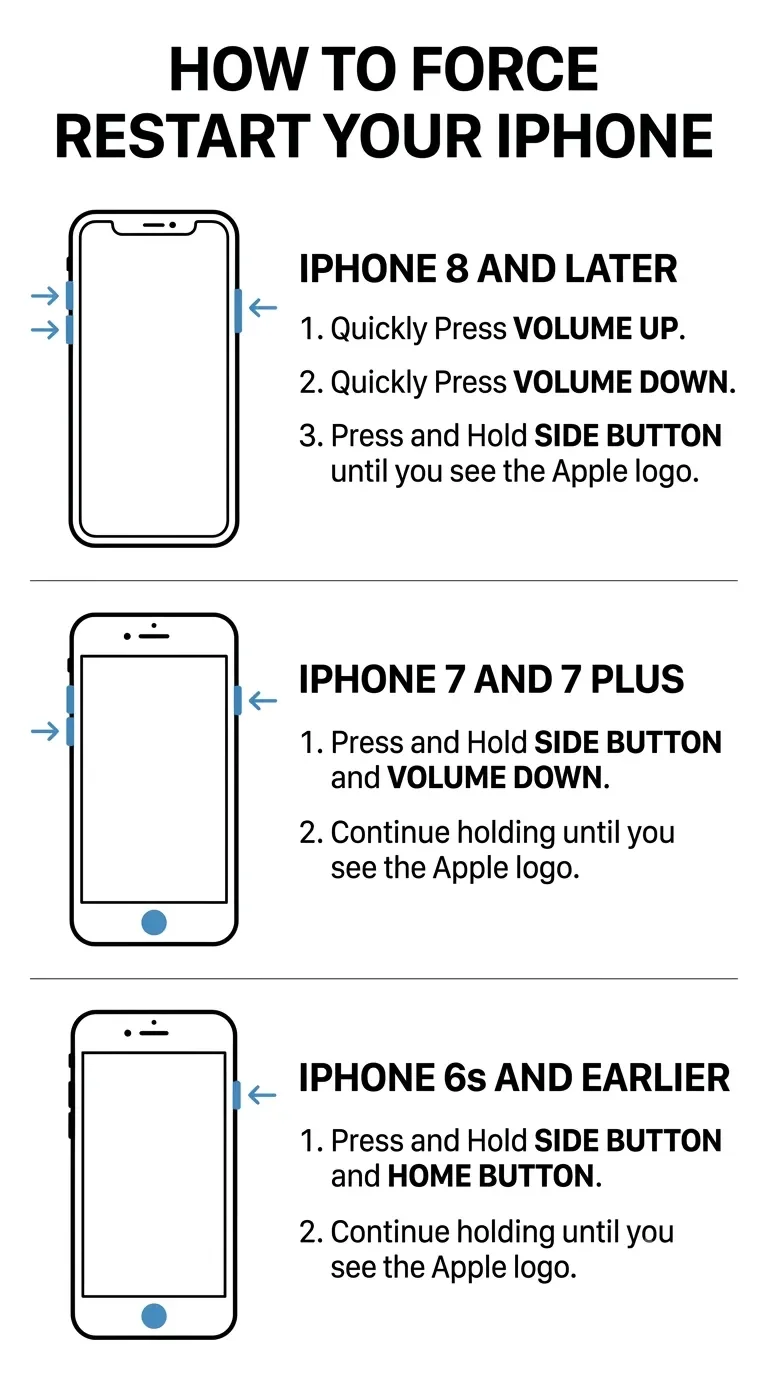
The button combination depends on how old your iPhone is. Here's the full breakdown:
| Your iPhone | Force restart sequence |
|---|---|
| iPhone 8 and later (all Face ID models) | Quick-press volume up, quick-press volume down, then hold the side button until the Apple logo appears |
| iPhone 7 and 7 Plus | Hold the side button and volume down together until the Apple logo appears |
| iPhone 6s and earlier, incl. iPhone SE (1st gen) | Hold the Home button and the top (or side) button together until the Apple logo appears |
iPhone 8 and Later (Every Face ID Model Included)
Quick volume up. Quick volume down. Hold the side button. The first two presses are taps, not holds – press and release each one immediately, then commit to the side button until the logo shows up.
iPhone 7 and 7 Plus
The 7 is the odd one out: hold the side button and volume down at the same time and keep both pressed until you see the Apple logo.
iPhone 6s and Earlier (Including the Original iPhone SE)
On Home-button classics, hold the Home button and the top (or side) button together until the Apple logo appears. If one of these is still your daily driver, respect – that thing has earned its occasional freeze.
The Timing Mistakes I See Every Week
This is where I see force-restart attempts fail most often at the store: the sequence itself is rarely the problem – the rhythm is. The three classics:
Pressing the volume buttons too slowly. The first two steps are quick, separate taps: up, down, done. If you press-and-hold each volume button, the phone reads it as something else entirely. Think tap, tap, hooold – almost like a short drum fill.
Letting go when "slide to power off" appears. This one gets nearly everyone. Halfway through the hold, the power-off slider can show up, and it feels like a finish line. It isn't. Release there and you're back to square one – on a frozen screen, that slider won't even respond. Hold straight through it until the Apple logo appears.
Giving up too early. Apple's own wording is that the hold may take longer than 10 seconds. Longtime helpers in Apple's support communities mention 20 or even 30 seconds – that's community experience, not an official spec, but it matches what I see on the shop floor. My rule: hold until the logo shows up, however long that takes. If nothing happened after 30 seconds, reset your fingers and run the sequence again from the top. The timing is a little critical, and a second or third attempt is completely normal.
Stuck on "Slide to Power Off"?
Sometimes the slider shows up just fine – and then ignores your finger. Same playbook: run the force restart sequence for your model. Its whole point is that it works through the physical buttons, so an unresponsive touch screen can't block it.
How to Turn Off Your iPhone Without the Touch Screen
Two very different situations hide behind this question, and they need opposite answers.
Broken or unresponsive screen, working buttons. The supported move is the force restart above – Apple's documentation handles an unresponsive phone with a restart, not a shutdown. Being honest with you: Apple doesn't document a buttons-only sequence for leaving a modern iPhone fully powered off, because the normal shutdown flow runs through the onscreen slider. If the screen stays dead or erratic after a restart, work through Apple's screen troubleshooting: clean and dry the screen (I keep a pack of MagicFiber microfiber cloths around for exactly this – cheap, washable, and safer than a shirt sleeve), unplug accessories, take off the case and screen protector (cheap protectors cause more "broken" screens than customers ever expect), and if it still misbehaves, it's a service case.
Broken side button, working screen. This is what AssistiveTouch is for. Enable it under Settings > Accessibility > Touch > AssistiveTouch, and you get an on-screen menu that can restart the phone and stand in for several physical buttons (setup guide here). The catch is obvious once you say it out loud: AssistiveTouch needs a working touch screen. It's a substitute for broken buttons, not for a broken display – so if your side button is getting mushy, set it up before the button quits entirely.
If the Force Restart Didn't Work
No logo, no reaction, still frozen? Escalate in this order:
Charge for One Hour, Then Try Again
Apple's troubleshooting flow puts charging right after the restart attempt. If you see the low-battery icon, check the cable, adapter, and port and give it at least 30 minutes. If you suspect the cable or adapter, test with known-good gear – an Anker Nano 30W USB-C charger plus the right cable for your model: the Apple USB-C Woven Charge Cable for an iPhone 15 or newer, or the Apple USB-C to Lightning Cable for older models.
Recovery Mode – if Your Buttons Work
When a computer no longer recognizes the phone, or it's stuck on the Apple logo without a progress bar, recovery mode via a Mac or PC is the next step.
Know the Difference Between Update and Restore
A full factory restore erases the iPhone's information and settings and installs the latest version of iOS. Apple notes that restoring an iPhone does not delete its eSIM. If the phone is still accessible at all, make a backup first. This is the step where my inner lawyer-in-training insists you read before you tap.
Restore Nearby, if the Prompt Appears on a Supported Model
Apple currently limits this computer-free option to specific iPhones and iPads. Connect the affected device to power, place it beside an unlocked iPhone or iPad running iOS or iPadOS 18 or later on supported Wi-Fi, and follow Apple's Restore Nearby instructions.
When It's a Hardware Problem (and What Apple Can Actually Do)
Here's the uncomfortable part of the flowchart: every method above needs something to work – the buttons, the screen, or both. If your side button is physically stuck or broken, you can't run the force restart as documented, and Apple points those cases to service rather than recovery mode.
From the store side, I can tell you how these conversations usually go. We check whether the button clicks and the screen responds, and the first question is always the same: is there a backup? Do that part now, while your phone is healthy – it turns a hardware failure from a small disaster into an errand. As for cost, I genuinely can't quote you a number here, and you should be skeptical of any article that does: pricing depends on model and region, and the final fee follows an inspection. Apple's repair estimator gives you a current estimate for your exact model and country in about a minute.
Keeping It from Happening Again
I'll be straight with you: a successful force restart tells you the phone recovered, not why it froze – and anyone who diagnoses a logic board from that one symptom is guessing. What you can reasonably do:
Keep iOS updated. Unglamorous, effective, and the first thing any technician will ask about.
If the screen acts up intermittently, run through Apple's screen checklist – case off, protector off, accessories unplugged – before assuming the worst.
If freezes become a pattern, stop force-restarting your way around the problem and have the device looked at. A restart that you need weekly isn't a fix; it's a symptom.
The 60-Second Checklist
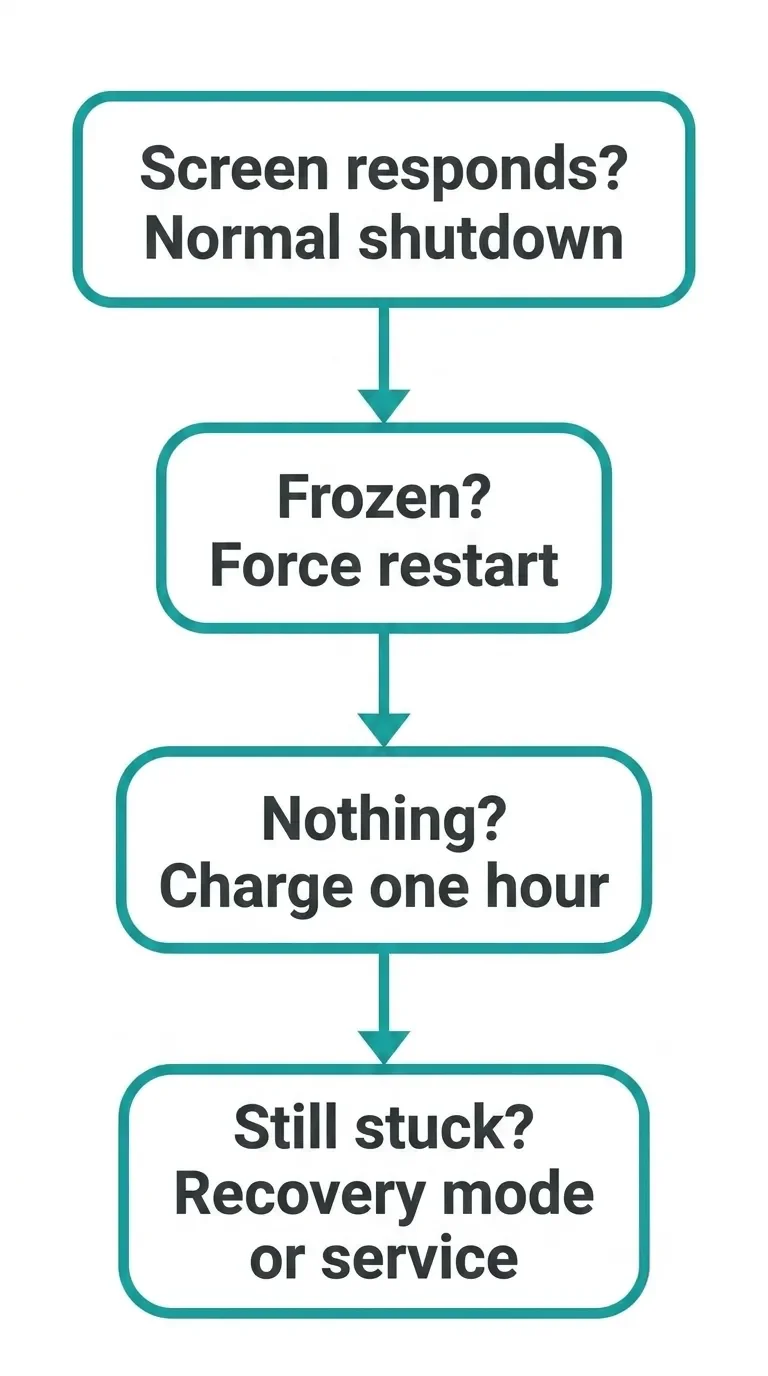
[ ] Screen responds? Do a normal shutdown and give it up to 30 seconds.
[ ] Frozen? Run the force restart for your model – quick, quick, hold, and hold through the power-off screen until the Apple logo.
[ ] Nothing? Charge for one hour, then try again.
[ ] Stuck at the logo or invisible to your computer? Recovery mode – and remember that a full Restore erases the phone's information and settings, so back up if you still can.
[ ] Broken button, dead screen, or recovery fails? Book service.
And if your iPhone ends up in the opposite situation – completely dark and refusing to start at all – follow my guide to fix an iPhone that won't turn on.
Did the force restart land on your first try, or did you have to fight the timing like almost everyone does? Tell me which model you were wrestling with in the comments below, especially if your sequence behaved a little differently than what's here.
For weekly tech news, honest reviews, practical tips, and the occasional troubleshooting walkthrough, you can join my tech newsletter.





FAQ
-
No, a force restart is a restart, not an erase. Apple documents wiping your device as a completely separate, deliberate procedure, so forcing a reboot doesn't clear your photos, apps, or settings. The one honest caveat: Apple doesn't explicitly promise that unsaved work sitting in an open app survives, so if something didn't get a chance to save or sync, don't count on it being there afterward.
-
An occasional force restart is an Apple-recommended troubleshooting step when your iPhone is unresponsive. If you need it every few days, however, the recurring freeze deserves further investigation. As I covered above, a restart you rely on weekly isn't a fix, it's a symptom. If you're reaching for that button combo constantly, that's your cue to update iOS and, if it continues, get the phone looked at.
-
Start with the force restart. If the Apple logo appears and the phone comes back to life, the restart worked – but it doesn't prove what caused the freeze. If nothing happens after a correctly timed attempt, charge the iPhone for one hour and try again before blaming the screen or buttons. If it still shows no response, or a required button is stuck or broken, service may be necessary.
-
Apple doesn't publish an alarm-specific shutdown procedure. If the required buttons work, use the standard force restart for your model; that's Apple's documented response when the phone won't respond. If the buttons themselves are dead or stuck, you're back in hardware territory and the fix is service, not a sequence.
-
A full factory Restore erases the iPhone's information and settings and installs the latest version of iOS, although Apple notes that it doesn't delete the eSIM. That's exactly why I told you to back up before you go anywhere near it. Apple's current recovery documentation doesn't give a clean guarantee that every alternative recovery action leaves your data untouched, so protect your data first.
-
Not in the way most people hope. As covered above, Apple's buttons-only sequence on a frozen phone triggers a restart, not a lasting shutdown, and the normal "power all the way off" flow runs through the onscreen slider. If your screen is genuinely dead, the realistic options are a force restart to get it responsive again, or service if it stays dark.







MacBook not turning on? Step-by-step fixes for MacBook Air, Pro, Neo and Intel models – from force restart and charger checks to when you actually need a repair.