
iPhone Overheating? Why It Happens and How to Fix It (2026)
The Short Version
For iPhone overheating, stop using it, unplug it, move it to shade, and let it cool naturally.
- Never use a fridge, freezer, ice pack, or water – rapid cooling can create new risks.
- Repeated warnings, idle heat, or swelling mean troubleshooting should stop and professional inspection should begin.
- Most cases trace back to workload, charging, weak signal, updates, or direct sunlight.
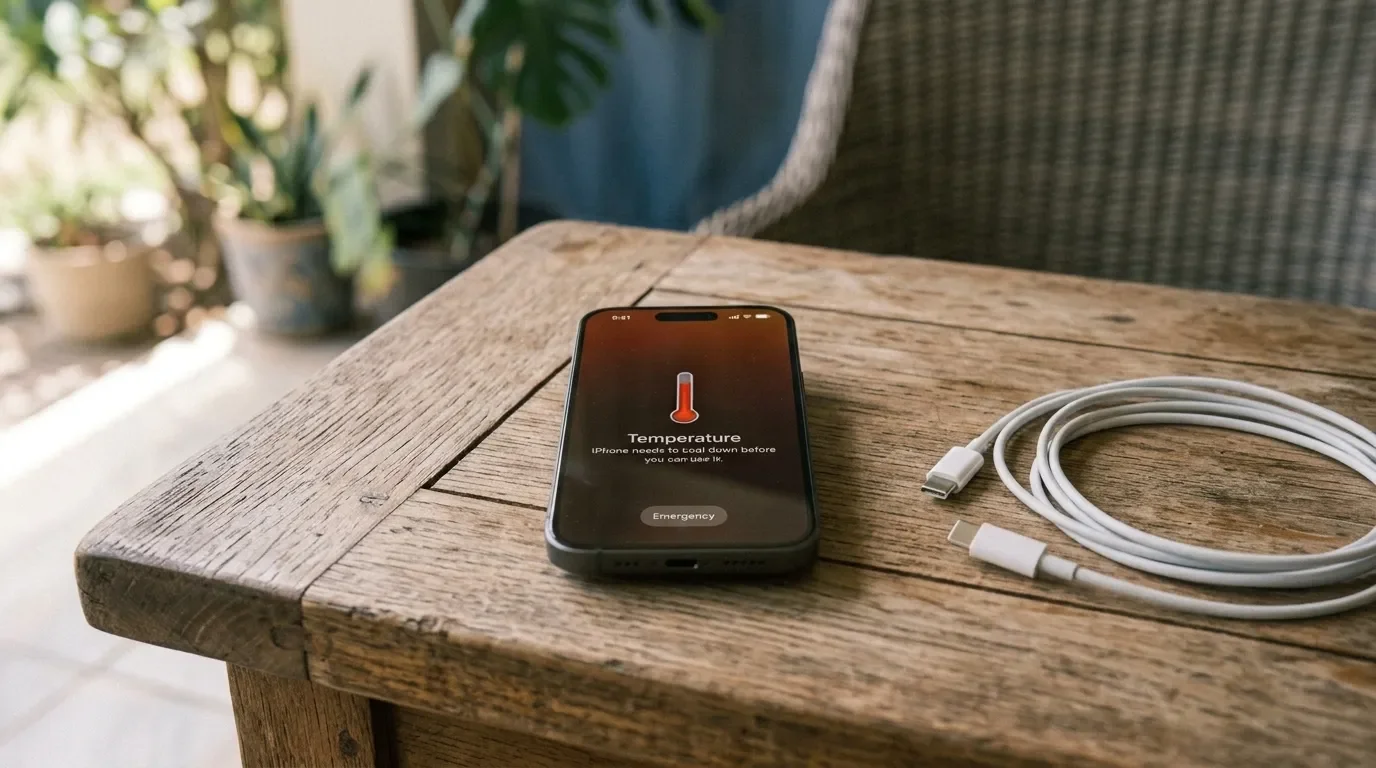
A warm iPhone is usually fine. A hot one that keeps throwing temperature warnings is not. Apple itself says it's normal for an iPhone to get warm during charging or heavy use (Apple's handling guidelines) – the chip is doing work, and work produces heat. The problem starts when the heat doesn't match what the phone is actually doing, or when iOS starts pulling emergency brakes: dimming the screen, pausing charging, or showing that dreaded thermometer screen.
If your iPhone is too hot to handle comfortably right now, here's the short version: stop what you're doing on it, unplug it, get it out of direct sunlight, and let it cool down on its own. That's Apple's official recovery procedure, and it works for every model, from older ones like the iPhone X to the newest iPhone 17. Whatever you do, don't put it in the fridge. I'll explain why in a minute.
I work part-time in technical support, and overheating questions come up constantly – especially in summer. Most of the time, the cause turns out to be something mundane. Occasionally, it's a genuine battery problem. This guide walks you through how to tell the difference.
Is It Normal for an iPhone to Get Hot?
Let's set the baseline first, because "hot" is doing a lot of heavy lifting in that question.
Apple designs the iPhone to be used at ambient temperatures between 0 and 35 °C (32 to 95 °F) and stored between −20 and 45 °C (−4 to 113 °F), according to its published temperature specs. Notice how narrow that usage window actually is. A parked car can exceed that storage range surprisingly quickly – which is exactly why Apple calls out parked cars as a risk.
Within that window, warmth is expected in a bunch of situations:
First-time setup or restoring from a backup. The phone is indexing everything you own. It gets warm. That's normal.
The hours after an iOS update. Background optimization keeps running after the progress bar disappears. Apple confirms that setup and update activity can temporarily affect thermal performance.
Charging, especially wireless and fast charging.
Gaming, AR apps, 4K video recording, video calls, and navigation. Sustained processor and GPU load, often with the screen at full brightness.
Hotspot use and big uploads. The radios work hard, and radios produce heat.
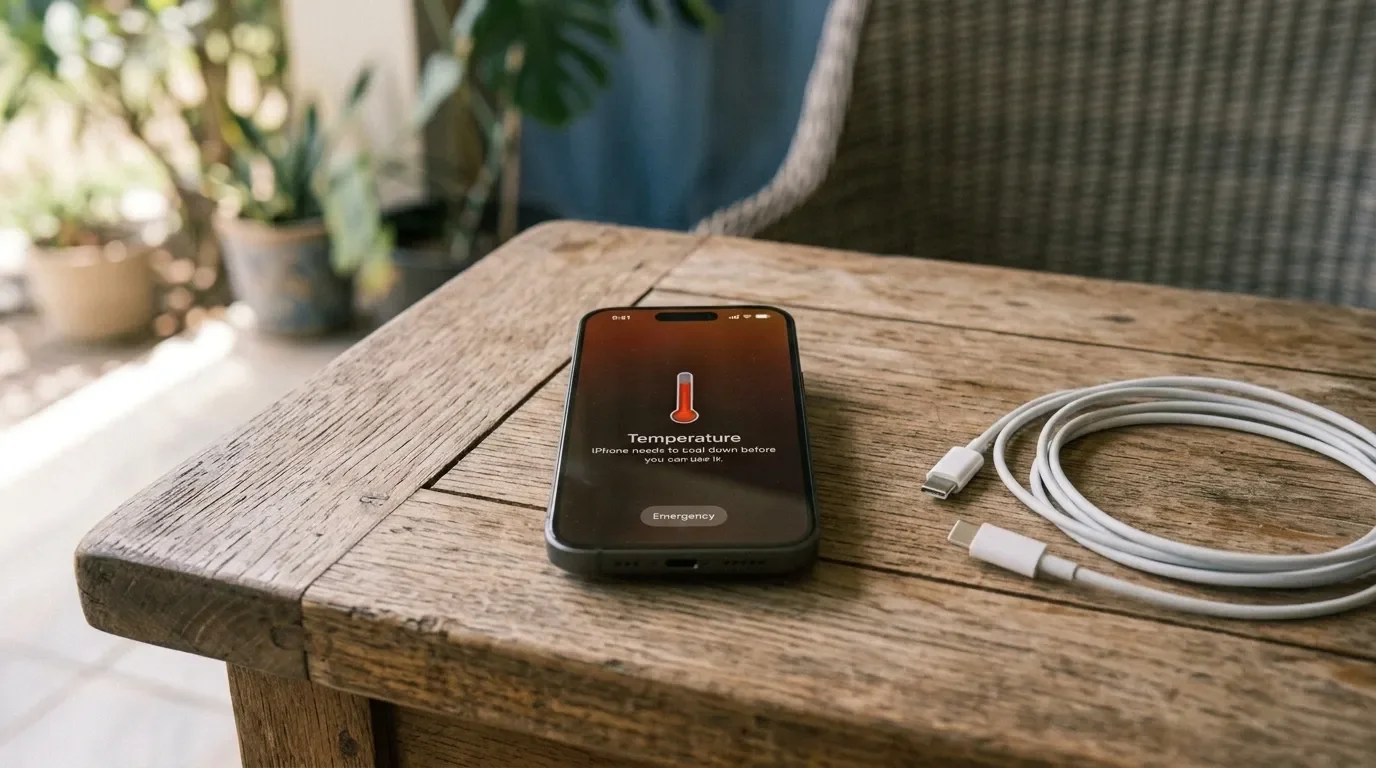
So when is it actual overheating? Watch for the phone protecting itself. When the internal temperature climbs too high, iOS starts shedding load, and Apple documents these symptoms clearly: charging slows or stops, the display dims or goes black, the camera flash gets temporarily disabled, cellular radios drop into a low-power state, and performance visibly drops. In the worst case, you get the temperature warning screen – the phone locks you out of everything except emergency calls until it cools down.
One warning after an hour of navigation on a sunny dashboard? Understandable. Warnings during normal indoor use, or a phone that's hot while sitting idle on your desk? That's a phone telling you something is wrong.
Why Is My iPhone Overheating?
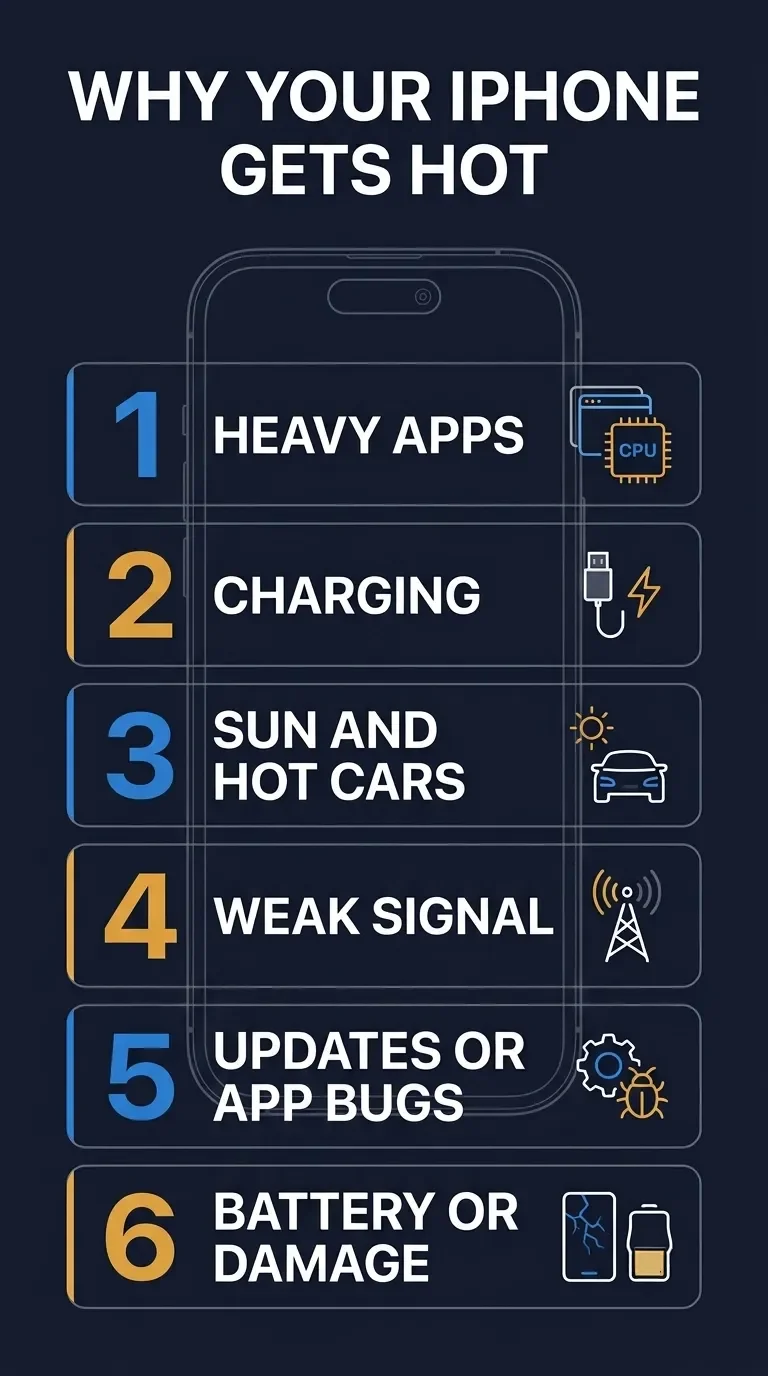
Almost every overheating case I've seen falls into one of six buckets, ordered here from most common to least.
1. Heavy Apps and Sustained Processor Use
Gaming, AR, video editing on the phone, long FaceTime calls, recording 4K video. Modern iPhone chips are fast, and fast chips generate heat under sustained load. This is the boring answer, and it's the right one more often than people want to hear.
2. Charging – Especially Wireless, Especially While Using the Phone
Charging generates heat by itself. Wireless charging generates a bit more, because some energy is lost in the transfer. Stack heavy use on top of charging and you've got two heat sources fighting for the same thermal budget. Apple notes that processor-intensive apps and high screen brightness can even slow charging down while all this is going on. Replace a frayed or damaged cable rather than continuing to test with it. For an iPhone 14 or earlier, an Anker MFi-certified USB-C to Lightning cable is the sort of known-good replacement I'd use for this test. Apple warns that damaged charging equipment can cause injury or device damage.
3. Direct Sunlight, Hot Cars, and Poor Ventilation
Ambient heat is the multiplier. A phone that handles navigation fine in spring will throw a temperature warning doing the same job on a July dashboard. Thick cases, bedding, and enclosed bags all trap heat that would otherwise dissipate.
4. Weak Cellular Signal and Background Activity
Usually, this one surprises people. Apple points out that Wi-Fi and cellular connections use less energy when signal strength is high – flip that around, and a phone hunting for signal all day is burning extra power the whole time. Add background syncing, photo uploads, or hotspot duty and the heat adds up.
5. An iOS Update, App Bug, or Background Indexing
Software can absolutely cause overheating. The clearest example: in 2023, Apple acknowledged that an iOS 17 bug plus some misbehaving apps made iPhone 15 models run warmer than expected, and iOS 17.0.3 shipped the fix. If the heat started immediately after an update, give the phone a few days of normal use. Apple says update-related tasks can continue in the background and temporarily affect battery life and thermal performance. If it's still running hot after that, start looking for a stuck app or another cause.
6. Battery Degradation or Internal Damage
The least common cause, and the one you shouldn't ignore. A chemically aged battery, liquid exposure, impact damage, or a damaged charging port can all produce heat that has nothing to do with what's on screen. If your phone has taken a swim recently, that's a separate conversation – I've covered what water resistance ratings actually mean in my guide on whether iPhones are waterproof. And if the battery is swollen – screen lifting, case bulging – stop charging it immediately. iFixit treats a swollen battery as a fire risk, and so should you.
Your iPhone Is Hot Right Now? Do This First
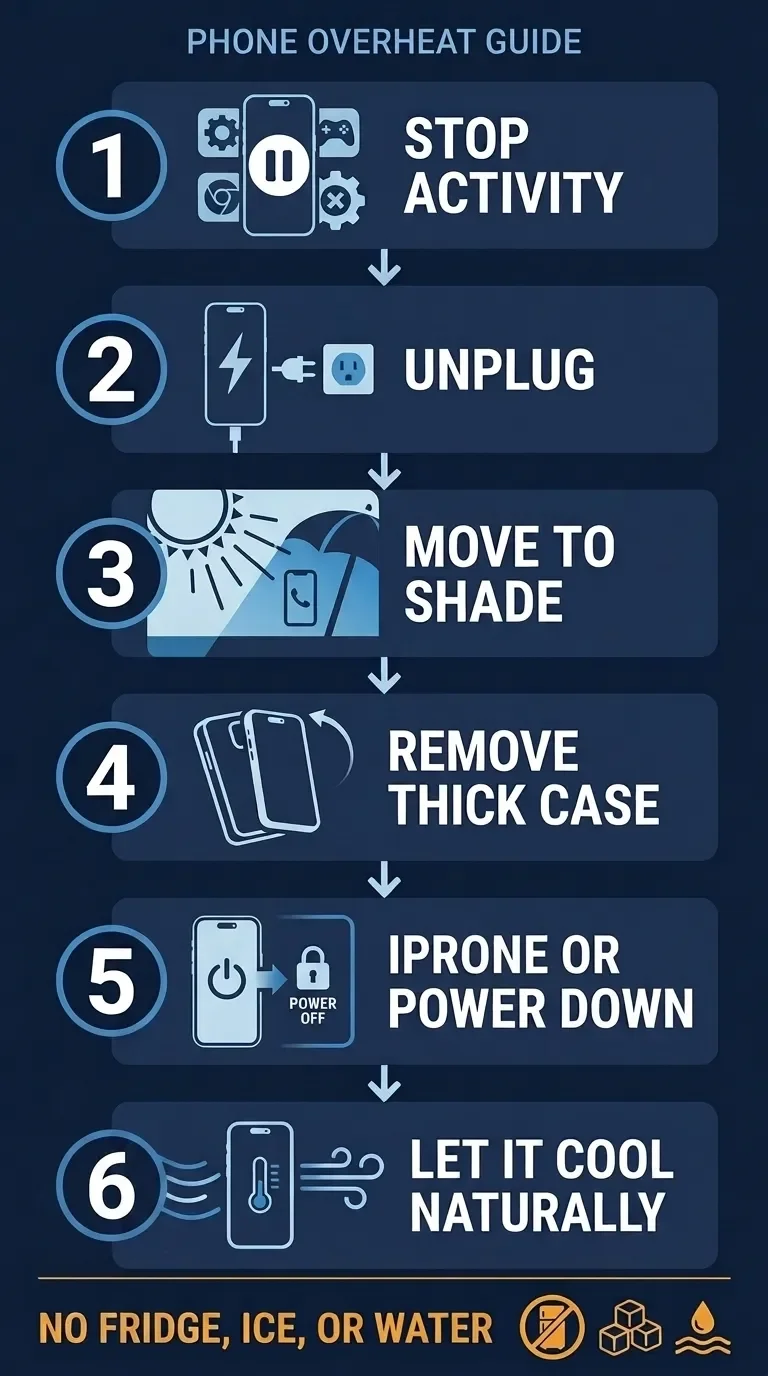
Before any troubleshooting, get the temperature down safely:
Stop the demanding activity. Close the game, end the call, stop recording.
Unplug it. Charging adds heat you don't need right now.
Get it out of the sun and away from hot surfaces.
Take off a thick case if it's wearing one – as a temporary measure, not a verdict on your case.
Lock the screen or power it down and let it cool at room temperature.
Now, the myth that refuses to die: do not put your iPhone in the fridge or freezer, and don't run it under cold water either. Apple specifically says to avoid dramatic changes in temperature or humidity. Move the phone out of the sun, switch it off if needed, and let it cool gradually at room temperature. As a hobby baker, I like to think of it as taking a cake straight from the oven and putting it into the freezer. Nothing good happens to either of them. Shade and patience beat ice every time.
How to Fix an iPhone That Keeps Overheating
One hot afternoon doesn't need a ten-step plan. A phone that runs hot repeatedly does. Work through these in order – they're sorted from lowest risk to highest effort, and most people never need to go past step five.
1. Connect the Heat to a Trigger
Play detective for a day. Does it heat up while charging? During one specific app? In the car mount? After an update? Since when? The answer decides which of the following steps actually matters for you. At work, this is almost always my first question, and the answer solves half the case.
2. Restart the Phone
Unglamorous. Effective. A restart clears stuck processes that can quietly keep the chip busy. Follow Apple's restart steps: hold either volume button and the side button, slide to power off, wait 30 seconds, then turn it back on. If the phone is so far gone it won't respond – or won't come back on at all – I've written a full walkthrough for when an iPhone won't turn on, including the force-restart combo.
3. Update iOS and Your Apps
Counterintuitive when the update might have caused the heat, I know. But fixes ship in updates, not in waiting. The iPhone 15 heat bug was solved by installing 17.0.3, not by avoiding it. Check Settings → General → Software Update, and update your apps while you're at it.
4. Check Battery Usage for a Runaway App
Settings → Battery shows you which apps have been drawing power, including background activity. An app you barely opened showing massive background usage is a prime suspect – update it, restrict its background refresh, or delete it as a test. On iOS 18 and later, Battery Insights will even flag ongoing update or setup activity so you know the heat is temporary. And no, force-closing all your apps every hour is not a fix – Apple says quitting apps normally doesn't even save battery power.
5. Reduce the Load Temporarily
Lower the brightness. Pause big downloads and photo uploads. Turn off the hotspot. Skip navigation on the dashboard for a day. Low Power Mode reduces background activity and certain performance features, which makes it useful as a diagnostic. If the phone cools down with it enabled, workload is probably contributing – but that alone doesn't completely rule out a battery or hardware problem.
6. Test Without the Case During Charging and Heavy Work
A controlled experiment, not case-shaming. If the phone stays noticeably cooler bare during the exact same routine, your case is trapping heat during demanding use. Most cases are fine for everyday tasks.
7. Isolate the Charger, Cable, and Charging Spot
Try a known-good, certified cable and adapter. Inspect the cable for damage. If you need a compact replacement adapter, I'd start with the Anker Nano 30W USB-C charger – it's a sensible way to remove an unknown charger from the equation without buying more power than an iPhone needs. Don't charge under a pillow or in direct sun. Wireless chargers deserve the same scrutiny. Use a Qi-certified model and align the phone carefully – the Wireless Power Consortium notes that proper alignment improves charging efficiency. If alignment is the problem, the Belkin 3-in-1 Qi2 15W Wireless Charging Station removes much of the guesswork by holding compatible devices in the correct position.
8. Review Battery Health
Open Settings → Battery, then tap Battery Health & Charging on an iPhone 14 or earlier, or Battery Health on an iPhone 15 or later. There you'll find Maximum Capacity and any service recommendation, as explained in Apple's Battery Health guide. Two nuances people miss: a low percentage alone doesn't prove the battery causes your heat problem, and a decent percentage doesn't fully rule it out either. It's one data point, not a verdict. If your battery is also draining unusually fast, that combination is worth reading up on – I've broken down the causes in why your phone battery is dying so fast.
9. Check Storage and Background Syncing
Low storage can create its own performance problems, while Photos syncing, app downloads, restores, and indexing can generate legitimate background heat. You can review available space under Settings → General → iPhone Storage using Apple's storage guidance. If the background activity continues for days, treat it as a symptom rather than a phase.
10. Back Up and Get It Looked At
If the heat survives everything above, stop self-diagnosing. Back up the phone, note when the heat happens and what the warnings said, and book an appointment. Apple's battery service page gives you a cost estimate for your exact model, and if you have AppleCare and the battery measures below 80% capacity, replacement is covered at no extra charge.
Why Does My iPhone Overheat While Charging?
Because charging is a heat source, and everything else stacks on top of it.
Some warmth while charging is completely normal. The phone manages this for you: if it gets too hot or cold, you may see "Charging On Hold," and charging will resume once the temperature returns to normal. That message isn't a defect – it's the protection working. Move the phone somewhere cooler, lock the screen, and let it resume on its own. The same thermal protections apply whether you charge by cable, MagSafe, or another wireless charger.
What's not normal: a phone that's uncomfortably hot on the charger every single night, in a cool room, with nothing running. Check the cable, the adapter, the surface it's lying on – and if all of that is clean, go back to the ten steps above.
One habit worth keeping: leave Optimized Battery Charging on. When it activates, it can delay charging beyond 80% until closer to when you usually unplug, reducing the time the battery spends completely full. On an iPhone 15 or later, you can also choose a separate Charge Limit. My phone charges overnight on a nightstand – no pillow, no direct sun in the morning, boring room temperature – and in years of doing exactly that, charging heat has never once been my problem.
Hot After an iOS Update? Give It a Day – Then Investigate
After an update, your iPhone re-indexes files, photos, and search data in the background. Warmth and extra battery drain during this phase are documented, expected behavior – Apple says so directly, and iOS 18's and later Battery Insights will often name the activity outright.
Give it a few days of normal use, keep the phone on Wi-Fi and power when practical, and let the background work finish. If it is still running hot after that window, start investigating rather than assuming it is still indexing. Check Settings → Battery for a misbehaving app, and check whether a follow-up update (like the 17.0.3 case) has already shipped a fix.
Gaming, FaceTime, Navigation, Camera: What's Normal, What Isn't
The high-load scenarios all deserve the same honest framing: heat is expected, sustained protection responses are not.
| Situation | Why it creates heat | What's normal | What to try |
|---|---|---|---|
| Gaming / AR | Sustained CPU + GPU load at high brightness | Noticeable warmth in long sessions | Lower brightness, cap the frame rate in the game's settings, take off a thick case |
| FaceTime / video calls | Camera + screen + radios simultaneously | Warmth on long calls, especially while charging | Don't charge during marathon calls, use Wi-Fi over weak cellular |
| 4K / high-res video recording | Camera pipeline under continuous max load | Warmth, eventually a flash or recording limit in extreme cases | Shorter clips, shade, no case. Heat can also affect camera behavior – see my guide on iPhone camera focus problems |
| Navigation in a sunlit car | Screen always on, GPS + cellular active, sun through the windshield | Warmth; a temperature warning on hot days is common | Vent mount instead of dashboard, air conditioning toward the mount, download offline maps before the drive |
| Personal hotspot | Radios transmitting continuously | Steady warmth over long sessions | Plug the laptop in via USB instead, keep sessions shorter |
| Weak signal areas | Radios boost power hunting for towers | Mild extra warmth and battery drain | Wi-Fi Calling at home, airplane mode in dead zones |
Can Overheating Damage the Battery?
Short answer: repeated, sustained heat exposure ages a lithium-ion battery faster. One warm charging session won't ruin anything – the protections exist precisely to manage moments like that. But chronic heat is a different story.
Apple lists temperature history as one of the factors in battery chemical aging, alongside charging patterns, and warns that using the phone in very hot conditions can permanently shorten battery life. The independent research points the same direction: laboratory studies have found lithium-ion cells degrading faster at elevated temperatures, and a 2021 review names temperature, state of charge, and load as the main interacting stress factors. Here's the part that makes it a feedback loop: laboratory research on lithium-ion cells has found that severely aged cells can produce more heat during discharge. That doesn't prove an older iPhone battery is causing a specific overheating problem, but persistent heat combined with rapid drain or a service warning deserves attention. Heat ages the battery, and an aged battery runs warmer.
The takeaway isn't paranoia. It's simply: don't make chronic heat part of your phone's daily routine, and take persistent unexplained heat seriously.
Does This Apply to the iPhone 14, 15, 16, and 17?
Yes. The thermal protections, the warning screen, the Charging On Hold behavior, the troubleshooting order – all of it applies across every recent model. This guide replaces my older iPhone 14-specific overheating article for exactly that reason: the advice was never really model-specific, and iOS has since standardized the protective behaviors across the lineup.
What differs between generations is the context: chip efficiency, charging speeds, materials, and occasionally a model-specific software bug like the iPhone 15's iOS 17 episode. The diagnosis and the fixes stay the same.
What I Actually See When Customers Bring in a "Hot" iPhone
A few patterns from the shop floor, offered as observations rather than lab data.
The most common case walks in during the first real heatwave of the year: navigation, dashboard mount, direct sun, temperature warning. The phone is behaving exactly as designed – it's the July sun through a windshield that's the problem. A vent mount and offline maps solve most of these on the spot.
The second most common: "it's been hot since the update." Nine times out of ten, Settings → Battery shows indexing or one app gone rogue in the background, and the fix is an update or a day of patience.
The cases that genuinely need service announce themselves differently. Heat while the phone is idle. Warnings in a cool room. A battery that drains fast and runs warm. And the rare but serious one: a screen that's started lifting from the frame. That last phone doesn't get troubleshooting steps – it goes straight to service, unplugged.
And the thing people most consistently overcomplicate? Cooling. I've heard fridges, freezers, ice packs, one memorable cooler bag. The disappointing professional secret is that shade and ten minutes of patience beat all of them – without the condensation risk.
When to Stop Troubleshooting and Get Help
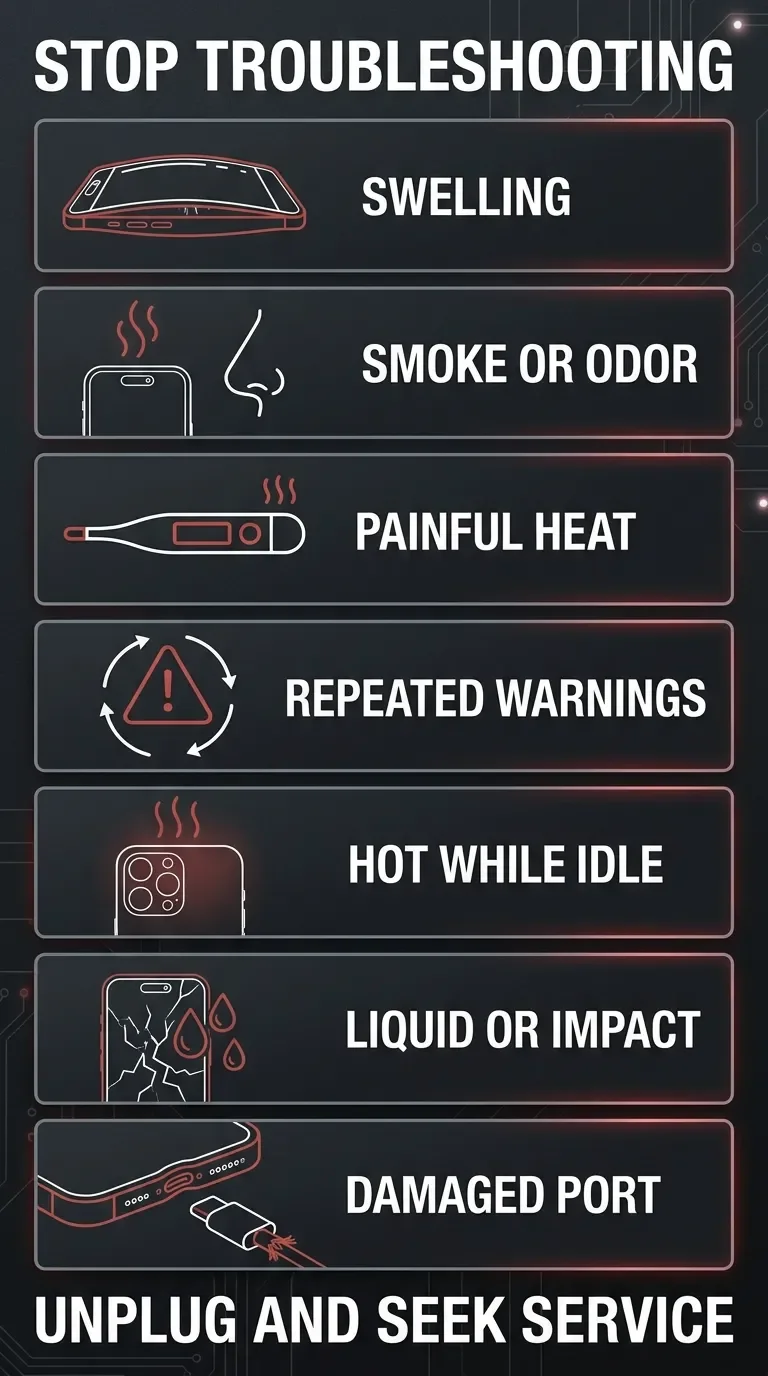
Some symptoms mean the DIY phase is over. Stop using the phone and have it inspected if you see:
A swollen battery – bulging case, lifting screen, gap along the edge. Don't charge it, don't press on it.
Smoke, odor, or heat that's genuinely painful to touch.
Repeated temperature warnings during normal indoor use.
Overheating while idle, with no charging and no background activity to blame.
Heat after liquid exposure or a hard drop.
A damaged or discolored charging port.
For everything on that list, the path is the same: back up if the phone allows it, then Apple or an authorized service provider. Genuine parts matter for batteries specifically – Apple warns that nongenuine batteries can lead to safety issues, and this is one component where the discount isn't worth it.
The Bottom Line
Warm is normal. Hot-with-warnings, hot-while-idle, or hot-every-single-day is not.
When it happens: stop, unplug, shade, patience – never the fridge. Then work the list: find the trigger, restart, update, check Battery usage, reduce the load. Most overheating iPhones are victims of summer, software, or ambition, and most are fixed by the first five steps. The minority with real hardware problems will tell you – through idle heat, repeated warnings, or a swollen battery – and those you hand to a professional with a backup already made.
Your iPhone spends most of its life quietly managing heat you never notice. When it finally asks for help, now you know how to listen.
Has your iPhone ever thrown a temperature warning at the worst possible moment – mid-navigation, mid-recording, mid-call? Tell me what was running and what finally brought it back down in the comments below. The strange ones are my favorite.
Want more of this? Subscribe to my tech newsletter and you'll get one real iPhone problem taken apart properly – causes, myths, and the actual fix – every time I publish.



FAQ
-
A phone that's warm while sitting idle – nothing charging, no apps open – isn't behaving normally. Expected warmth is always tied to a workload, so idle heat usually points to a background app misbehaving, post-update indexing that never finished, or in rarer cases a battery or hardware fault. Check Settings → Battery for a background-activity culprit first; if the phone stays warm and idle in a cool room with genuinely nothing running, treat that as a reason to have it looked at.
-
Yes, it's safe – Apple builds in thermal protections for exactly this situation. Using the phone while it charges just stacks two heat sources, so it runs warmer, and iOS may slow charging or show "Charging On Hold" until it cools. That's the safeguards working, not a defect. If you want the quickest possible charge, put the phone down and let it charge cool.
-
Apple doesn't publish a specific "danger" temperature, but it does list a comfortable operating range of 0 to 35 °C (32 to 95 °F) in its temperature specs. In practice, the phone tells you itself: if it's too hot to hold comfortably, or it throws a temperature warning, that's your line. Brief warmth during heavy use is fine; heat that forces the warning screen during ordinary tasks is not.
-
Not on their own, and not during everyday use. A case only becomes a factor when you combine it with a real heat load – gaming, navigation in the sun, fast charging – where it traps heat that would otherwise escape. The honest test is to run the exact same demanding routine without the case; if the phone stays noticeably cooler, the case is your problem under load. For normal scrolling and messaging, leave it on and don't worry about it.
-
Those two symptoms often share a single cause, and they can feed each other. Heavy background activity, a weak signal, or a runaway app burns power and produces heat at once, and an aged battery runs warmer under load while also draining faster. Start in Settings → Battery to spot the offender; if the pairing sticks around, I've broken the drain side down separately in why your phone battery is dying so fast.
-
It can contribute, though it's rarely the whole story. A damaged cable or noncompliant adapter is a safety problem before it is an overheating theory. Apple warns that damaged charging equipment can cause injury or device damage, so replace it rather than continuing to test with it. Then try a known-good cable and a reputable adapter that complies with the applicable safety standards; if the heat disappears, the charging setup was contributing.







MacBook not turning on? Step-by-step fixes for MacBook Air, Pro, Neo and Intel models – from force restart and charger checks to when you actually need a repair.