Can Gemini Generate Images? Yes – Here's How (2026)
The Short Version
Open the Gemini app, type a prompt or pick Create images, and it generates a picture free.
- Free for everyone; the default model is Nano Banana 2, with limited Pro access.
- Works on desktop, Android, and iOS; image editing sits behind an 18+ age gate.
- Limits are compute-based now, not a fixed daily count, refreshing on a rolling cycle.
Full step-by-step, model picker, and best prompts below.
Short version, because I know that's why you're here: yes, and it's free. I've been leaning on it almost daily for months now – blog headers, rough YouTube thumbnails for my YouTube channels, the odd "what would this look like" sketch before I commit to a real design. It's become a genuine part of my workflow, not a party trick.
But "can it" is the boring question. The interesting ones are which Gemini model you're actually using, how many images you really get before it taps you on the shoulder, and what separates a flat result from a good one. So let's get into it.
You create images right inside the Gemini app (or in AI Studio and the API if you're a developer). Type a prompt, or open the tools menu and pick Create images. Google's own image generation overview lays out the model picker: Fast and Thinking run the newer flagship, while Pro runs the higher-fidelity model for text-heavy or 4K work.
One nuance many people get wrong: the free image model today is not the original "Nano Banana" everyone went crazy for in 2025. Google has shipped three image models in about ten months, and the names are a mess. That's the next section, because picking the right one is half the battle.
What Powers Gemini's Images: Nano Banana and Nano Banana Pro
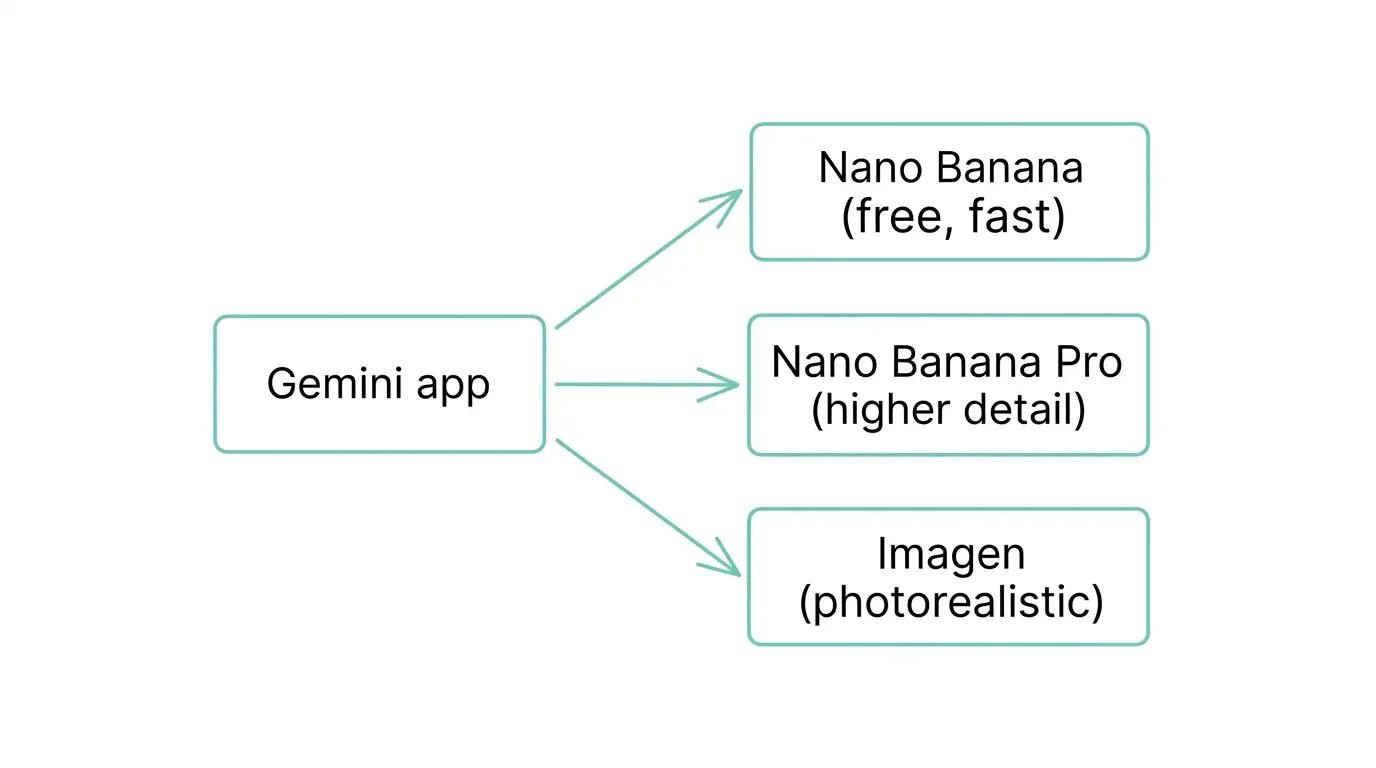
"Gemini image generation" isn't one thing – it's an umbrella over a small family of models, each with its own speed, quality, and cost trade-off. The short timeline:
Nano Banana (Gemini 2.5 Flash Image) – the one that went viral in August 2025 for restoring old photos and figurine-style edits. Fast, conversational, built for editing.
Nano Banana Pro (Gemini 3 Pro Image) – launched November 2025, this is the heavyweight. It adds a reasoning pass, real-world grounding through Google Search, genuinely legible text inside images, and output up to 4K – though the in-app chat often renders around 2K unless you specifically push for full resolution.
Nano Banana 2 (Gemini 3.1 Flash Image) – arrived February 2026 and is now the default model in the app. The pitch: close to Pro-level quality at Flash speed.
Yes, the branding is silly. A lot of us in the community would happily go back to just calling it "Gemini Image," but Nano Banana stuck, so here we are.
Nano Banana vs. Nano Banana Pro
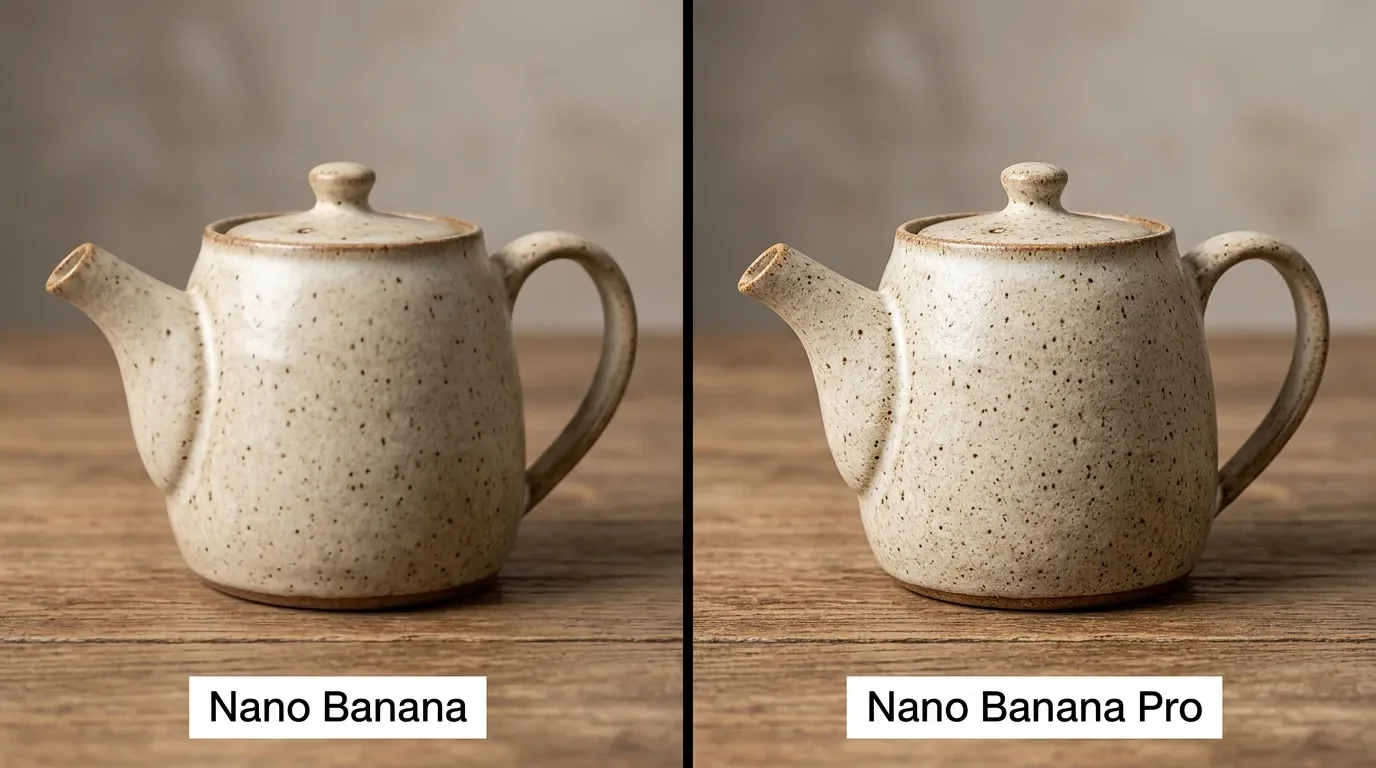
I like to think of it like shooting a quick photo on your phone versus setting up a proper shot. Nano Banana 2 is the everyday workhorse – fast, free in the app, and good enough for most things you'll throw at it. Nano Banana Pro is what you reach for when the details matter: posters with actual readable text, infographics, product mockups, or anything where you're blending several reference images together. Google says Pro can blend up to 14 images and hold up to five people consistent across a composition – a vendor claim I haven't fully stress-tested, but the text rendering alone is a real, visible step up.
The catch is speed and access. Pro is slower because it literally "thinks" first – its developer docs note it can generate up to two interim images to test composition before the final render. And on the free tier you only get a limited quota of Pro before Gemini quietly drops you back to the standard model.
Where Imagen Fits In
If you've read older guides, you've seen "Imagen" thrown around. Imagen is Google's separate, dedicated text-to-image family – not the thing powering image creation in the Gemini app anymore. In Google's own model documentation, the older image models are being phased out, and the app's Create images feature runs on the native Gemini models. So for the purposes of this guide: ignore Imagen unless you're a developer with a specific reason to call it directly.
How to Generate Images in Gemini, Step by Step
This is the easy part. Honestly, if you've ever sent a text message, you can do this.
On Desktop
Go to gemini.google.com and sign in.
Type your prompt. You can ask it to write something and generate an image to go with it, or open the tools menu and choose Create images.
Pick your model from the menu – Fast or Thinking for the everyday model, Pro when you need the good stuff.
Hover over the result and click Download full size. Google's official how-to covers the same flow if you get stuck.
On Mobile (Android and iOS)
The app mirrors the web almost exactly: open Gemini, tap the tools menu, pick Create images, choose your model, then type a prompt or upload a photo to edit. One thing worth flagging for parents: image editing features carry stricter age requirements than basic generation, so younger users may run into limits there.
Editing an Existing Image
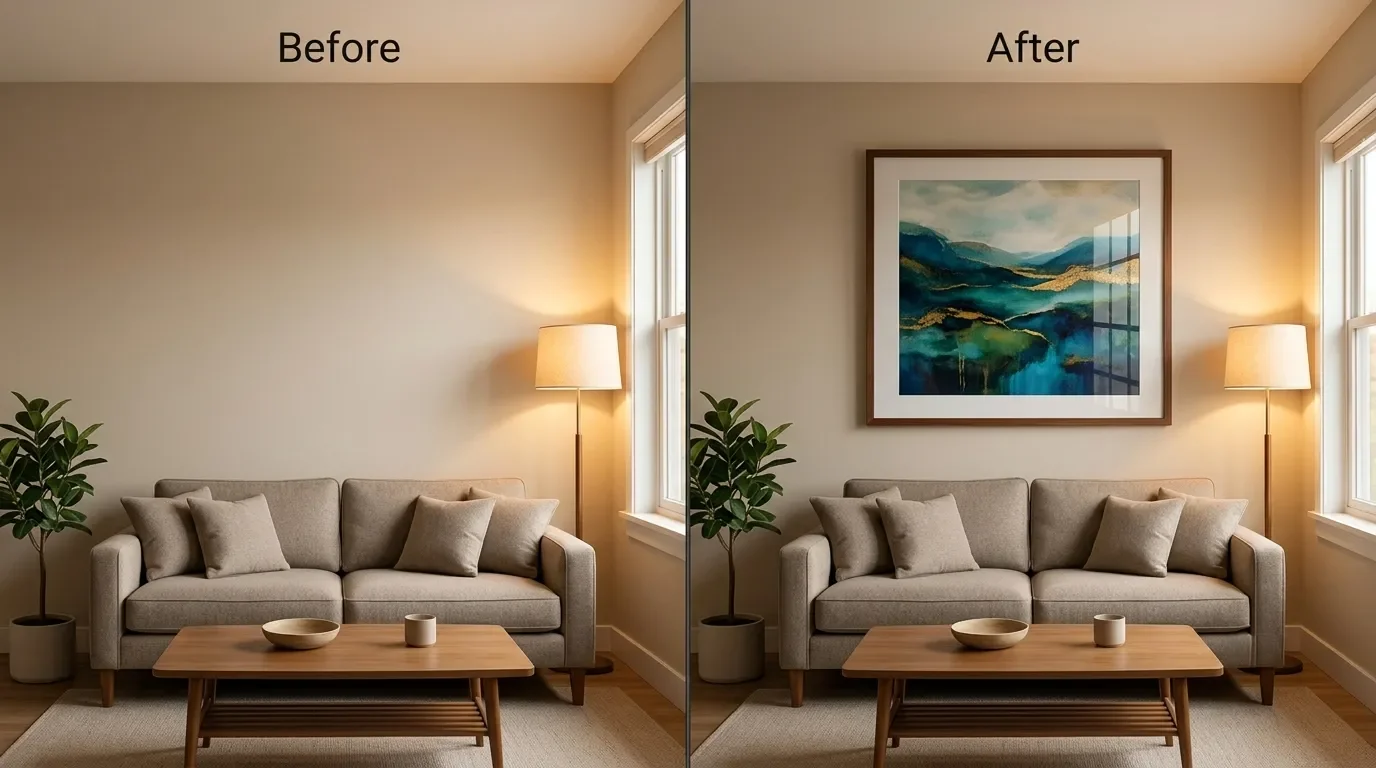
This, for me, is where Gemini actually earns its keep. Upload a photo and just talk to it: "remove the person in the background," "warm up the lighting," "make this a 16:9 crop." It's conversational and multi-turn, so you refine with follow-ups instead of re-rolling the whole thing from scratch. I've used it to clean up reference shots before editing video in DaVinci Resolve, and the back-and-forth feels less like prompting and more like art-directing an intern who never gets tired. If you do a lot of manual cleanup after the AI pass, a Wacom Intuos Pro makes masking and touch-ups far less painful than a mouse ever will.
Free vs. Paid: Gemini's Image Limits, Explained
This is the most confusing part of the whole topic, and I'd rather be honest than tidy: there is no fixed "X images per day" number anymore. As of May 17, 2026, Google switched to compute-based limits that factor in prompt complexity, which model you're using, and chat length, refreshing on a rolling roughly five-hour cycle up to a weekly cap.
Older figures floated around 100 images a day, but treat any hard number as historical – the per-day model was replaced by compute-based limits, and Google no longer publishes a fixed daily count. In practice, simple prompts on the standard model go a long way; lean on Pro and you'll burn through your allowance faster. Here's the tier picture as it stands (US pricing):
| Tier | Price (US) | What you get for images |
|---|---|---|
| Free | $0 | Default model with compute-based limits, plus a small taste of Pro before it falls back |
| Google AI Plus | $4.99/mo | Higher limits and more access to the Pro image model – price was cut from $7.99 in June 2026 |
| Google AI Pro | $19.99/mo | Expanded image generation and editing, bigger context window |
| Google AI Ultra | $99.99–$199.99/mo | The most headroom, and the tier most likely to drop the visible watermark |
The Plus price drop is real and recent, confirmed by TechCrunch; current plan details live on Google's subscriptions page.
And regarding the watermark question: every image Gemini makes carries an invisible SynthID watermark, baked into the pixels for detection. On top of that, Free and AI Pro outputs also get a visible "Gemini sparkle" in the corner. Higher tiers like Ultra are generally where that visible mark goes away, but the invisible SynthID stays baked in no matter what you pay.
The Best Prompts for Gemini Image Generation
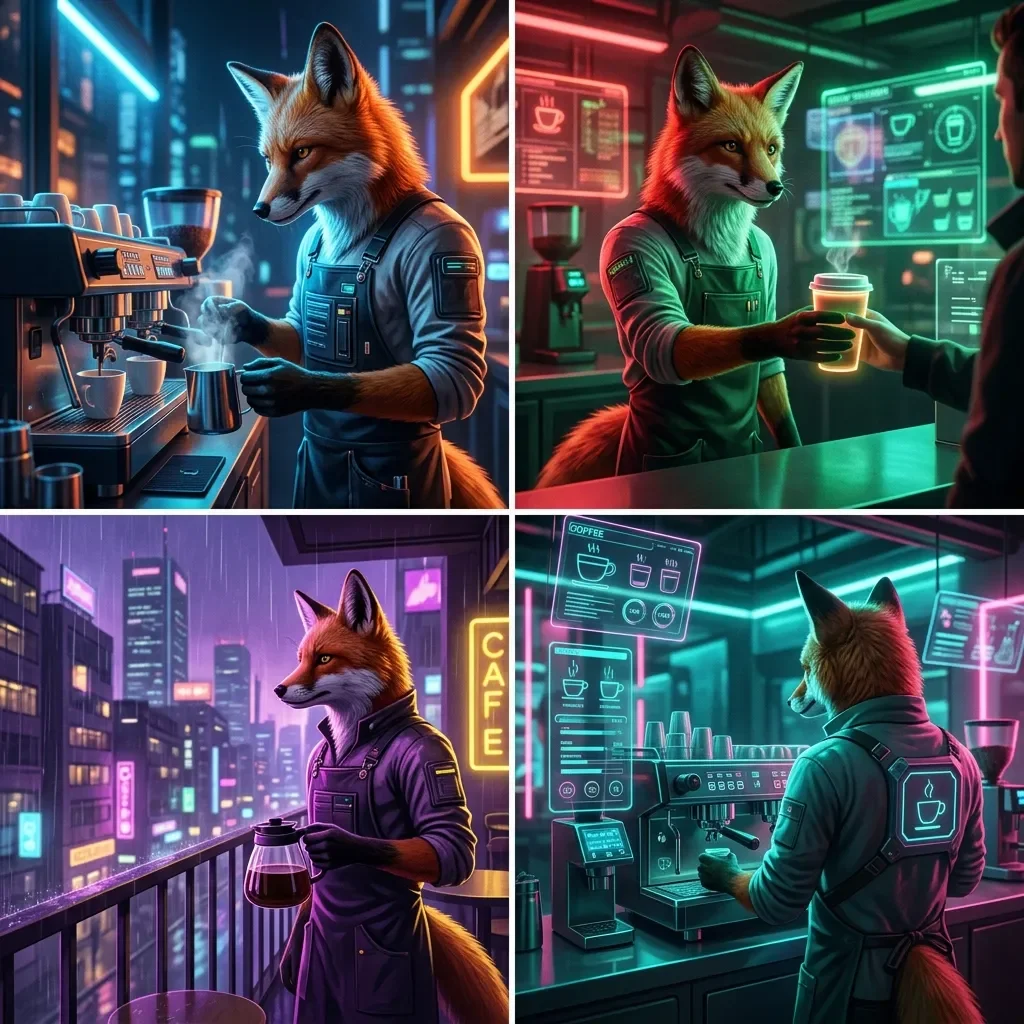
The biggest mistake I see is treating it like a search box. "Cat." You'll get a cat. A boring one. The model rewards detail and intent, so spell out subject, style, lighting, framing, and mood. Google even published its own prompting tips for Nano Banana Pro, and they line up with what I've found in practice.
A few templates I actually reuse:
Text in an image: "A minimalist poster, off-white background, bold sans-serif text that reads 'PIANO NIGHT' centered, small subtitle below, lots of negative space." This is where Pro pulls ahead – legible, correctly spelled text is its strength.
Photorealistic scene: "A 35mm photo of a wooden desk by a window, morning light, shallow depth of field, a laptop and a cup of coffee, warm and slightly grainy." Naming a focal length and film look gets you a long way.
Logo or icon concept: "A simple flat logo mark for a tech blog, single accent color, geometric, on a transparent-style background, no text."
Character consistency: upload a reference, then "keep this same character, now show them sitting at a piano, side angle."
Photo edit:"Remove the cables on the left, even out the lighting, keep everything else identical."
My one rule: change one thing at a time when you're editing. It's tempting to ask for five fixes at once, but you'll get cleaner results – and keep your sanity – by iterating.
Gemini vs. ChatGPT for Images
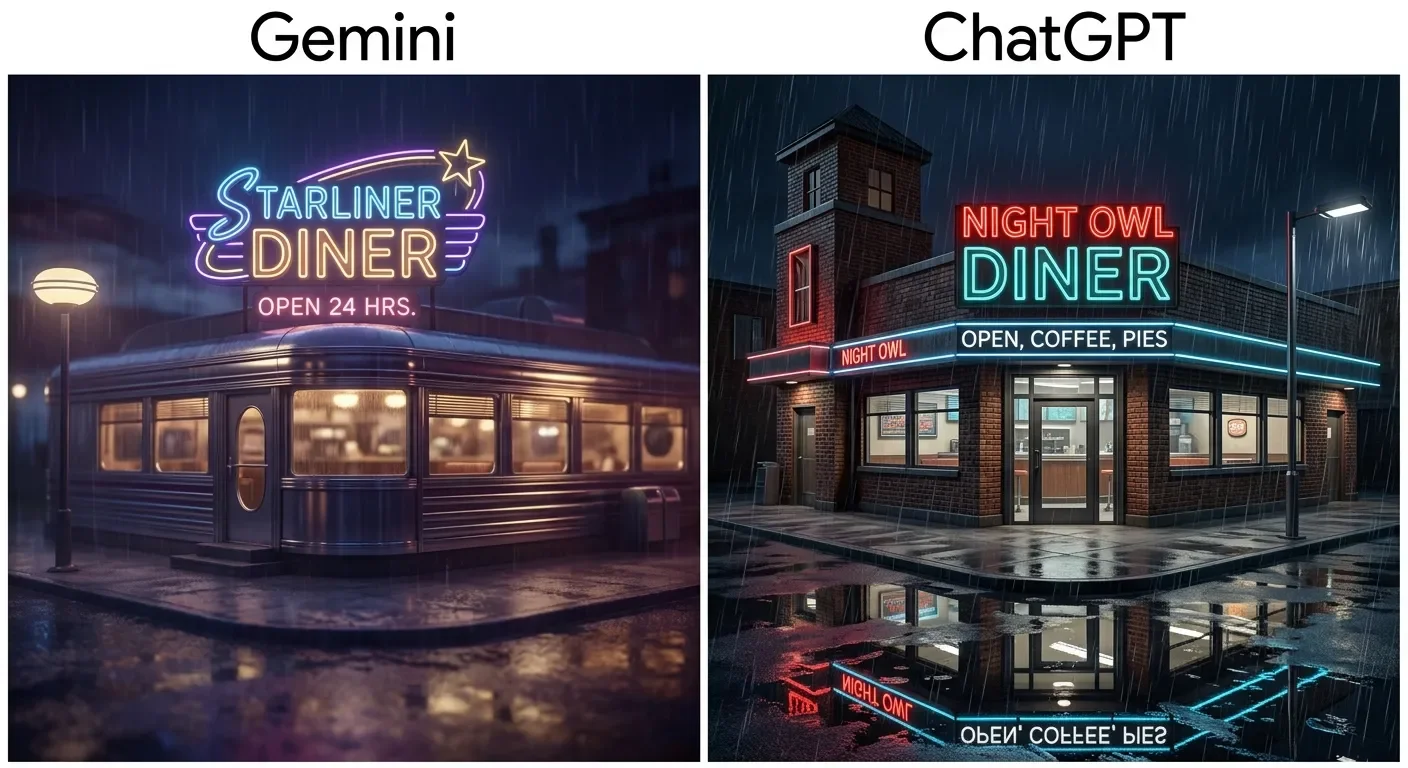
When it comes to a true head-to-head, ChatGPT is Gemini's only real peer – Midjourney is the other heavyweight, but it plays a different game (more on that in a second). The honest verdict on Gemini vs. ChatGPT: they trade blows. Both sit at the top of the image leaderboards, and which one "wins" depends on the job.
| Strength | Gemini (Nano Banana) | ChatGPT (Images 2.0) |
|---|---|---|
| Photo editing | Excellent – fast, conversational, my pick | Good, but less fluid |
| Text rendering | Very strong on Pro | Rated slightly ahead on prompt adherence |
| Free quota | More generous | Tighter on free |
Gemini gets the nod from me for editing and for the friendlier free tier, something independent comparisons like Zapier's also land on. But OpenAI closed a lot of ground: as Wired also reported, ChatGPT Images 2.0 (April 2026) is strong on text rendering and prompt fidelity, with wide aspect-ratio support and a reasoning "thinking" mode – so the gap on output flexibility has narrowed sharply. Pick Gemini if you live in edits and iterations; pick ChatGPT if your work hinges on exact prompt adherence.
Where Midjourney fits. Credit where it's due: on raw aesthetic quality, Midjourney is still arguably the best there is – if you want a painterly, art-directed look, nothing beats it. But it's a different tool from Gemini. There's no free tier (plans start around $10/mo), it lives in its own web app and Discord rather than a chat assistant, and it's built for conjuring gorgeous images from scratch, not the conversational "edit my photo" workflow this guide is about. Its in-image text also trails both Gemini and ChatGPT. So it's a genuine heavyweight – just not on the two axes I care about most here: free access and talk-to-it editing.
What about Claude, Perplexity, and DeepSeek?
Short answer: they're not really in this race, and it's worth knowing why before you waste a subscription.
Claude doesn't generate images at all. It makes diagrams and SVG visuals and it reads images you upload, but per Anthropic's own help center it doesn't produce photos or illustrations natively. Any "Claude image generator" you've seen is a third-party tool bolted on through an integration.
Perplexity can hand you an image, but it's not using a model of its own – it's leaning on OpenAI's image generation. TechRadar put it bluntly: ChatGPT is the one doing the work.
DeepSeek has an image model, Janus-Pro, but it's open-source and research-grade – great if you self-host and tinker, not a polished consumer product. I actually put it through its paces, and the prompt adherence is solid even if the output quality isn't. (If you're curious how DeepSeek stacks up on the text side, I broke that down in DeepSeek vs ChatGPT.)
So the real choice in 2026 is Gemini or ChatGPT. Everything else is either borrowing one of them or aimed at developers (with the exception of Midjourney).
My Take: What Nano Banana Nails – and Where It Falls Short
I've run this thing through real work for months, so let me be straight about both sides.
What It Gets Right
Conversational editing is the standout. I can drop in a rough product shot or a YouTube thumbnail and reshape it in three or four back-and-forths without ever touching Photoshop. The in-image text on Pro is genuinely good – I've made clean little title cards that would've taken me longer to lay out by hand. And the free quota is generous enough that casual use rarely costs me anything. One little tip: judge your generated images on a color-accurate display like the Dell UltraSharp.
Where It Falls Short
Three things, honestly. First, people. Anything resembling a real, identifiable face gets refused or hedged – which I understand given the history, but it's frustrating when you're just trying to tweak a photo of yourself. Second, consistency over time. I'm not the only one who's felt the output wobble; there's a vocal chunk of the community convinced quality dipped after an update in early 2026, and while Google hasn't confirmed any change, the complaints are loud enough that I take them seriously rather than dismiss them. Third, the watermark. That visible sparkle on the free and Pro tiers is a small thing until you want a clean asset for the blog, and then it's a paywall in disguise (I know I could just use Photoshop to get rid of it, but for that price, I would kind of expect Google to remove it for the Pro plan.). A reviewer at CNET summed up my feelings well: excellent for creating and ideating, not yet a fully polished production pipeline.
Would I keep using it? Absolutely. It saves me real time. But I treat it as a brilliant first-draft machine, not the final word.
Troubleshooting: When Gemini Won't Make an Image
A few snags come up over and over. The fixes are usually simple.
"I can't create images of that person." You're probably hitting the people/face restriction. Google paused person generation back in 2024 after a public mess, and the guardrails for photorealistic, identifiable individuals have stayed tight ever since. Fictional or stylized characters are fine; real faces, much less so.
"You've reached your limit for now." That's the compute-based cap I mentioned earlier. It refreshes on a rolling cycle, so you can either wait a few hours, switch to the lighter model, or simplify your prompt to stretch your allowance.
It refuses an edit that should be harmless. Sometimes the model misreads a fictional subject as a real person and balks. Rephrasing – making it clear the subject is illustrated or generic – usually clears it.
The result ignores part of your prompt. Stop piling on instructions. Break the request into steps and edit conversationally; you'll get there faster.
The Verdict and Where to Go Next
So, can Gemini generate images? Yes – well, for free, and faster than you'd expect. The thing to remember is that you're really choosing between two models: the quick everyday one for volume, and Nano Banana Pro when text, detail, or 4K matter. For editing and casual creation it's my daily driver; for a polished, watermark-free final asset you'll either pay up or finish it elsewhere.
My advice: open the app, try the prompt templates above on something you actually need, and see how far the free tier gets you before you even think about a subscription. And if you've decided Gemini isn't for you and you'd rather scale it back across your devices, I walked through exactly how in How to Turn Off (or Completely Remove) Google Gemini.
Have you actually shipped anything with Gemini images yet – a thumbnail, a poster, a product mockup that made it to the real world? I'd love to know what held up and what fell apart, especially if you've run it head-to-head with ChatGPT. Tell me about it in the comments below.
And if you'd rather not keep track of which Nano Banana is current this month, that's more or less my job now: I send a short tech newsletter that cuts through the AI model churn so you only hear about the updates that actually change how you work.

FAQ
-
Generally yes, but with strings attached. Google allows commercial use, though it's governed by its terms and prohibited-use policy, and the responsibility for copyright and privacy falls on you. If an image is going on a client project or a paid product, read Google's generative AI use policy first. I personally treat anything with recognizable brands or real people as off-limits for commercial work.
-
It depends on your tier and whether you're in the app or the API. On the free API tier Google says your data may be used to improve its products, while paid tiers say it isn't. For anything remotely sensitive I keep it off the free tier entirely – an old habit from caring a little too much about data privacy.
-
Not the one that counts. As covered above, every image carries an invisible SynthID watermark that stays no matter what you do, and only the AI Ultra tier (or AI Studio) strips the visible sparkle. You'll find community "tricks" for removing it, but they're unverified, and I wouldn't build a workflow on something that could break or land you in hot water.
-
Mostly, but not evenly. Google rolls features out by region and account type, so the model picker, editing, and the newest models can show up at different times depending on where you are. Image editing also sits behind an 18+ age gate, as I flagged in the mobile section.
-
Nano Banana Pro goes up to 4K, and you can request common shapes like 1:1, 16:9, or 9:16 right inside the prompt. The everyday model outputs at lower resolution but is quicker. If you need an exact crop for a thumbnail or banner, just say so – in my testing it honors framing instructions better than you'd expect.
-
You can steer it toward broad styles – "watercolor," "1980s sci-fi poster," "flat vector" – but it pushes back on imitating living artists or copyrighted characters, and that's deliberate. In my testing it's happiest with a described aesthetic rather than a name. For brand work, you're better off building your own style reference than borrowing someone else's.



I've used Gemini image generation almost daily for months. Here's how to create and edit images, what the free limits really are, and my best prompts.