

The Short Version
Gentlest steps first:
- Check the power connection. Cable, adapter, outlet. Try a different compatible charger and cable if you have one.
- If the battery might be completely drained, leave the Mac connected to a known-good charger for a while before you conclude anything.
- Hold the power button for about 10 seconds, release it, then press it once, normally.
- Unplug every accessory – hubs, drives, printers, your phone – and try again.
- Still nothing? Look for signs of life and jump to the part of the guide that matches what you see.
That ladder solves a surprising share of cases. For everything else, the full article digs in below.
You press the power button. Nothing. No chime, no Apple logo, no fan – just a black slab of aluminum that cost you a lot of money. Before you spiral into replacement-shopping, take a breath. In years of retail tech support, most "dead" MacBooks I've seen weren't dead at all. They were drained, confused, or – more often than anyone likes to admit – running fine behind a screen that stayed black.
First: Is It Dead, Asleep, or Just a Black Screen?
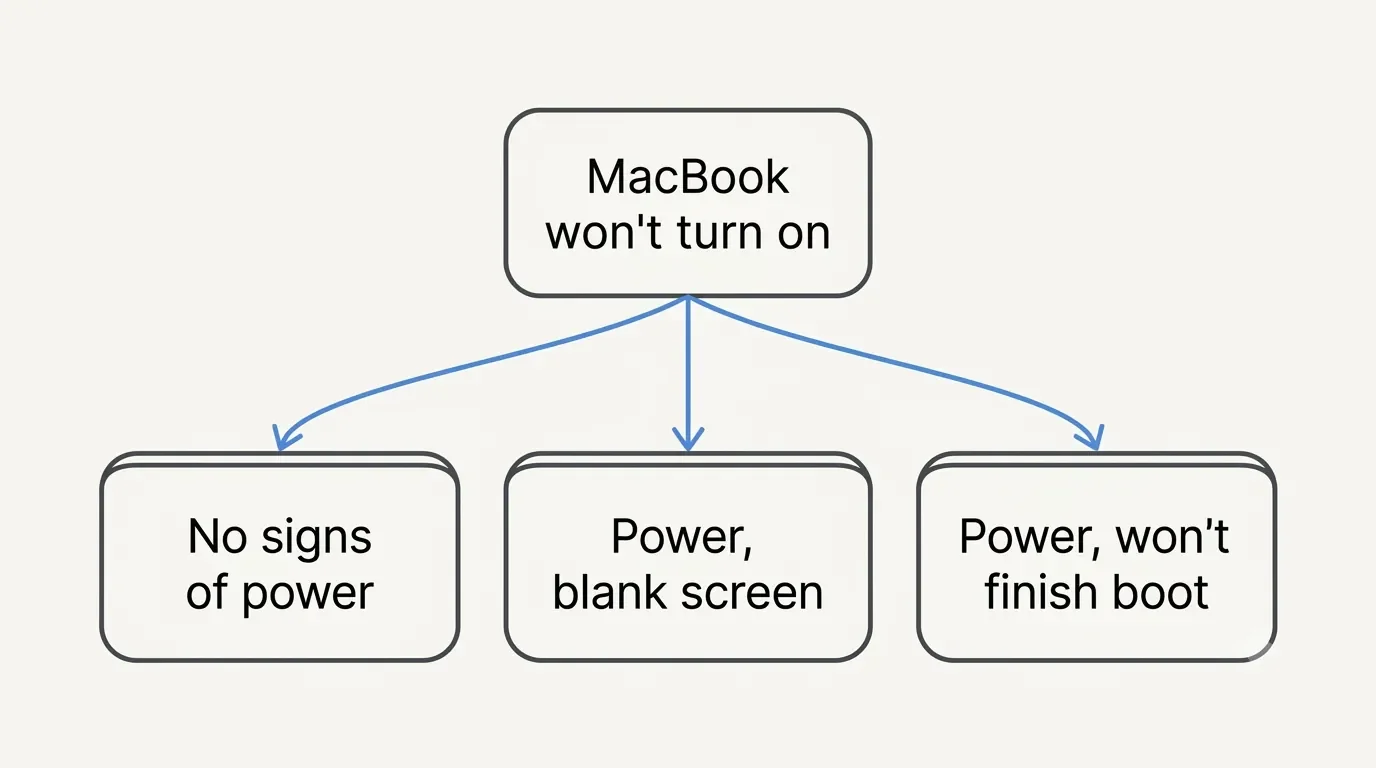
Apple treats "my Mac won't turn on" as three different problems, with three different support paths: a Mac that shows no response at all, a Mac that turns on but shows a blank screen, and a Mac that starts up but never finishes booting. Sixty seconds of triage saves you an hour of wrong fixes. And if it's your phone doing this rather than your Mac, I've written a separate walkthrough for the same thing happening on an iPhone.
So, look and listen for signs of power. iFixit's troubleshooting guide suggests checking for:
Fan noise or warmth from the chassis
A startup chime or charger-connection sound
Keyboard backlight or the Caps Lock LED lighting up
A trackpad that still physically clicks
A faint glow from the display
Any one of these means at least part of your Mac is getting power – which is genuinely good news, because it moves you from "no power" (the scary category) to "no picture" or "no boot" (the fixable-this-afternoon categories). One caveat worth being honest about: a sign of power tells you something works, not what failed. It narrows the search; it doesn't finish it.
MacBook Charging but Not Turning On
The charger is the most boring suspect and, in my experience, the most frequently guilty one. Apple's own USB-C charging troubleshooting starts exactly here: re-seat the adapter at the wall, try a different outlet, and swap in another cable if you can. Don't test with the frayed cable from your gym bag and call it a diagnosis. If you don't own a second adapter to test with, Apple's 35W dual-port USB-C power adapter is the one I keep in my bag precisely because it removes the charger from the equation in about five seconds.
A few less obvious checks:
Try the Other Port
On a MacBook with more than one charging-capable USB-C port, move the cable over. Silly? Maybe. Free? Absolutely. And if there's no spare cable in the drawer to rule out, Apple's 240W USB-C charge cable is the cheapest diagnostic tool you can own.
On the MacBook Neo, both USB-C Ports Charge
The difference between them is data and display – one is USB 3 with DisplayPort, the other is USB 2 – but Apple's spec sheet lists charging through either. So a "wrong port" theory doesn't apply here; a bad cable theory still might.
Give a Flat Battery Time
A deeply discharged Mac may not respond the moment you plug it in. Apple doesn't publish an official waiting period, so I won't invent one – but leaving it connected to a known-good charger while you make coffee (figuratively speaking) has resurrected more MacBooks at my counter than any keyboard incantation.
Shut It Down and Close the Lid
Apple's own charging checklist has one step people rarely try: shut the Mac down, close the lid for 30 seconds, then plug it in again. The same page notes that an adapter rated below what your Mac requires may charge it slowly or unreliably.
Force Restart
If the power is fine and the Mac still plays dead, this is the move: press and hold the power button for about 10 seconds, release, then press it once normally, per Apple's instructions. On most modern Mac laptops the power button is the Touch ID sensor – the blank key at the top right that new owners routinely don't recognize as a button at all.
Two notes. First, a forced shutdown discards unsaved work, as Apple warns – irrelevant if the machine is unresponsive, worth knowing if it's merely frozen. Second, if your Mac is actually running but locked up, that's a different situation with gentler options; I've covered those in my guide on how to restart a MacBook.
Apple Silicon vs. Intel: The Steps Are Not the Same
This is where a lot of well-meaning advice goes sideways. The reset rituals you may remember – SMC, PRAM, incense, chanting – belong to the Intel era.
On Intel MacBooks, the System Management Controller handles power, batteries, charging, fans, and thermal management, and Apple documents how to reset it – with different procedures depending on whether your Mac has the T2 Security Chip. Intel Macs also support an NVRAM reset: hold Option-Command-P-R at startup, per Apple's startup key combinations.
On Apple silicon – every M-series machine and the A18 Pro-powered MacBook Neo – Apple is unambiguous: "You don't need to do this on a Mac with Apple silicon." There is no SMC reset to perform. If a guide hands you SMC steps for an M-series Mac or a Neo, skip them. You're not missing a fix; the step doesn't exist.
The Last Firmware Option: Revive and Restore
In rare cases – Apple's example is a power failure during a macOS update – the firmware itself can be left unusable. For Macs with Apple silicon and Intel Macs with the T2 chip, Apple publishes an official revive/restore procedure that requires a second Mac and a cable. It has to be a cable that carries data, not just power – a charge-only cable fails silently here – so if you're unsure what's in your drawer, Apple's Thunderbolt 4 Pro cable is a safe bet. Try Revive first: it repairs the firmware without erasing your data. Restore is the last resort – it wipes the Mac back to factory settings. The order matters; don't let panic pick for you.
Model by Model: Air, Pro, Neo, and Older Intel MacBooks
The steps barely change between models. What changes is which signs of life you can trust, and how much power the machine needs before it will respond at all. That's where most of the model-specific confusion comes from.
MacBook Air
Start with the thing not many people account for: every Apple silicon Air is fanless. There is no fan to listen for, so silence proves nothing – and "it's completely quiet" is one of the most common reasons people at my counter had already concluded their Air was dead before they walked in. Judge an Air by the keyboard backlight, the Caps Lock LED, a trackpad that still physically clicks, and warmth around the hinge instead.
If your Air has MagSafe, the LED in the connector is the fastest free test on the machine: amber while charging, green when full, and nothing at all when no power is arriving. No light means you're looking at the cable, the adapter or the outlet, in that order, and Apple's USB-C charging steps work through the same list.
Give your MacBook Air genuine time on a charger you've proven works before doing anything else, then the ten-second hold on the Touch ID key. The Air is also the least power-hungry Mac in the lineup, so if it stays dark on a known-good charger, wattage is unlikely to be your problem. And do check that it isn't simply switched off, which is less absurd than it sounds – see the section below.
MacBook Pro
The Pro has the opposite problem: the biggest battery in the lineup and the highest power draw. A deeply discharged 14 or 16-inch Pro connected to a small phone charger can sit there doing nothing at all, looking exactly like a hardware failure. Apple's guidance is to supply at least the wattage of the adapter your Mac shipped with, so dig out the original brick before you conclude anything.
The upside is that a Pro gives you signals an Air can't. It has fans, so a spin-up when you connect power or press the button is real evidence that the machine is alive, and on MagSafe models the connector LED tells you the same story it tells on an Air.
The pattern I see most often on Pros, though, is trouble immediately after an update. If that happened to you, work the power checks first, but if nothing responds at all, the firmware revive procedure exists for exactly this interrupted-update scenario, and it covers Intel Pros with the T2 chip as well as Apple silicon ones.
MacBook Neo – The 2026 Model Is Its Own Case
The Neo is new territory, and won't-turn-on advice for it is thin – posts like "i have tried holding down the power button, charging it, unplugging it, but it will still not turn on" are already showing up with few good answers. Here's what actually matters, from Apple's spec sheet:
It runs an A18 Pro chip – Apple silicon. No SMC reset, no Intel-era key combinations. The ten-second hold and the revive procedure are your tools.
It has two USB-C ports, and both charge. One is USB 3 with DisplayPort, the other USB 2 without display output – relevant for monitors, not for power.
There's no MagSafe on the spec sheet, and it ships with a 20W USB-C adapter and a 36.5Wh battery. Apple names that 20W adapter as the recommended one for the Neo and advises supplying at least the wattage of the adapter your Mac shipped with. Some owners report the Neo refusing to charge from lower-power sources such as a monitor's USB-C port, so go back to the original brick before you conclude anything. Past that, a Neo charging problem walks the same troubleshooting path as an Air.
Apple announced the Neo at $599 in March 2026 – a number that matters later, when we talk about repair-versus-replace.
Older Intel MacBooks
This is the one category where the classic ladder still applies: SMC reset, then NVRAM reset with Option-Command-P-R. Aging batteries also drain deeper and recover more grudgingly, so be extra patient on the charger before declaring death.
If It's Actually Just Switched Off
Not a joke section. On modern Mac laptops the power button is the Touch ID sensor – Apple has to explain this in its own support document, which tells you how often it comes up. And here's the wrinkle: Apple silicon laptops start up on their own when you open the lid or connect power, which is why plenty of owners have genuinely never pressed the button once. On macOS Sequoia 15 or later, that behavior can be switched off with a Terminal command – so if someone has done that on your machine, or you're on an older model that never worked that way, it will sit there waiting for a press that never comes. Not sure which version you're running? Apple keeps a current list of macOS releases – anything bought recently ships with macOS Tahoe 26. Ten seconds of feeling slightly silly beats a trip to the repair counter.
It Turns On but Won't Boot
If you see a flashing question-mark folder or a circle with a line through it, congratulations of a sort: your power problem is solved. The Mac just can't find or use a startup disk. Your toolkit, all documented by Apple:
macOS Recovery: on Apple silicon, hold the power button until "Loading startup options" appears; on Intel, hold Command-R at startup (Apple's guide).
Safe mode: on Apple silicon, choose your startup disk from those options while holding Shift, then "Continue in Safe Mode" (instructions); on Intel, hold Shift at startup.
Apple Diagnostics: hold the power button until startup options load, then press Command-D on Apple silicon, or hold D during startup on Intel (Apple's steps).
When It's the Display, Not the Machine
Fans spinning, keyboard glowing, screen black? Follow Apple's blank-screen path rather than the no-power one. My favorite quick test from the support counter: plug the Mac into an external display. If a desktop appears, you have a working computer with a display problem – a completely different repair conversation. If the panel turns out to be fine but filthy, here's how to give the display a proper clean without wrecking the coating. If you've never set that up, my walkthrough on connecting an external monitor to a MacBook covers it.
When to Stop and Book a Repair
If you've climbed the whole ladder – power verified, ten-second hold, accessories unplugged, Intel resets where applicable, revive attempted where applicable – it's hardware, and it's time for professionals. One number worth taking with you: hold Option, click the Apple menu, open System Information, then Power, and look up your actual cycle count. A technician can do more with that than with "it just stopped working."
Go in with realistic expectations about cost. There is no flat "won't turn on" price: Apple provides an estimate after inspection, the final fee can change if more damage is found, and authorized service providers set their own rates. If you carry AppleCare+, accidental damage is handled for a fixed service fee rather than a full repair price, though the amount depends on the model and the type of damage – look up the current number in Apple's own coverage pricingrather than trusting an older figure, because Mac plan pricing changed as recently as July 2026. AppleCare+ also covers battery replacement at no extra charge once capacity drops below 80 percent. Worth knowing too: Apple's one-year warranty doesn't cover accidental damage or normal battery wear, and depending on where you live, consumer-protection law may give you rights beyond the warranty – the details vary by country, so check yours.
Two pieces of unglamorous advice before you hand the machine over. Back up if you possibly can. Ideally you already have a Time Machine backup running, but a copy pulled from Recovery or via another Mac counts too, because Apple warns that service may put stored data at risk, and AppleCare's terms exclude data recovery. This works far better with an external drive you've prepared in advance – a Windows-formatted disk that macOS won't write to is no help at 11pm in Recovery. Mine is a Samsung T7 Shield 1TB, chosen for the dull reason that it's USB-C native and works straight from Recovery without a dongle hunt. And get the estimate in writing before deciding anything. With the Neo starting at $599, or $499 with education pricing, the repair-versus-replace math has genuinely shifted for older machines – if a logic-board quote on a 2017 Air approaches the price of a new entry-level Mac, replacement deserves an honest look. Check one more thing before you decide: whether your model is still eligible for service at all. Apple treats a Mac as vintage from 5 to 7 years after it stopped selling it, and obsolete after 7 – at which point hardware service ends and parts can no longer be ordered. The one useful exception: Mac laptops can stay eligible for battery-only repair for up to 10 years, subject to parts availability. If it comes to that, I keep a current list of recommendations in my laptop buying guide.
How to Stop It Happening Again
No miracle routine here, just habits that keep you off this page. Use a charger you actually trust. Apple's guidance is that a third-party USB-C adapter should meet applicable safety standards and supply at least the wattage recommended for your model, and the counterfeit market makes that a real caveat: Electrical Safety First tested 116 fake and look-alike 20W Apple adapters and found 92 percent failed a critical safety test. Treat the unbranded one that cost less than lunch accordingly. If you want a cheap spare that isn't a gamble, Anker's 511 charger (Nano 3, 30W) is the one I point people to. Don't let a Mac sit at zero charge for months; every deep-discharge revival I've done started with "it's been in the closet since spring." And when you run a macOS update, keep the machine on power until it's done – the rare-but-real firmware failure cases Apple describes start with an interrupted update.
If there's one thing I'd want you to take away from all of this, it's the order. Not the individual tricks, but the sequence: verify power, be patient with a flat battery, hold the button for ten seconds, then match your symptom to the right Apple path instead of running every reset you can find on the internet.
Did your Mac come back, and which rung of the ladder did it? I'm especially curious about Neo owners, since there's almost nothing documented yet – tell me what you saw and what finally worked in the comments below, and if a step here didn't apply to your model, say so, because that's how this guide gets better.
If you'd rather fix things before they break, my tech newsletter is where I send the maintenance habits and hardware findings that don't justify a full post – the sort of thing that keeps a MacBook out of the repair queue in the first place.




FAQ
-
Because "plugged in" doesn't prove that power is actually reaching the machine. The outlet, the adapter, the cable, or the port can each fail silently, which is why Apple's guidance is to check the connection, try another compatible adapter and cable, then hold the power button for about 10 seconds and press it again with all accessories disconnected. In my experience at the support counter, a known-good charger swap resolves this more often than any software step.
-
Longer than thirty seconds, which is where most people stop. Apple doesn't publish an official waiting period for a deeply discharged Mac, so treat any specific number you read online with suspicion, including the ones people repeat in forums. My practical rule: connect a charger you know works, leave it genuinely alone for a while, and only then start testing the power button again.
-
Yes, battery condition is one of the causes in iFixit's diagnostic flow, and a flat or failing battery is a common reason a Mac won't respond. For a sense of scale, Apple designs MacBook batteries to retain up to 80 percent of their original capacity at 1,000 complete charge cycles, so a machine well past that count is a fair suspect. What I'd avoid is the confident claim you'll see either way – that a MacBook always runs from the adapter with a dead battery, or that it never does. Behavior varies by model and by exactly what failed.
-
No. Apple states plainly that you don't need to do this on a Mac with Apple silicon, and it only documents SMC reset procedures for Intel Macs. This includes the A18 Pro-based Neo. If a guide gives you SMC steps for a machine like that, it's copying an old article rather than checking the current documentation.
-
There's no single price for this symptom. Apple gives an estimate after inspecting the machine and says the final fee can change if additional damage turns up, and authorized service providers set their own rates. If you carry AppleCare+, accidental damage is capped at a fixed service fee instead, but the amount varies by model and damage type and Mac plan pricing changed in July 2026, so check the current figure rather than an older one.
-
Sometimes, but don't count on it, and definitely don't assume the repair will preserve them. Apple warns that service may put stored information at risk, and AppleCare's terms exclude data recovery from technical support. If the Mac reaches macOS Recovery at all, that's your window to copy what matters to an external drive before anything else.
-
Reputable third-party chargers are fine – Apple itself says a USB-C adapter just needs to comply with applicable safety standards and deliver at least the recommended wattage for your Mac. The problem is the counterfeit end of the market. Electrical Safety First tested 116 fake and look-alike 20W Apple adapters and found that 92 percent failed a critical safety test. It does mean the unbranded one that cost less than lunch is the first thing I'd rule out when a Mac stops powering on.
-
That's a specific and recognized scenario. Apple documents rare cases, such as a power failure interrupting an installation, where the firmware itself needs repair on Macs with Apple silicon or the T2 chip, using its official revive or restore procedure from a second Mac. Try Revive first, since Apple says it doesn't erase your data, and keep Restore as the last resort.
-
On most current Mac laptops, the Touch ID sensor at the top right of the keyboard is the power button, something Apple spells out in its own support article. Apple silicon laptops also start up on their own when you open the lid or connect power, which is exactly why some owners have never pressed it once and don't recognize it as a button. On macOS Sequoia 15 or later, that behavior can be turned off with a Terminal command – so if it isn't happening for you, someone may have disabled it.
-
Get the written estimate first, then compare it against a current replacement price rather than a remembered one. Apple announced the MacBook Neo at $599, or $499 for education in March 2026, which lowered the bar any repair quote on an aging machine has to clear. Also confirm the model is still serviceable, since Apple stops servicing Macs once they're classed as obsolete. If a logic board on a 2017 Air costs most of a new entry-level Mac, the repair is sentiment, not economics.






MacBook not turning on? Step-by-step fixes for MacBook Air, Pro, Neo and Intel models – from force restart and charger checks to when you actually need a repair.