
The Best Laptops for Engineering Students in 2026 (Tested Against Real CAD Requirements)
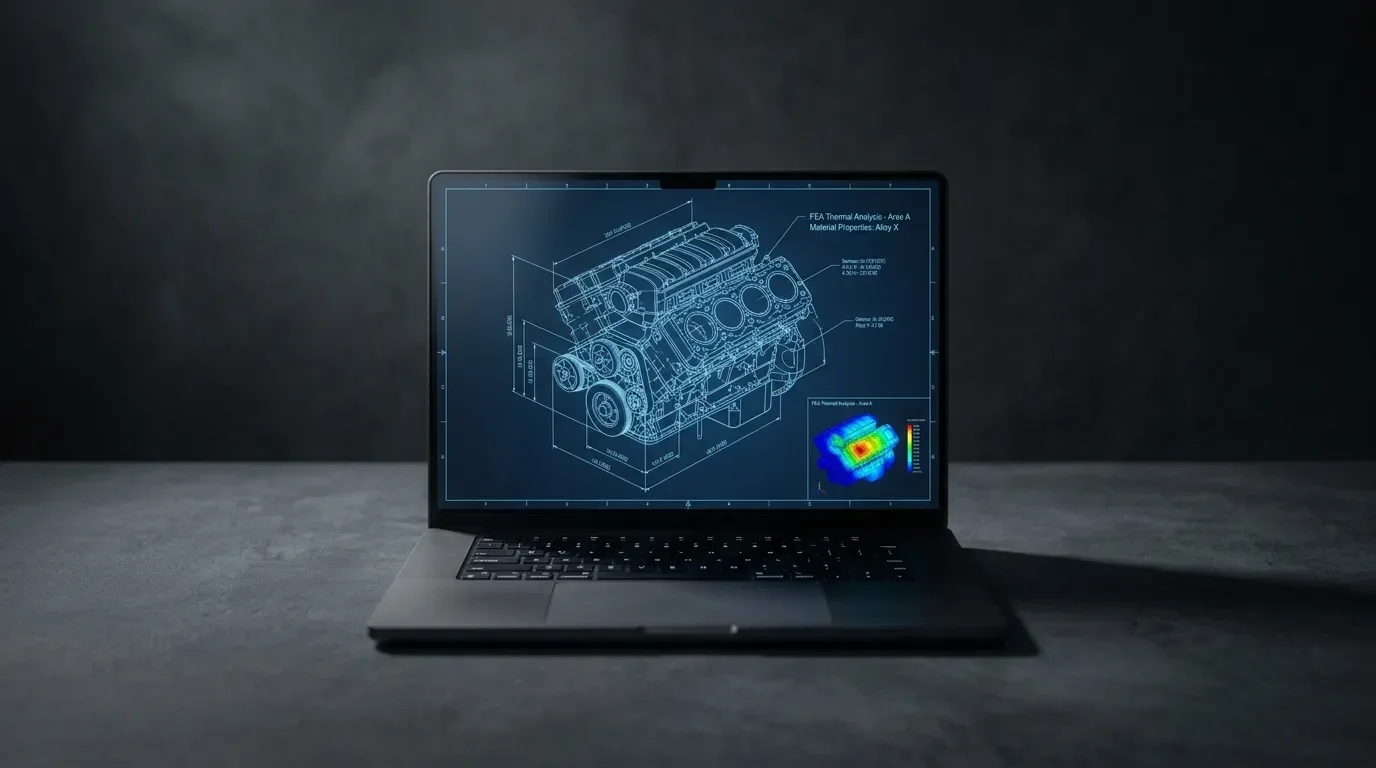
Best for heavy CAD and simulation
The workstation the others get measured against, configurable up to RTX PRO 5000 graphics and 192 GB of RAM. Buy it if your program certifies against workstation hardware or someone else is paying. Skip it if you carry your laptop to lectures every day.
View on Amazon →Best budget pick
A current-generation RTX 5060 for CAD and simulation at around $1,000, leaving room in the budget for a RAM upgrade. Buy it if you need a discrete NVIDIA GPU without overspending. Skip it if you want a light, premium chassis.
View on Amazon →Best mid-range Windows all-rounder
Lenovo Legion 5i Gen 10 with RTX 5070
More GPU headroom for rendering, simulation, and video work, with the serious cooling a gaming chassis brings. Buy it if you want one Windows machine for CAD and creative work. Skip it if silent, all-day battery matters most.
View on Amazon →Best Mac
Just over 24 hours of measured battery in a silent, Mini-LED chassis. Buy it if your entire software list runs on macOS. Skip it if your syllabus lists desktop SolidWorks or Ansys.
View on Amazon →Best ultraportable
Fanless, featherweight, and runs native MATLAB, starting at 16 GB and 512 GB. Buy it if your complete software list is Mac-friendly and portability wins. Skip it if any course requires a discrete GPU.
View on Amazon →After years on the front line of retail tech support – and six years of hauling laptops across two university campuses myself – I can tell you the honest answer to this blog post’s question is never a single model. It's a shortlist. Which machine belongs at the top of your shortlist depends almost entirely on one thing: the software your program will require you to run.
So that's how this guide works. I've sorted the best laptops for engineering students in 2026 into budget, mid-range, and high-end tiers, checked every pick against current official system requirements and independent testing, and I'll be blunt about the Mac question – because that's the conversation I have most often, and the one where the most money gets wasted. One housekeeping note: laptop prices shift constantly, so treat every figure here as a snapshot from the time of writing and verify at checkout.
Quick Verdict – Best Laptops for Engineering Students in 2026
No single laptop wins for every engineering student. Here's the shortlist that the evidence actually supports:
Best for heavy CAD and simulation: Lenovo ThinkPad P16 Gen 3, configurable up to NVIDIA RTX PRO 5000 graphics and a frankly absurd 192 GB of RAM.
Best budget pick: Lenovo LOQ 15 (AMD) with the RTX 5060.
Best mid-range Windows all-rounder: Lenovo Legion 5i Gen 10 with RTX 5070.
Best Mac: MacBook Pro 14 (M5) – I measured just over 24 hours of battery life in my testings.
Best ultraportable: MacBook Air 13 (M5) – only if your complete required-software list runs on macOS.
And the one rule that outranks every spec sheet in this post: if your program requires desktop SolidWorks or Ansys, buy a Windows machine. Desktop SolidWorks has no native macOS version, and the free Ansys Student package officially supports Windows 10 and 11 only.
A Mac makes sense if:
Your program's complete software list runs on macOS (MATLAB, AutoCAD, Fusion, and Onshape all do).
Battery life and portability matter more to you than a discrete NVIDIA GPU.
You'd rather not think about fan noise in a quiet lecture hall.
Skip the Mac if:
Your syllabus lists desktop SolidWorks or Ansys – full stop.
Your department requires a discrete GPU (some do, in writing).
You don't want to gamble on virtualization workarounds for required coursework.
Comparison Table
| Model | Tier | Key specs | Approx. US price* | Best for |
|---|---|---|---|---|
| Lenovo LOQ 15 (AMD) | Budget | Ryzen 7 250, RTX 5060 8 GB, 16 GB RAM, 15.6" FHD 144Hz | ~$1,000 class (varies) | Price-sensitive students who need a discrete NVIDIA GPU |
| Apple MacBook Air 13 (M5) | Budget–mid | M5, 16 GB/512 GB base, up to 32 GB | Check current/edu pricing | Mac-compatible programs, maximum portability |
| Apple MacBook Pro 14 (M5) | Mid | M5, 16–32 GB, Mini-LED 120Hz | $1,599+ at launch (raised mid-2026) | Mac-compatible programs, all-day battery |
| Lenovo Legion 5i Gen 10 | Mid | Core Ultra 7 255HX, RTX 5060–5070, 15.1" WQXGA OLED 165Hz | Check current listings | Windows all-rounder for CAD, simulation, and creative work |
| Apple MacBook Pro 16 (M5 Pro/Max) | High-end | M5 Pro/Max, up to 40-core GPU | From $2,999 / $4,399 (raised mid-2026) | macOS-supported heavy workloads, code, data |
| Lenovo ThinkPad P16 Gen 3 | High-end | Up to Core Ultra 9 285HX, RTX PRO 5000, up to 192 GB RAM, 3.2K tandem OLED | Configure-to-order (check Lenovo) | Certified workstation for serious CAD/simulation |
*Configurations and prices change constantly – always verify the exact model at checkout.
How to Choose a Laptop for Engineering (What Actually Matters)
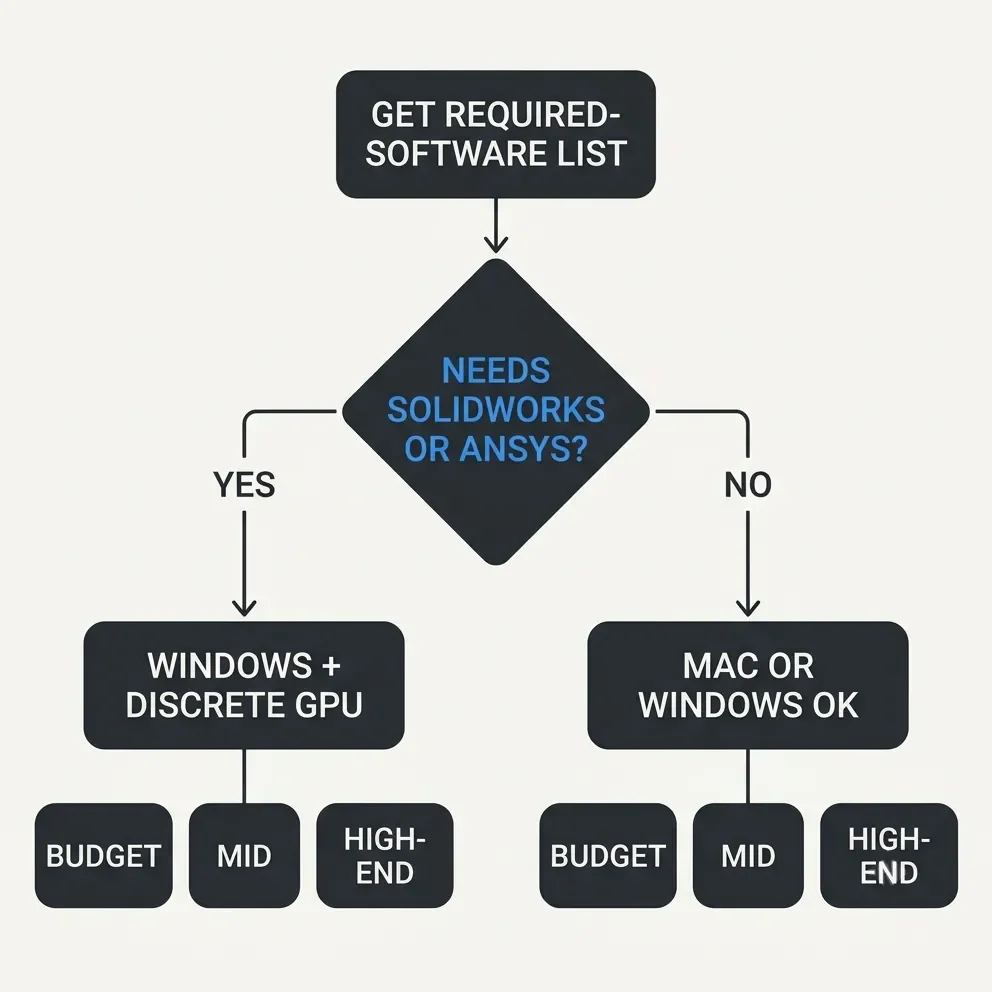
Before we get to the individual picks, here's the buying framework I walk people through at the counter. It takes ten minutes and regularly saves four figures.
1. Get Your Department's Required-Software List First
Not the Reddit thread. Not the influencer video. The actual list. Some programs put hardware policies in writing – SUNY Maritime's engineering department, for example, explicitly requires a dedicated GPU and states that integrated graphics are insufficient for its CAD coursework. My law-school past compels me to point out: that requirements page is the only binding contract in this purchase.
2. Check Official Requirements Pages, Not Summaries
Yes, I see the irony of a blogger saying this. Do it anyway: SolidWorks, AutoCAD 2026, Ansys Student, and MATLAB all publish current, platform-specific requirements.
3. RAM: 16 GB Is the Floor, 32 GB Is the Comfortable Answer
Autodesk recommends 32 GB for AutoCAD 2026 on Windows (16 GB on Mac), and Ansys Discovery 2026 R1 lists 16 GB or more. On the vendor side, SolidWorks reseller GoEngineer recommends at least 16 GB for a basic system, and workstation builder Velocity Micro suggests 32 GB for SolidWorks 2026 – 64 GB for very large assemblies. Treat those as seller guidance rather than official minimums, but the direction is clear. And since RAM is soldered in most of these machines, buy it upfront. You can't add it later.
4. CPU: Single-Core Speed Matters More than the Core-Count Arms Race
Velocity Micro's AutoCAD 2026 testing found that common 2D operations respond mostly to single-core performance, while SolidWorks reseller Javelin saw high core counts pay off mainly in flow-simulation workloads. Both are vendor tests, not gospel – but the takeaway holds: don't pay for sixteen cores your coursework will never touch.
5. GPU: "Certified" Means the Exact Configuration, Not the Brand
SolidWorks certifies specific system, GPU, driver, and release combinations – not GPU families in the abstract. Plenty of students on r/SolidWorks report getting through coursework on GeForce gaming laptops just fine, but understand the trade: an uncertified configuration has no vendor-backed support path if something misbehaves. Also keep an eye on VRAM – RTX 5060's 8 GB VRAM might not be enough, for example.
6. Weight and Battery Are Curriculum Requirements too
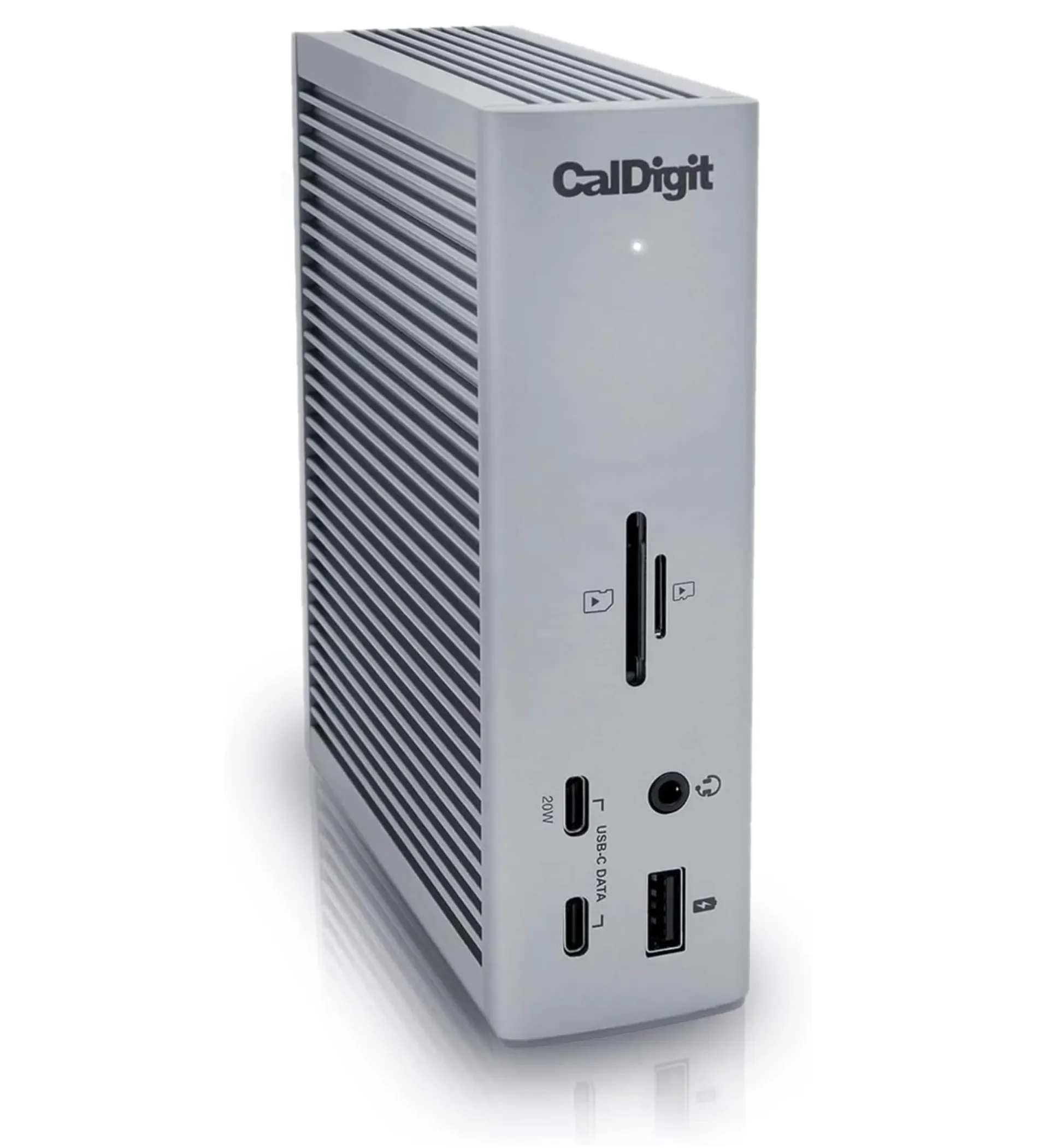
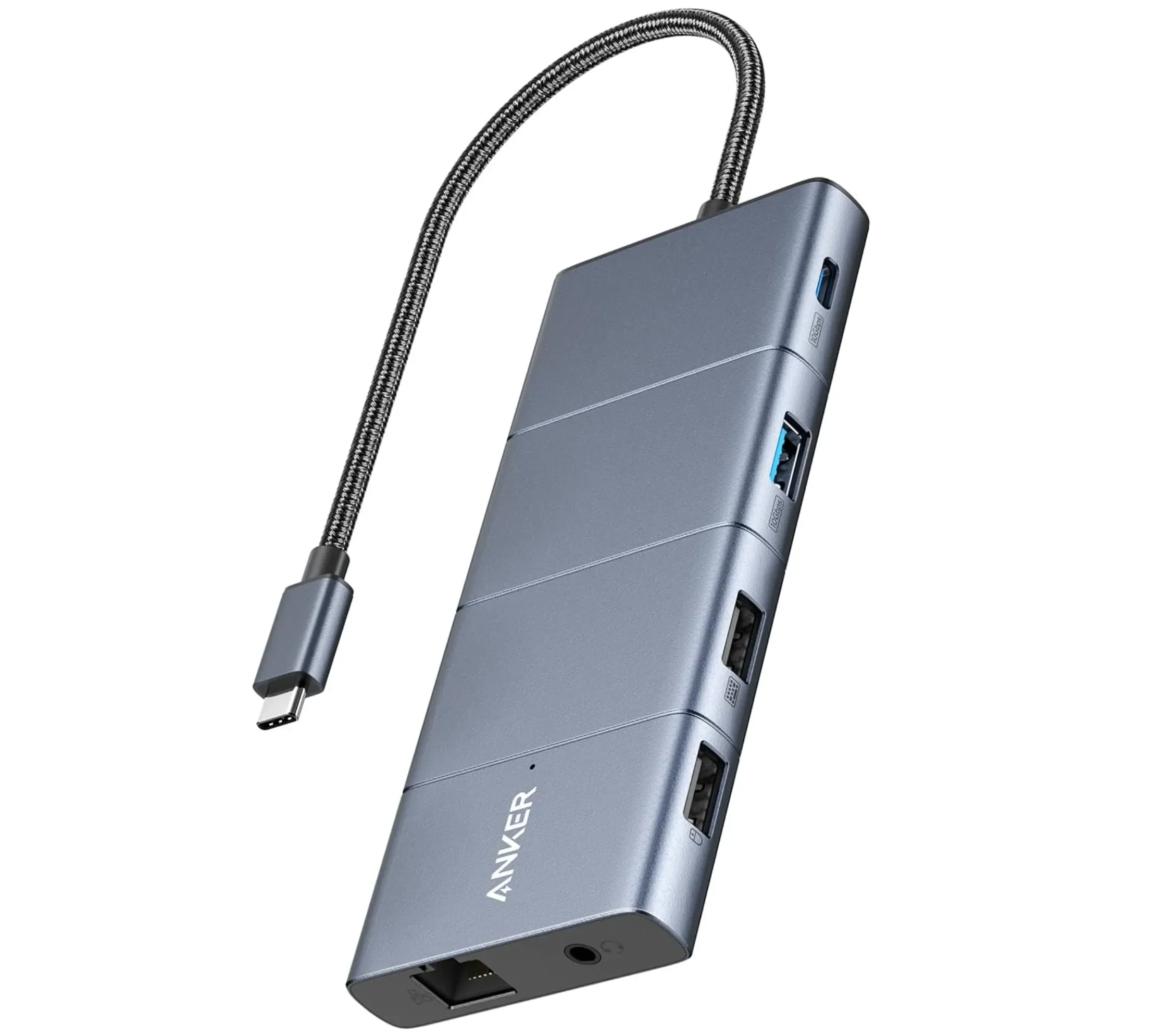
A 2.5 kg workstation plus its power brick is a genuine ergonomic cost when you're moving between lecture halls all day – I commuted to university with an overweight laptop for years, and my spine has opinions about it to this day. A common compromise: carry something lighter and dock into a big screen at your desk. (I've covered how to connect an external monitor to a MacBook Pro if that's your plan.) For a one-cable desk setup, the CalDigit TS4 is the premium option I'd choose; the Anker 565 USB-C hubis the cheaper alternative if you need the ports without paying for a full Thunderbolt dock.
7. Use Your Student Status
Apple runs country-specific education stores, Autodesk gives qualifying students free education access, Ansys Student is free on supported Windows systems, and Onshape has a free academic plan that runs in a browser. Exact discounts vary by country and offer period, so check at purchase time – and if you're shopping for a Mac, I've also written about why Apple products are often cheaper on Amazon.
Mac vs. Windows for Engineering Students
This is the most expensive mistake I see, and I see it every single semester: someone buys a gorgeous new Mac in July, and in October the CAD course syllabus lands. A Mac in a SolidWorks-based program is like showing up to a drum audition with a Steinway. Magnificent instrument. Wrong gig.
As someone who genuinely likes the Mac platform, here's the honest breakdown.
What Runs Natively on macOS
The list is better than it used to be:
MATLAB runs natively on Apple Silicon – MathWorks has shipped a dedicated Apple Silicon build since R2023b and publishes current Mac requirements.
AutoCAD 2026 officially supports macOS on M-series chips, with 16 GB of RAM recommended on the Mac side.
Autodesk Fusion publishes current macOS requirements, and students can get a renewable one-year education subscription.
Onshape runs in a desktop browser on any platform and offers that free academic plan.
If that covers your program's list, a Mac is a legitimately great engineering laptop – quiet, efficient, and with battery numbers Windows machines still don't match in independent testing.
What Doesn't Run – and Whether Parallels Saves You
Now the hard part.
Desktop SolidWorks has no native macOS application. That's not me being dramatic – Dassault's own guidancepoints Mac users toward virtualization or its browser-based tools. Ansys Student officially lists Windows 10 and 11 only, and an Ansys employee on the official support forum put it plainly: it's "not officially supported" on a MacBook, though some users running Windows through Parallels "have installed on it and can run."
Can't you just Boot Camp it? Not anymore. Apple documents Boot Camp only for Intel-based Macs. On Apple Silicon, Microsoft documents two authorized routes: supported versions of Parallels Desktop running Windows 11 Arm locally, or a Windows 365 Cloud PC. Microsoft itself warns that Windows 11 Arm comes with application, hardware, DirectX 12, and nested-virtualization limitations. Parallels recommends 16 GB or more of total system RAM for graphics-intensive use, you may need a separate Windows 11 license, and one SolidWorks reseller cautioned in 2025 that virtualization compatibility doesn't guarantee performance or stability on unsupported hardware. One more quiet catch: MathWorks states that Parallel Computing Toolbox GPU acceleration is unavailable on macOS.
My honest take after years of watching this from the support side: virtualization is a fine escape hatch for the occasional Windows-only utility. It is not a foundation to build a CAD-heavy degree on. If SolidWorks or Ansys is on your list, buy Windows and sleep well.
Best High-End Laptops for Engineering Students
These are for students whose programs genuinely demand workstation-class hardware – or whose employers, scholarships, or generous relatives are paying.
Lenovo ThinkPad P16 Gen 3
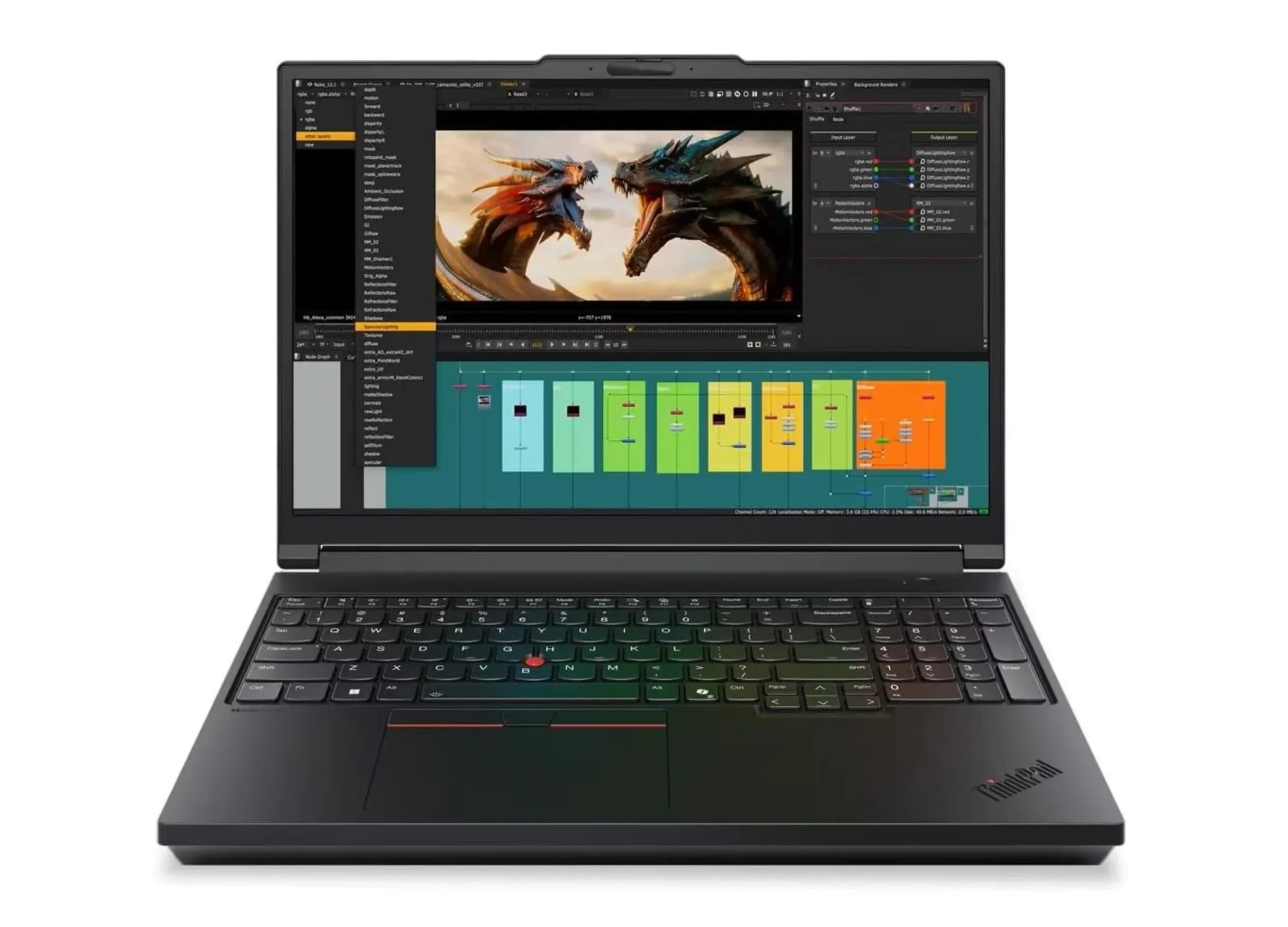
The short version: this is the machine the others get measured against. TechRadar named it the best overall laptop for engineering students in 2026, and the spec sheet explains why: up to an Intel Core Ultra 9 285HX, RTX PRO graphics up to the 5000-class, up to 192 GB of RAM, and a 16-inch 3200×2000 tandem OLED display rated at 600 nits and 120 Hz. Reviews at StorageReview and ServeTheHome back up the workstation credentials.
The catch is physics. At roughly 2.5 kg plus a substantial power brick, this is a laptop you station somewhere, not one you sprint to a lecture with. If you're carrying it daily, a properly padded bag like the Peak Design Everyday Backpack is not an indulgence – my back learned that lesson before I did. Pricing is heavily configuration-dependent, so check the current ThinkPad P16 configurations and sit down before you look at the total. But if your program certifies against workstation hardware, the RTX PRO configurations can appear in Dassault's certification database, which buys you an actual vendor-backed support path.
Apple MacBook Pro 16 (M5 Pro/Max)
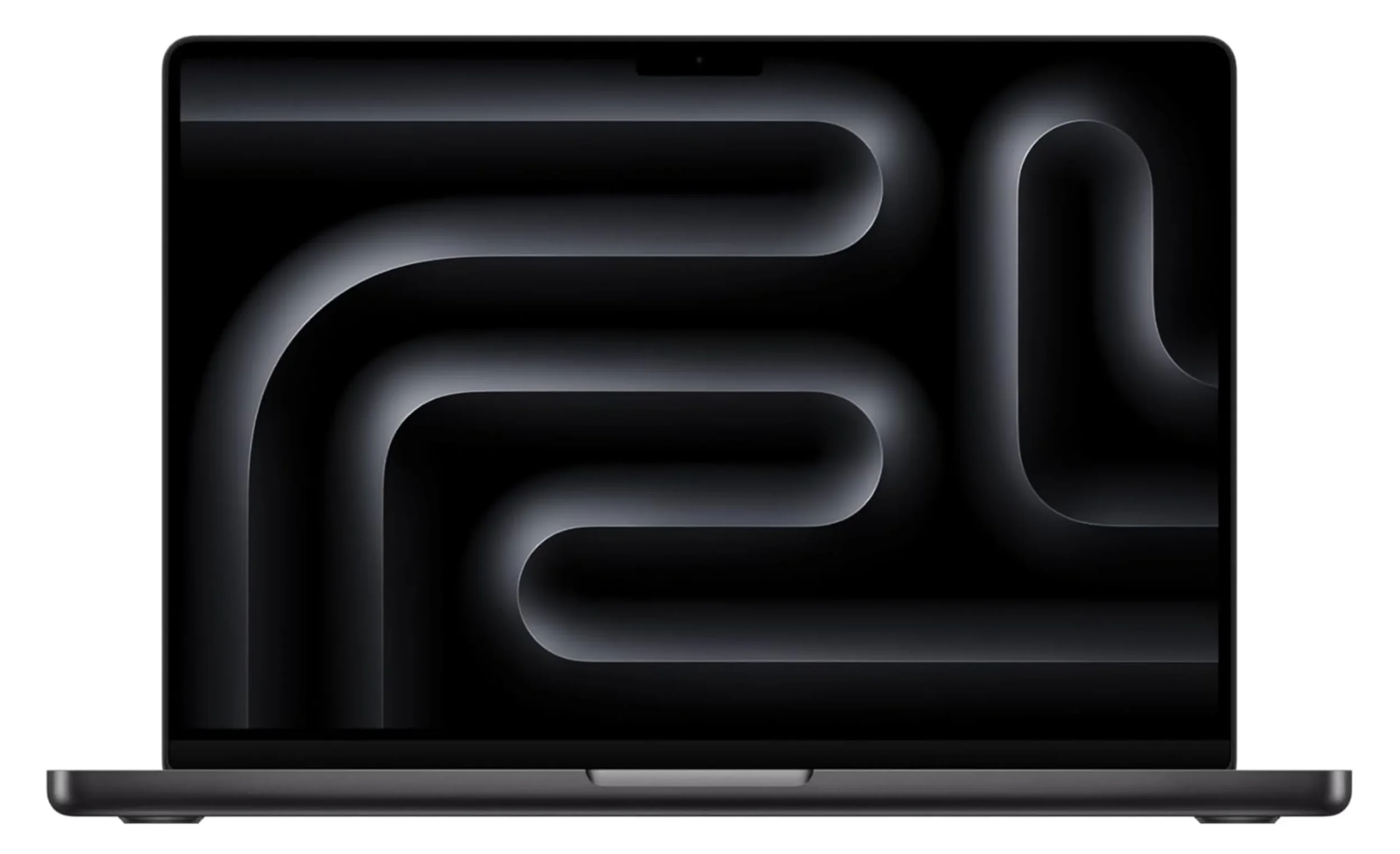
The MacBook Pro 16 with M5 Pro or M5 Max is the outlier in this tier, because it wins a different contest. At launch, Apple listed M5 Pro configurations from $2,699 and M5 Max from $3,899, though Apple raised those prices in mid-2026 to $2,999 and $4,399 respectively amid the memory shortage. I measured about 27 hours of battery on my (admittedly $6,149) test unit. Apple's current spec page goes up to a 40-core GPU with 614 GB/s of memory bandwidth. As someone who edits YouTube videos in DaVinci Resolve, I understand exactly who this machine is for.
But the platform caveats from earlier apply in full: no native desktop SolidWorks, no official Ansys Student. This is the high-end pick for macOS-supported workloads – heavy code, data work, native MATLAB, simulation tools that support the platform – not for a SolidWorks-centric degree.
Best Mid-Range Laptops for Engineering Students
The sweet spot, and where I'd steer most students who ask.
Apple MacBook Pro 14 (M5)
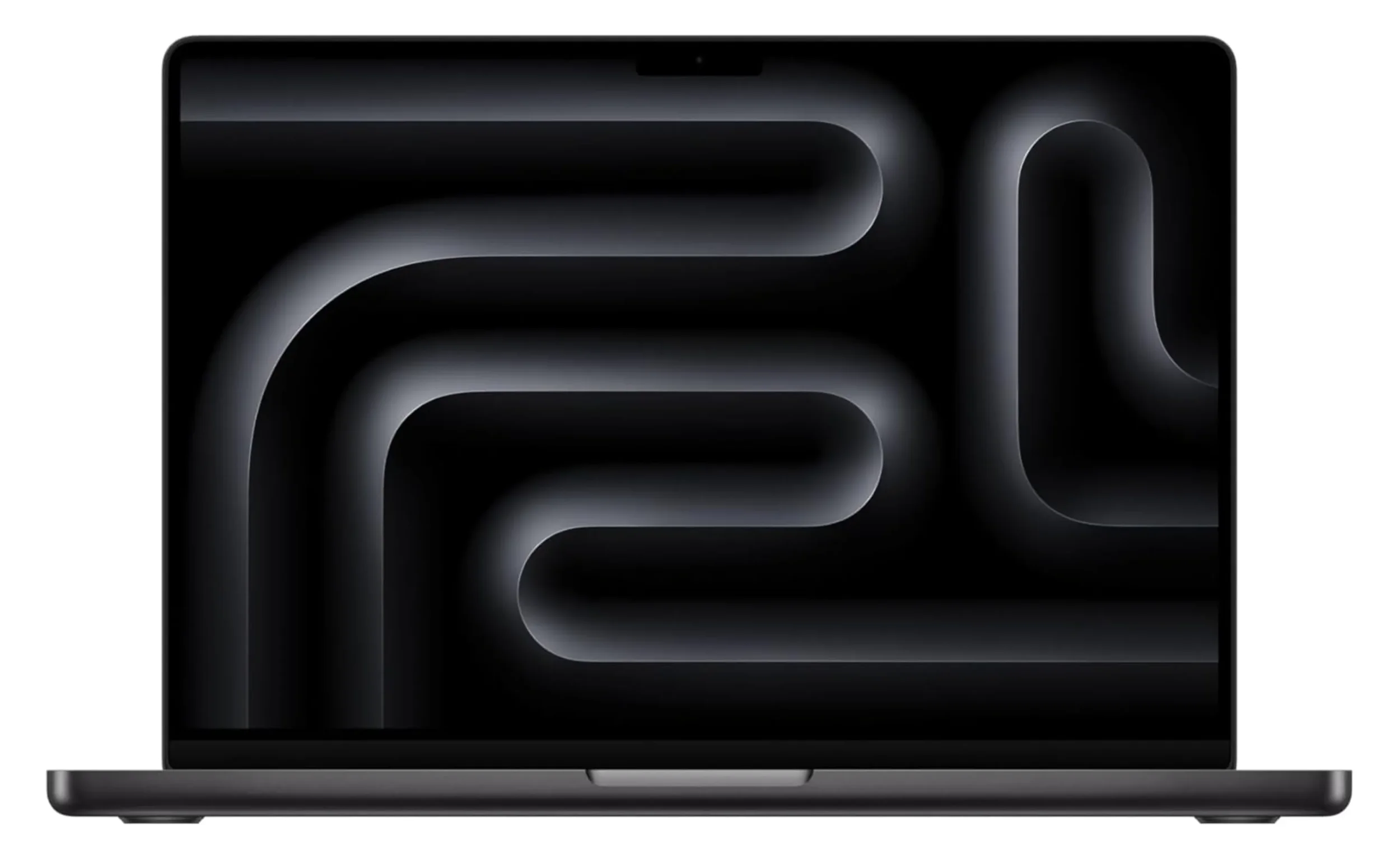
The MacBook Pro 14 with M5 is the Mac I'd buy for a compatible engineering program. Apple launched the 14-inch M5 model at $1,599 for the 16 GB/512 GB configuration. Note that mid-2026 price increases pushed entry pricing up across the line since then, so treat these as launch figures. The headline number is: 24 hours battery life. That's not a typo. For a student who lives between lecture halls, libraries, and questionable café outlets, that's the killer feature – along with a Mini-LED 120 Hz display and a chassis that stays silent in a quiet room.
Same song, third verse: confirm your entire software list runs on macOS first. If it does, this is the best all-around student laptop Apple makes.
Lenovo Legion 5i Gen 10
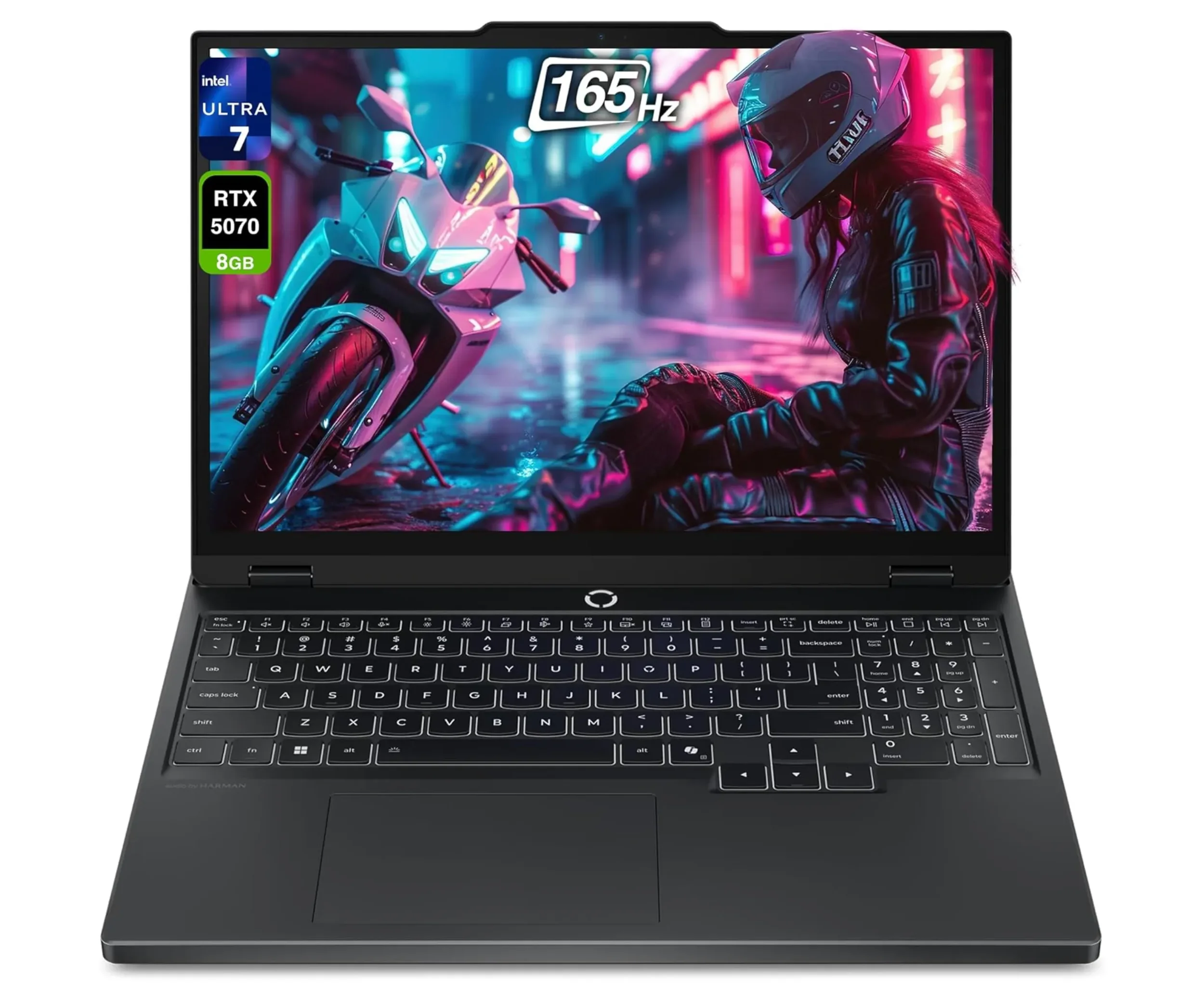
I first tested a configuration with the Core Ultra 7 255HX, an RTX 5060, and a 15.1-inch WQXGA OLED at 165 Hz – already a genuinely strong combination for CAD coursework that doesn't demand certified workstation graphics. The Legion 5i Gen 10 configuration with RTX 5070 adds more GPU headroom for rendering, simulation, and video work, which is why it now fills the creator-crossover role in this guide as well. Gaming chassis also tend to mean serious cooling, which matters more for long simulation runs than spec sheets suggest.
Two honest caveats: current pricing moves around too much to quote reliably, and battery life and fan acoustics vary by configuration. Check the exact CPU, GPU, RAM, and display before buying. As someone who records piano at home, I'll just say gaming-laptop fans and condenser microphones have a complicated relationship.
Best Budget Laptops for Engineering Students
"Budget" in engineering-laptop terms still means real money – a discrete GPU sets the floor. But there's good value here.
Lenovo LOQ 15 (AMD)
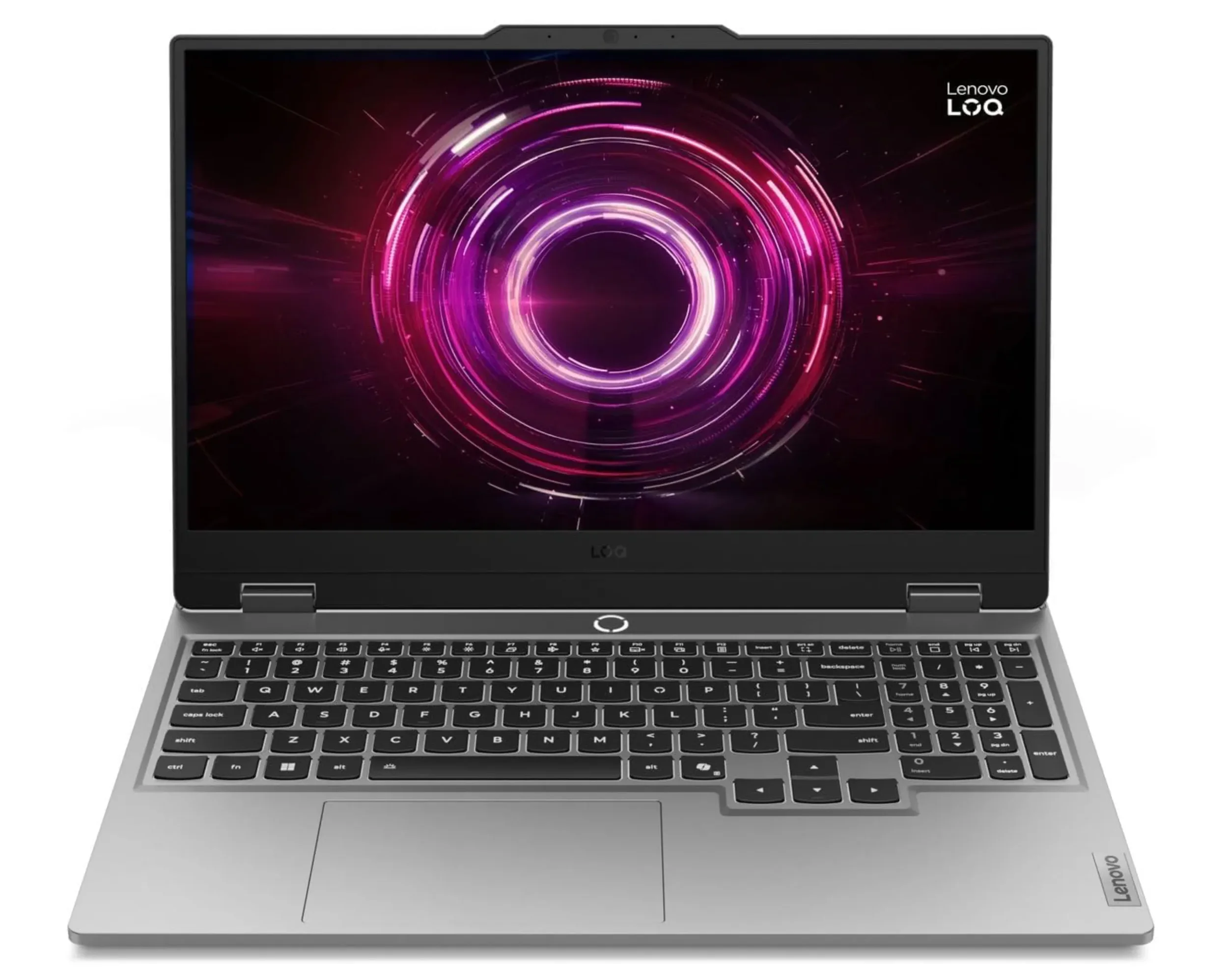
The value story of this list. The Lenovo LOQ 15 (AMD) can be configured with a Ryzen 7 250, an RTX 5060 with 8 GB of VRAM, 16 GB of RAM, and a 15.6-inch FHD 144 Hz display. Usually it is priced at around $1,000 – though exact US pricing for specific configurations fluctuates, so check current listings.
What you give up: it's on the heavy side with some awkward port placement, the FHD panel is serviceable rather than special, and there is a 8 GB VRAM ceiling. What you get: a current-generation NVIDIA GPU at a price that leaves room in the budget for the RAM upgrade – which, per the buying framework above, is where the money should go anyway.
Apple MacBook Air 13 (M5)
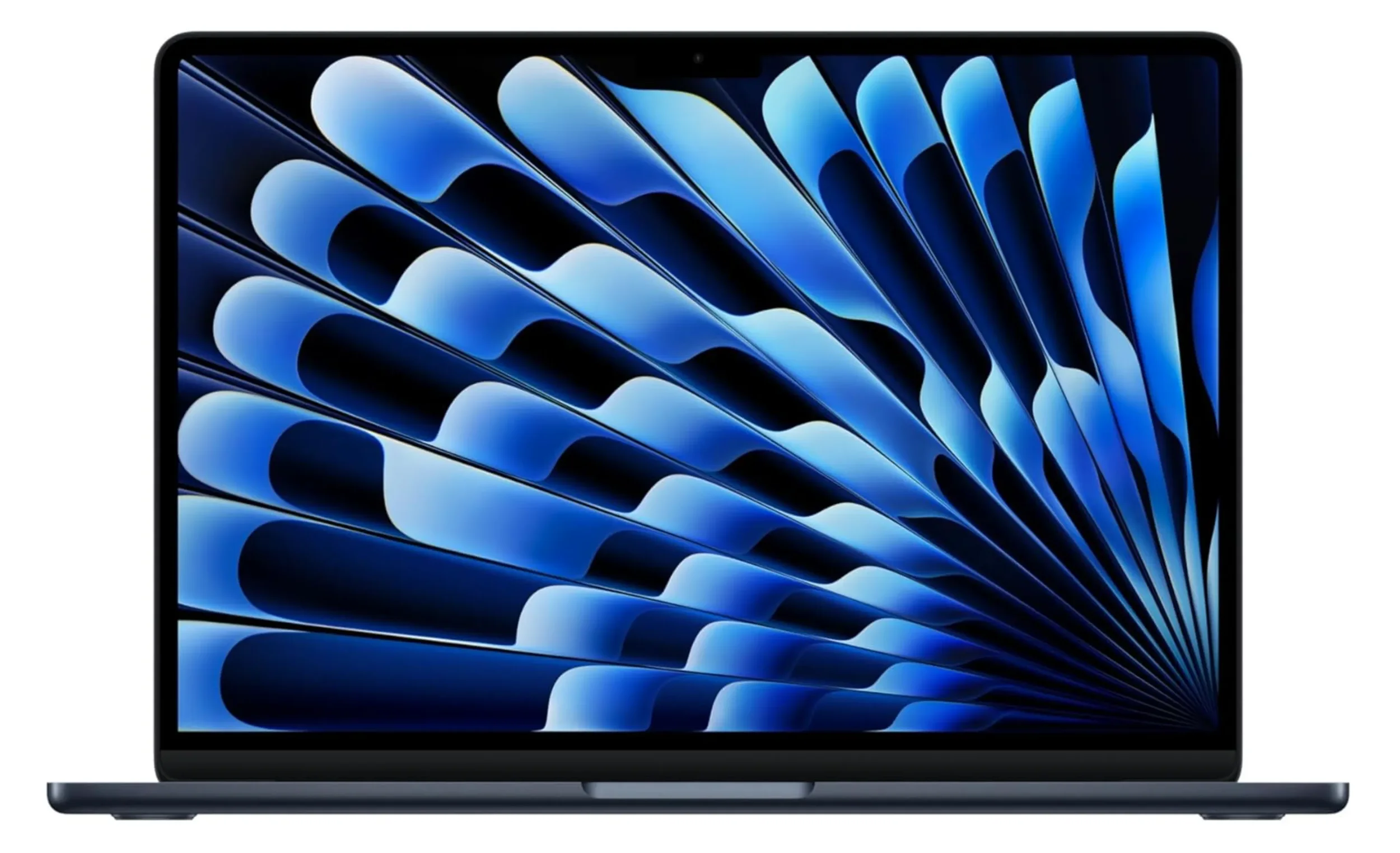
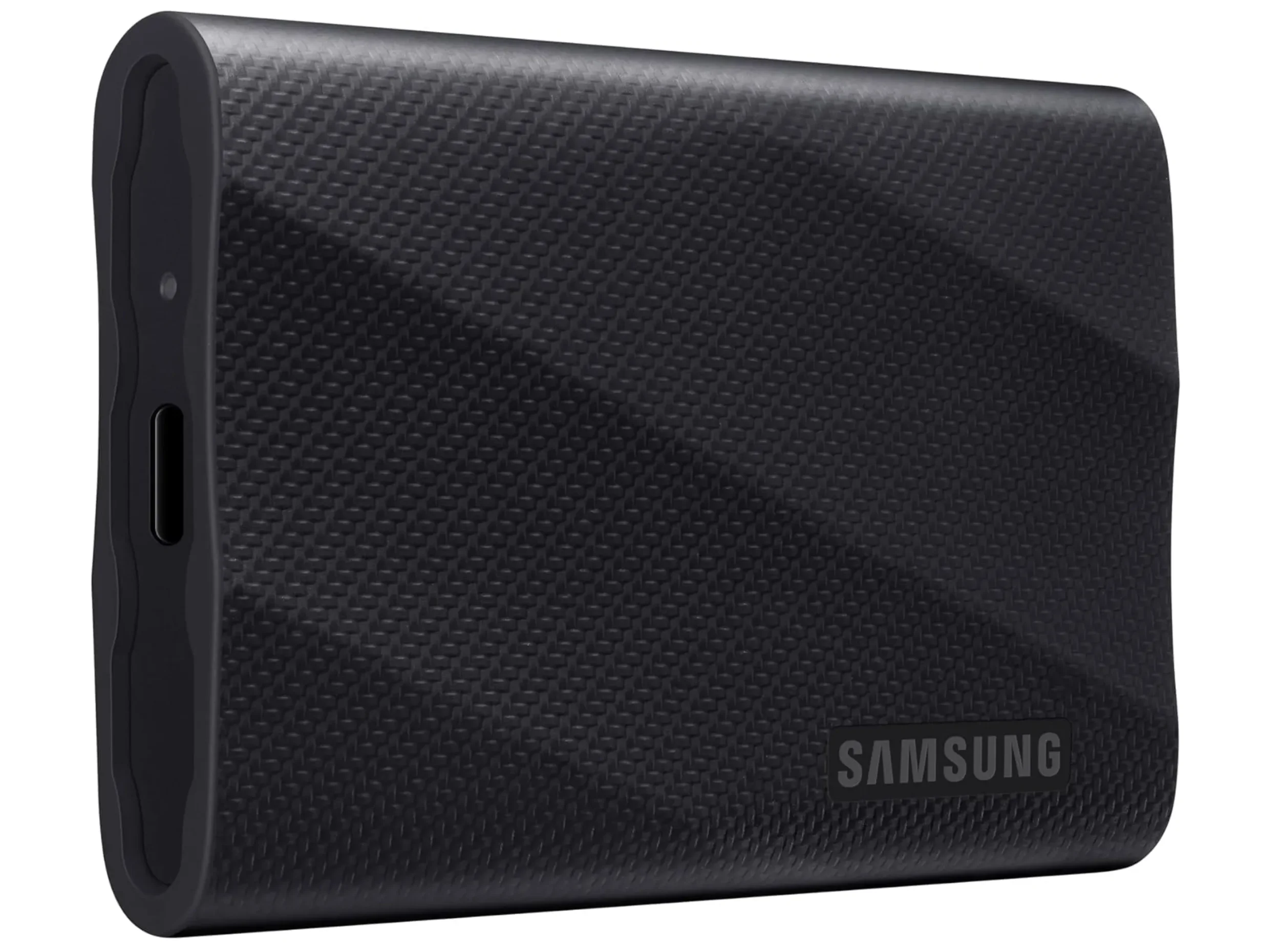
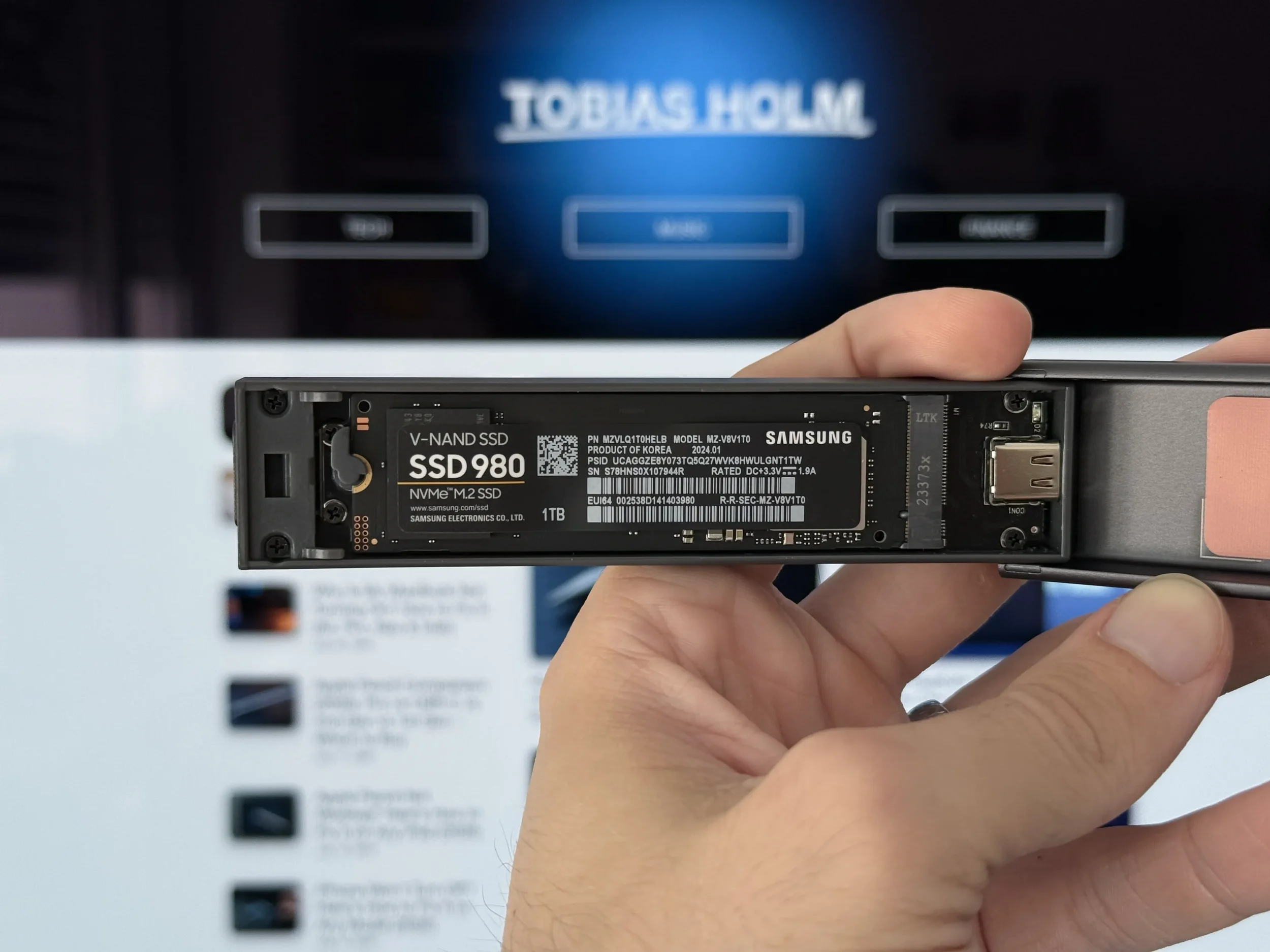
The MacBook Air 13 with M5 finally starts at 16 GB of unified memory with 512 GB of storage, and the 13-inch model configures up to 32 GB. It's silent (no fan at all), absurdly portable, and runs native MATLAB. Since the internal storage cannot be upgraded later, a fast external drive like the Samsung T9 portable SSD is the practical way to add project space without paying Apple's storage-upgrade prices.
But it's the most conditional pick in this guide. There's no discrete GPU – only Apple’s integrated M5 GPU – so any program with a written discrete-GPU requirement rules it out immediately, and the SolidWorks/Ansys situation is unchanged. This is the right machine for the student whose complete software list is Mac-friendly and who values weight and battery above all. If that's you, check Apple's education store before paying retail.
Best Laptop by Engineering Discipline
A quick routing table, since "engineering" is doing a lot of heavy lifting in one word:
Mechanical / aerospace (SolidWorks, Ansys): Windows with a discrete GPU, no exceptions. LOQ 15 on a budget; ThinkPad P16 Gen 3 if the program certifies against workstation hardware.
Electrical / computer engineering: More flexible – MATLAB runs natively everywhere, but lab tools are often Windows-only, so verify first. The Legion 5i Gen 10 is the safe pick; a MacBook Pro 14 works when the full list clears.
Civil (AutoCAD-centric): AutoCAD 2026 runs on both platforms, with 32 GB recommended on Windows and 16 GB on Mac. A mid-range Windows machine or the MacBook Pro 14 both fit.
Software / CS-adjacent: Nearly anything on this list works. Prioritize battery, keyboard, and display – this is where the MacBook Air and Pro genuinely shine.
Useful Accessories & Peripherals
These are the tools that'll take your laptop from good to great, transforming it into a powerhouse that can handle anything you throw at it.
External SSDs
Even with a spacious internal SSD, you'll inevitably accumulate a massive library of project files, CAD models, and other important data. An external SSD gives you that extra storage boost while maintaining blazing-fast transfer speeds.
Plus, it's a great way to back up your data in case anything happens to your laptop. Look for SSDs with USB-C or Thunderbolt connectivity for the fastest speeds.
Here is my personal recommendation that I’ve been using for years now:
Laptop Cooling Pads
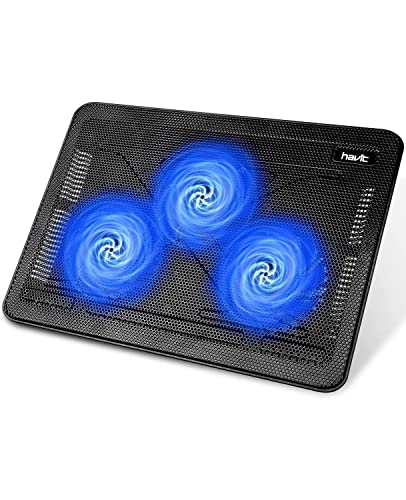
Engineering laptops can get hot under heavy load, and nobody wants a toasty lap or a throttled CPU. A good cooling pad can help keep your laptop running at peak performance by drawing heat away from the components.
Plus, it can also provide a more ergonomic typing angle for those long study sessions.
Once more, here’s my personal recommendation:
External Monitors
For those of us who love to multitask or need to reference multiple documents at once, an external monitor is a must-have. It gives you a ton of extra screen real estate, so you can have your CAD software open on one screen and your research papers on the other.
Here’s a great option:

Mice & Keyboards
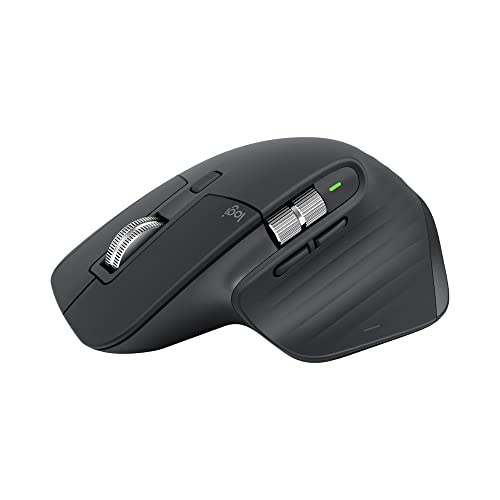
While most laptop trackpads and keyboards are decent these days, a good external mouse and keyboard can significantly improve your comfort and productivity – especially when paired with an external monitor.
Look for a mouse that's ergonomic and fits your hand well, and a keyboard that has a satisfying typing experience.
Here are the ones I am currently using:

Mechanical keyboards are also a popular choice among programmers and engineers, thanks to their tactile feedback and customizable keys.
This is the one I would upgrade to:
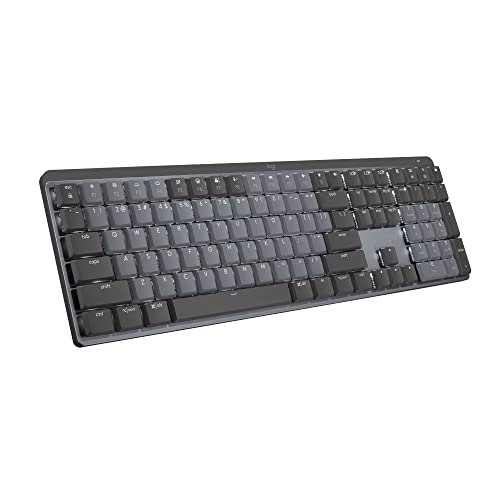
By the way, this article is not sponsored by Logitech – I simply really enjoy their products which is why I feel confident recommending them.
Docking Stations
If you're going to be connecting your laptop to an external monitor, keyboard, mouse, and other peripherals regularly, a docking station can be a lifesaver. It lets you connect everything with a single cable, making your setup much cleaner and easier to manage.
Plus, many docking stations also offer additional ports, like Ethernet, SD card readers, and more.
This is the one I am currently using:
Alternatively, you could also go for a USB-C Hub / Dongle, which is portable and usually cheaper.
What Laptop I'd Actually Buy (My Recommendation)
Let me answer the question the way I would across the counter, without the hedging.
If you're going into mechanical or anything CAD-and-simulation-heavy: the Lenovo LOQ 15 with the RTX 5060, and put the savings into RAM. Students on r/SolidWorks report coursework running fine on exactly this class of machine, and the certified-workstation support path – nice as it is – is a luxury at student project sizes. If your program requires certified hardware or you're funded, the ThinkPad P16 Gen 3 is the grown-up answer. Just budget for a sturdier backpack. And maybe a physiotherapist.
If your software list clears macOS: the MacBook Pro 14 (M5), and it isn't close. A measured 24-hour battery result changes how you use a laptop – you stop planning your day around outlets. I say this as someone who has spent years on the retail support side watching what actually goes wrong with laptops, and who has written entire troubleshooting guides for MacBooks: the boring, durable choice is usually the right one for a four-year degree.
If money is the constraint: LOQ 15 for CAD programs, MacBook Air M5 for Mac-friendly ones – but compare the live price against the education store and never pay sticker price.
One last thing, and it's the most important sentence in this post: the syllabus outranks the spec sheet. Get the required-software list, check the official requirements pages, and buy the cheapest machine that clears them with headroom. Four years from now, nobody will remember whether your laptop had RGB lighting. Your back, your battery anxiety, and your bank account will remember everything else.
Which way are you leaning, and what's on your department's required-software list? If you've already survived a semester of SolidWorks on a gaming laptop, or regretted a shiny Mac purchase in week three of a CAD course, tell me in the comments below. Your story might save the next reader a very expensive mistake.
And if you want the next round of hands-on testing before you commit, subscribe to my tech newsletter. I send real battery and thermal numbers from laptops I've actually lived with, not repackaged spec sheets.
Thanks a lot for reading – take care.



FAQ
-
Yes, for most students a gaming laptop is a smart choice, since it pairs a discrete NVIDIA GPU with serious cooling at a far lower price than a certified workstation. The trade-off, as covered above, is that a GeForce configuration isn't vendor-certified, so you won't have an official support path if SolidWorks misbehaves. For undergraduate coursework that's rarely a real problem, which is exactly why the LOQ 15 and Legion 5i made this list.
-
No. An iPad can't run the desktop software your program will require, like SolidWorks, Ansys, or full AutoCAD. It's a great secondary device for notes, PDFs, and browser-based Onshape, but treat it as a companion, not a replacement. Every pick in this guide is a full laptop for that reason.
-
Often yes, though the size varies a lot by brand and country. Apple runs education pricing through its student store, and Lenovo, Dell, and ASUS regularly run their own student or back-to-school offers. As I mentioned earlier, the bigger savings are on software: Ansys Student, Autodesk education access, and Onshape's academic plan are all free.
-
Plan for it to cover your whole degree, so buy against a four-year horizon. That's the main reason I push people toward 32 GB of RAM upfront, since memory is soldered on most of these machines and you'll hit a wall in a third-year project if you skimp. A slightly overspecced laptop bought once is cheaper than replacing an underspecced one mid-degree.
-
It's the realistic floor, not the comfortable answer. Autodesk recommends 32 GB for AutoCAD 2026 on Windows, and SolidWorks resellers suggest 32 GB or more for larger assemblies. If your budget allows only one upgrade, make it RAM, because on these machines you usually can't add it later.
-
No. SolidWorks has no ChromeOS version, and Chromebooks lack the hardware for desktop CAD regardless. If you need SolidWorks on a tight budget, a Windows laptop with a discrete GPU like the LOQ 15 is the real entry point. Browser-based Onshape is the only genuine CAD option on ChromeOS.
-
If you can wait, get your department's required-software list first, since it's the single best way to dodge the expensive Mac-in-a-SolidWorks-program mistake I described earlier. Most schools publish requirements over the summer, and prices tend to improve during back-to-school sales anyway. If you have to buy early, default to a Windows machine with a discrete GPU, because it clears the widest range of programs.
-
An external SSD for extra storage, a cooling pad to prevent overheating, and a good mouse and keyboard can all make a big difference in your productivity and comfort.
MOST POPULAR



LATEST ARTICLES





I sell Apple Pencils at a tech store every week, and this apple pencil comparison covers the exact questions customers ask before buying one.