
How to Turn Off Meta AI on Facebook, Instagram, WhatsApp & Meta Devices (2026)
The Short Version
You can't fully turn off Meta AI on Facebook, Instagram, or WhatsApp – only mute and limit it.
- Mute the chatbot everywhere, then use /reset-ai to delete its copy of your chats.
- EU/UK users can opt out of AI training via Meta's objection form; the US can't.
- Only Meta Quest has a true off-switch, and only in the US and Canada.
Full platform-by-platform breakdown below.
Meta never asked if you wanted an AI assistant. One day the blue circle just showed up in WhatsApp, the search bars started suggesting you "Ask Meta AI," and a chatbot moved into your Messenger inbox like a houseguest who doesn't take hints. I use Facebook, Instagram, and WhatsApp every single day – here in Germany, WhatsApp is basically how society functions – so I went through every menu, every toggle, and every opt-out form Meta offers to figure out what you can actually switch off.
Spoiler: less than you'd hope. More than nothing, though.
This guide covers Facebook, Instagram, WhatsApp, Messenger, the standalone Meta AI app, and even Ray-Ban glasses and Quest headsets. It also covers the data-training opt-out that most guides written for US readers skip entirely – I know it works because I filed it myself.
Can You Actually Turn Off Meta AI?
Not completely. There is no master off-switch on Facebook, Instagram, WhatsApp, or Messenger – the assistant is wired into search bars and inboxes, not installed as an optional feature you can remove. When the BBC pressed WhatsApp on this, the company called Meta AI "optional" while confirming it cannot be removed, comparing it to permanent features like Channels and Status. Optional in the way weather is optional, I guess.
Here's what you can do:
Mute the chatbot on every platform so it stops appearing in your inbox
Block it per chat on WhatsApp with Advanced Chat Privacy
Delete the AI's copy of your conversations with the /reset-ai commands
Opt your data out of AI training – but only if you're in the EU or UK
Flip a real off-switch on Meta Quest – the one Meta surface with a true toggle, though it's only offered in the US and Canada
Uninstall the standalone Meta AI app, which is the one place where removal actually means removal
The only total exit from the social apps is deleting your Meta account. We'll get there – it's the nuclear option for a reason.
What You Can (and Can't) Disable on Each Platform
Before we go platform by platform, here's the whole situation in one table:
| Platform | Mute chatbot | Remove the button | Training opt-out | Delete AI history | Full off-switch |
|---|---|---|---|---|---|
| Facebook / Messenger | Yes | No | EU/UK only | Yes | No |
| Yes | No | EU/UK only | Yes | No | |
| Yes | No – but per-chat blocking exists | EU/UK only | Yes | No | |
| Meta AI app | n/a – the app is the bot | Uninstall it | EU/UK only | Yes | Only by not using it |
| Ray-Ban Meta glasses | Disable voice features | n/a | No voice-storage opt-out | Yes, manually | No – AI is on by default |
| Meta Quest | n/a | n/a | EU/UK only | Yes | Yes (US/Canada) |
One pattern jumps out immediately: you can silence Meta AI everywhere, but you can almost never remove it. Keep that distinction in mind, because muting and turning off are two very different things here.
How to Opt Out of Meta AI Training on Your Data
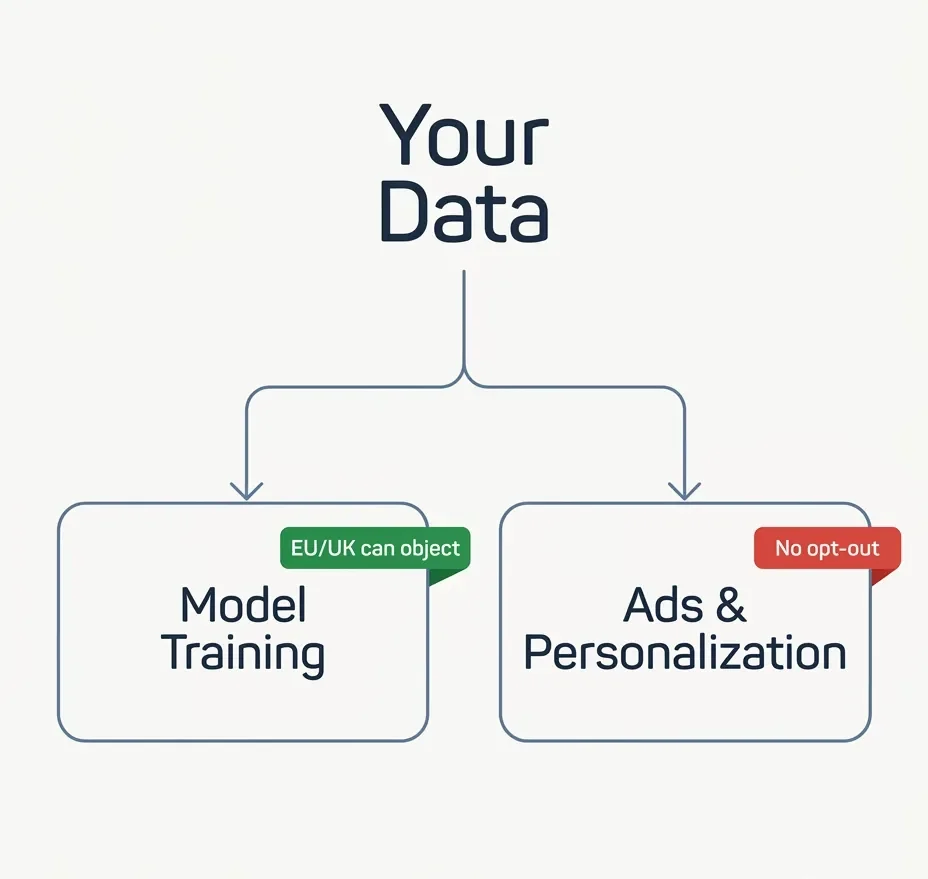
There are two separate data pipelines, and people constantly mix them up:
Model training. Meta trains its Llama models on adults' public posts and on what people type to Meta AI.
Ads and personalization. Since December 16, 2025, Meta's privacy policy also feeds your Meta AI conversations – text and voice – into its ad targeting and recommendation systems.
You can object to the first one – in some places. The second one has no opt-out at all, except that it doesn't apply in the EU, UK, and South Korea for now. If you're in the US and you chat with Meta AI, those conversations shape your ads. Full stop.
If You're in the US:
There is no training opt-out. Under most US privacy law, training AI on publicly available data is simply allowed. Your practical levers are smaller but not worthless: set your posts to private (training only uses public posts), avoid chatting with Meta AI, and delete what it has stored. You can also disconnect tracking from other apps and websites under Accounts Center → Your information and permissions → Your activity off Meta technologies.
If You're in the EU or UK:
Because Meta relies on "legitimate interest" under GDPR rather than asking for consent, it's legally required to offer a Right to Object. Here's the process:
Open Facebook or Instagram, then go to Settings & Privacy → Privacy Center → AI at Meta, or jump straight to the objection form while logged in.
Confirm your country so the EU/UK options appear.
Enter the email tied to your account. You may get a confirmation code – check your spam folder. Mine landed there, naturally.
Submit. You don't need to justify anything, and one objection covers all Facebook and Instagram accounts linked in the same Accounts Center.
Optionally, file the separate third-party data objection form too – it covers information about you that Meta scrapes from public sources, which affects you even if you've never had a Meta account.
Meta says it will "honor all objection forms we have already received, as well as newly submitted ones." The catch, and it's a real one: objections apply going forward. Anything already baked into a trained model stays there. Nobody has solved machine unlearning at scale, and Meta isn't pretending otherwise.
Is "legitimate interest" even a valid legal basis for this? Genuinely contested. The privacy group noyb called the approach unlawful, while the Higher Regional Court of Cologne sided with Meta in May 2025. I spent six years studying law in Cologne, so watching that courthouse decide the fate of my Instagram posts was a strange full-circle moment. The main proceeding is still open – this fight isn't finished.
How to Turn Off Meta AI on Facebook

You can't remove the "Ask Meta AI" suggestions from the search bar. Nobody can. What you can do is push the chatbot out of sight and wipe what it knows:
Open the Meta AI chat in Messenger – search "Meta AI" if it's not already sitting in your inbox.
Type /reset-all-ais to delete the AI's stored copies of your conversations.
Tap the chat name, choose Mute, and set it to Until I change it.
Long-press the thread and Archive it. Fair warning: this hides the thread, it doesn't kill it. Mine has respawned after app updates more than once – treat the mute as the load-bearing step.
Then there are the AI comment summaries – those "What people are saying" cards above comment sections. They're on by default. On any individual post, tap the comment options and choose Remove comment summary. If you run a Facebook Page, there's a page-wide toggle in your settings to shut them off for all your posts.
How to Turn Off Meta AI on Instagram

Same architecture, slightly different menus:
Tap the Messenger icon, then open or search for the Meta AI chat.
Tap the i icon, choose Mute → Mute messages → Until I change it, and switch off message previews while you're in there.
That removes Meta AI from your daily field of vision. The blue circle and the AI-flavored search bar stay – there's no setting for those. Some users report that blocking the Meta AI profile (open it from the chat, then block) restores classic search behavior. It worked when I tried it, but it's an unofficial workaround, and Meta could patch it out any week.
One thing that confuses a lot of people: the "AI info" labels on posts have nothing to do with the assistant. Those are content-provenance labels Instagram applies automatically based on image metadata. You can't remove them as a viewer, and creators report they often reappear even after toggling them off. Different feature, different fight.
How to Turn Off Meta AI in WhatsApp

WhatsApp is where Meta AI annoys me the most – and where Meta actually shipped the best containment tool.
Mute Meta AI
Open the Meta AI chat, tap "Meta AI" at the top, and set Mute → Always.
Block It per Chat
Open any chat, tap the contact or group name, and switch on Advanced Chat Privacy. Once it's on, typing @Meta in that chat just returns "Meta AI not available in this chat," and the chat can't be exported either. Any member of a group can flip it on – you don't need to be the admin.
Wipe the Data
Type /reset-ai in the Meta AI chat, then delete the thread. The order matters – deleting the thread alone only removes your local copy, while Meta's copy needs the command.
The blue circle on the Chats screen? Permanent. I've made my peace with it the way I've made my peace with U2 being in my iTunes library.
Now, the big fear I hear and read constantly: does Meta AI read my WhatsApp messages? No. Your personal chats remain end-to-end encrypted, and Meta AI only sees messages you or someone in your chat deliberately sends it. The viral posts claiming otherwise were fact-checked false by Snopes, and the EFF reached the same conclusion. The nuance worth remembering comes from privacy researcher Kris Shrishak: when you talk to Meta AI, one of the "ends" in end-to-end is Meta.
Worth knowing if you do use the assistant: since May 2026, WhatsApp offers an Incognito Chat mode for Meta AI, built on its Private Processing system, which Meta says keeps the conversation unreadable even to Meta and discards it once you exit. It's new, and independent audits are still thin, but it's the right direction.
How to Remove Meta AI from Messenger

Short section, because it's the same chatbot as Facebook's wearing a different coat. Open the Meta AI thread in Messenger, type /reset-all-ais, mute it until you change it, and archive the thread. The search bar keeps its AI suggestions no matter what you do. That's the whole story.
How to Delete Your Meta AI Chat History and Data
The reset commands are genuinely useful, so here they are in one place (official documentation):
/reset-ai – typed inside any AI chat, deletes the AI's copy of that conversation
/reset-all-ais – resets every AI chat in that app
Both work on Messenger, Instagram, and WhatsApp. If you've used the Meta AI app or meta.ai on the web, there's a separate cleanup: Settings → Data & privacy → Manage your information → Delete all chats and media.
To be clear about what this does and doesn't do: it deletes the AI's stored copy of your chats and its saved context about you. It does not reach back into models that were already trained. Deletion going forward is the best any of these controls offer.
Meta AI on the App, Ray-Ban Glasses, and Quest
The Standalone Meta AI App

This one has the simplest off-switch in the entire ecosystem: uninstall it. If you keep it, do one thing today – open Settings → Data & privacy → Manage your information and select "Make all your prompts visible to only you."The app's Discover feed publicly showed people's chats, and reporting by Business Insider found users unknowingly publishing medical questions, legal troubles, and home addresses. Meta added an extra warning pop-up only after the press coverage. Never tap Share on an AI chat unless you genuinely want it on a public feed.
Ray-Ban Meta Glasses
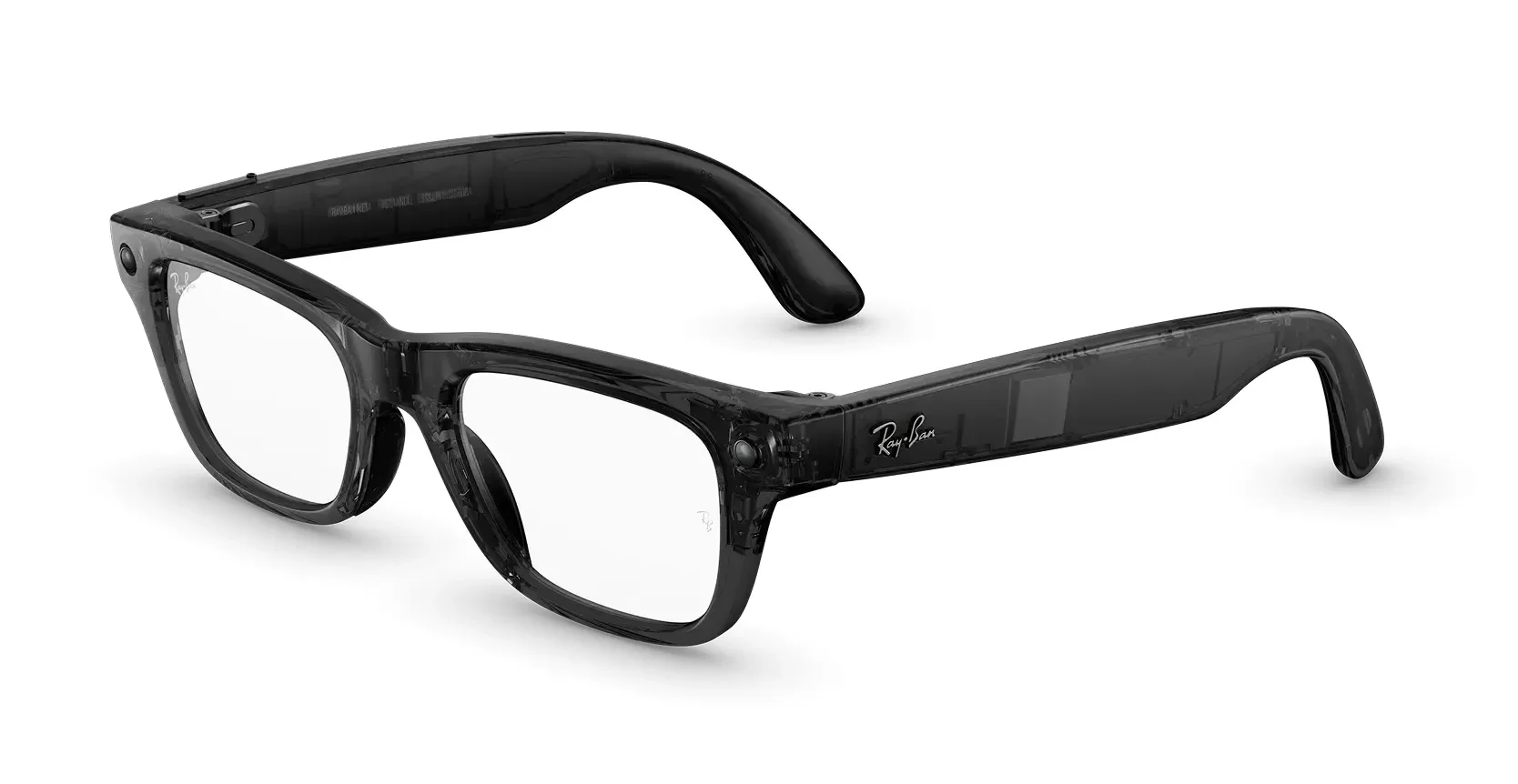
Credit: Meta
Here the news is bad. Since an April 2025 policy change, AI features are on by default and you can no longer opt out of voice-recording cloud storage – recordings are kept up to a year and can only be deleted manually. Your only real lever is disabling the "Hey Meta" voice features, which guts the main reason the glasses exist. And in early 2026, a Svenska Dagbladet investigation revealed that contractors were reviewing Ray-Ban footage and audio, including deeply private material. Meta has since cut ties with the Kenya-based contractor named in the report – a move that left more than 1,000 workers facing redundancy and drew a regulator's inquiry, but doesn't undo what was already seen. Data privacy is one of my non-negotiables when I evaluate any product, and this is exactly the kind of policy drift that keeps these glasses off my face.
Meta Quest

The irony of this whole article: the one Meta device with a genuine off-switch is the VR headset.
Press the Meta button, open Quick controls → Settings → Advanced, and toggle Meta AI off.
Under Settings → Meta AI → Activity log, you can review and delete stored voice interactions.
The asterisk: Quest's Meta AI is officially offered only in the US and Canada. Here in Germany, my hypothetical Quest wouldn't even have the assistant to turn off. A real off-switch exists – just not where regulators forced the opt-outs. Make of that what you will.
The Final Option: Deleting Your Meta Account
If containment isn't enough, the exit is in Accounts Center → Account ownership and control → Deactivation or deletion (Meta's help page). Before you pull the lever, know the terms:
You get a 30-day grace period to change your mind; full deletion takes up to 90 days.
If the account is your Quest login, you lose app purchases, achievements, and store credits with it.
Deletion stops future collection, but it doesn't remove your data from models that were already trained.
That last point bothers the former law student in me more than anything else in this article. But it's the honest state of things. If the deeper question of why default surveillance became normal interests you, Edward Snowden's Permanent Record is the most readable account I know.
What I Actually Did (and What I'd Skip)
For transparency, here's my own setup after re-testing every flow on my accounts:
Filed both EU objection forms – the main one and the third-party one. Took about five minutes combined, the confirmation code went to spam, and the confirmation arrived the same day with the "applied going forward" wording. Easily the highest-value five minutes in this guide if you're in the EU or UK.
Muted Meta AI everywhere with "Until I change it" / "Always." Mostly sticks. On Facebook, the archived thread has reappeared after updates a couple of times – the mute survived, the archiving didn't.
Advanced Chat Privacy on my family group chats, including the one I share with my wife's side of the family. Nobody there ever intended to summon a chatbot, and now nobody can do it accidentally.
/reset-all-ais on a recurring basis – I run it roughly quarterly, the same way I clear cookies.
Skipped: the Instagram block workaround, because I don't trust undocumented tricks to survive updates, and account deletion, because realistically WhatsApp isn't optional in my life. I'd rather contain the thing than pretend I'll quit. If you want the bigger picture behind why this housekeeping matters, Bruce Schneier's Data and Goliath is the most level-headed guide to data collection I've read.
Final Thoughts
Meta AI passed a billion monthly users back in 2025 – a number that says less about enthusiasm than about what happens when you bolt an assistant onto apps billions of people already use. Meta's bet is that ambient AI becomes normal before anyone finishes asking whether they wanted it. If that pattern unsettles you as much as it does me, Shoshana Zuboff's The Age of Surveillance Capitalism is the book that gave the dynamic a name.
You can't fully turn it off. You can mute it into irrelevance, fence it out of your sensitive chats, delete what it stores, and – if European law has your back – keep your data out of its training runs. That's a worse deal than Google offers; I walked through those (much more generous) toggles in my guide on how to turn off Google Gemini. And if you actually want an AI assistant, you're better off choosing one deliberately rather than accepting whatever ships in your messaging app – my breakdown of whether ChatGPT is safe to use covers what I'd share with any chatbot and what I never would.
Functionality over hype. An assistant you can't decline isn't a feature – it's a default. At least now you know exactly which parts of it you get to refuse.
Have you found a mute or opt-out that actually stuck on your own accounts, or one that quietly reset itself after an update? Tell me what your setup looks like in the comments below, especially if you're outside the EU and found a search-bar or chatbot workaround I didn't.
And if you'd rather not hunt these settings down yourself every time Meta moves them, subscribe to my tech newsletter – I send a plain-English breakdown of which new AI features are worth keeping and which ones to switch off the day they land in your apps.







FAQ
-
The steps are identical on both. Meta AI lives inside the Facebook, Instagram, and WhatsApp apps, not in your phone's iOS or Android settings, so there's nothing to toggle at the system level. Follow the per-app mute and /reset-ai steps above and they work the same whether you're on an iPhone or a Pixel.
-
No, those are two completely separate things. Deleting the thread or running /reset-ai clears the AI's stored copy of that conversation, but it does nothing about training. To keep your data out of the models you need the EU/UK objection form, and even that only applies going forward.
-
No. Muting only silences the chatbot's notifications and pushes its thread out of your inbox – your regular chats, calls, and posts are completely untouched. As I covered above, the mute is cosmetic in the best way: it changes what you see, not what works.
-
Not with a dedicated switch – the assistant sits on teen accounts the same way it does on yours, and you'd mute it with the identical steps. The one bright spot is that Meta says data from under-18s is excluded from AI training, so the objection form matters less there. I'd still mute the chatbot and run the reset commands.
-
No, unfortunately not. The EU/UK objection covers model training only. Ad personalization from your AI chats is a separate pipeline with no opt-out, and the sole reason EU/UK users aren't affected yet is that the December 2025 ads policy hasn't rolled out in those regions.
-
Not really. It doesn't disable Meta AI, lock any features, or limit your account in any way – it just tells Meta to stop using your public posts and AI interactions for future training. When I filed mine it took about five minutes and changed nothing about how my apps behave, which is rather the point.
MOST POPULAR





LATEST ARTICLES



I've used Gemini image generation almost daily for months. Here's how to create and edit images, what the free limits really are, and my best prompts.