
iPhone Camera Not Focusing? 9 Fixes That Work (2026)
The Short Version
Apple's own troubleshooting order, plus the checks I run first – cheapest and most likely fixes at the top, hardware last.
- Take off the case, lens protector, and any magnetic accessory – then test again.
- Wipe the lens with a microfiber cloth. No liquids, no compressed air.
- Tap the screen to set focus – and check you haven't locked AE/AF.
- Back up. Closer than about 15 cm and the main lens can't focus.
- Switch between 0.5x, 1x, and telephoto to see if only one lens is failing.
- Force-quit the Camera app, then restart the iPhone.
- Update iOS.
- Reset All Settings (keeps your data) as the last software resort.
Still blurry after all that – especially after a drop, or with a buzzing sound from the camera? That's hardware. Skip to the repair section.
Full detailed step-by-step below.
Blurry iPhone photos have a special way of showing up at the worst moment. Your kid does something adorable, you pull out a phone that costs more than your first car, and the camera just… hunts. In and out. Never sharp.
Here's the thing though: I work part-time in tech support, and "my camera won't focus" is one of the complaints I hear quite often. And in the clear majority of those cases, the phone leaves the store fixed – without a repair, without an appointment, and without spending a cent. Usually it takes about two minutes.
So before you book a Genius Bar slot or start pricing a new iPhone, work through this list. It's the same order I use myself: cheapest and most likely first, hardware last.
Why Won't My iPhone Camera Focus?
Modern iPhone autofocus is mechanical. A tiny motor physically moves the lens (or on newer models, the sensor itself), a gyroscope senses movement, and magnetic sensors read the lens position thousands of times per second – that's how Apple describes its OIS and closed-loop autofocus. It's a genuinely impressive piece of engineering squeezed into a few millimeters.
It's also why so many things can quietly break focus. Ranked by how often I actually see them at work:
A dirty lens. Unglamorous. Extremely common. Pockets are dust factories.
A case, cheap magnetic accessory, or misaligned lens protector sitting in the optical path or messing with those magnetic sensors.
Being too close to the subject. Not a defect – physics.
A software glitch in the Camera app or iOS itself.
Actual hardware damage, usually from a drop. The rarest of the five, honestly.
Let's go through the fixes in order.
Fix 1: Clean the Lens the Way Apple Says To
I know. You've heard this one. But I've watched customers come in convinced their camera module died, and the "repair" was me wiping the lens with the cloth we keep in our pockets.
Use a dry microfiber cloth – the kind you'd use on glasses. Apple's handling guidelines explicitly rule out compressed air, aerosol sprays, and household cleaners. Skin oil plus pocket lint forms a thin film that doesn't look like dirt; it looks like fog. Your photos get that dreamy soft-focus glow, and autofocus hunts because it can't find edges to lock onto. The cloth I keep at the counter is nothing fancy – a cheap microfiber multipack does the job, and you can stash one in every bag.
iOS 26 added a Lens Cleaning Hints toggle under Settings > Camera. Turn it on and let the phone nag you.
Fix 2: Remove Your Case, Magnetic Accessories & Lens Protector
This is the fix people trust the least, and it's my favorite one to demonstrate.
Remember those magnetic sensors that tell the lens where it is? A strong magnet nearby is like holding a fridge magnet next to a compass – the reading goes sideways. Apple says it directly: magnetic interference can degrade or temporarily disable OIS and closed-loop autofocus. The camera keeps shooting, just without its stabilization brain. Apple's troubleshooting page also names lens converters, metallic cases, and magnetic mounts as culprits for blur in low light.
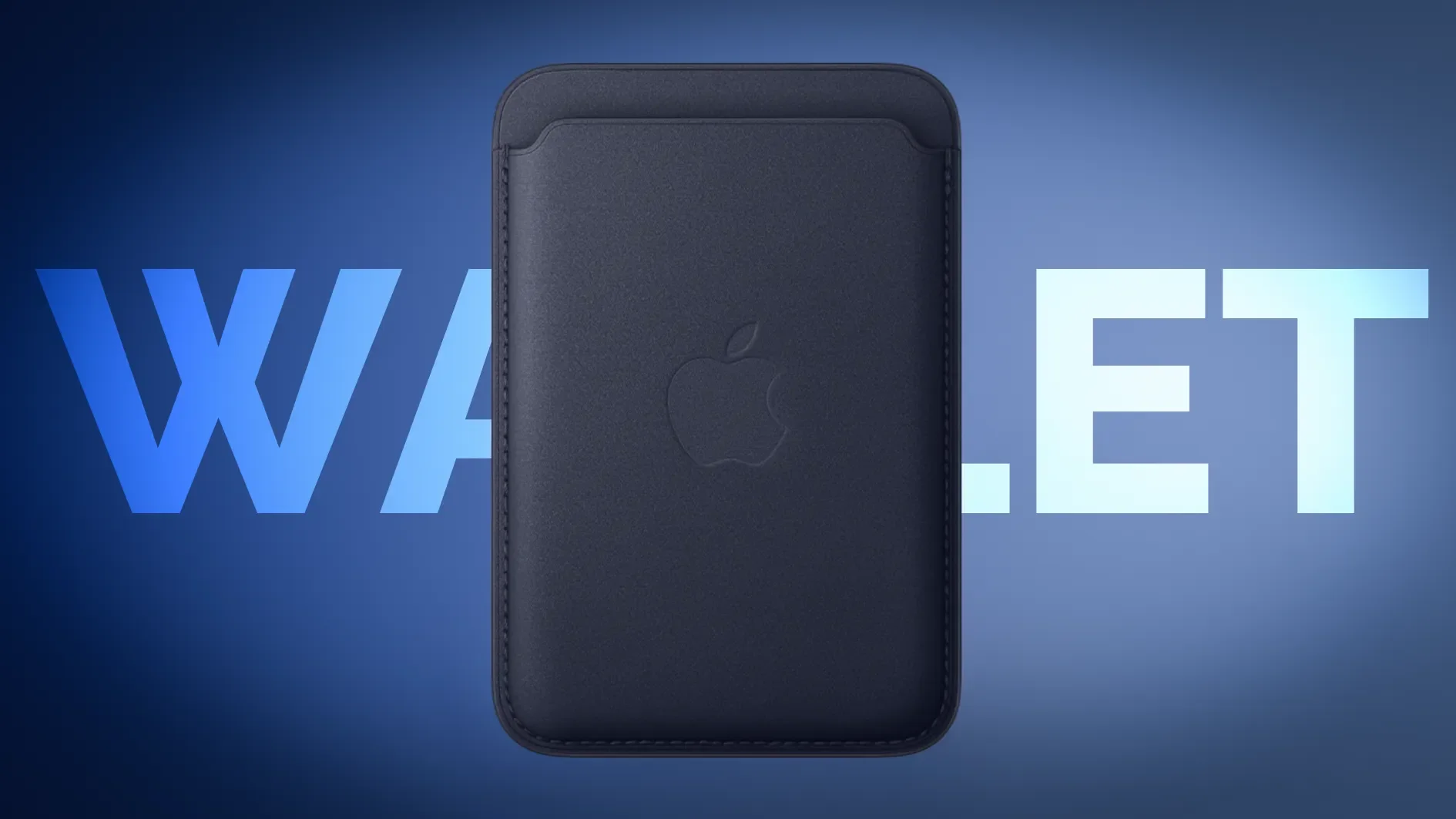
The usual suspects: cheap "MagSafe-compatible" cases with poorly placed magnets, magnetic car mounts, and magnetic wallets that ride close to the camera bump. If the case is the culprit, it's worth stepping up to a properly MagSafe-certified case where the magnets actually sit where they should. I ran into a version of this myself while testing a MagSafe wallet for a review – the wallet was fine on the phone, but stashing the phone in a bag with the wallet pressed against the camera side made me briefly question my life choices.
Lens protectors are their own category. A perfectly aligned, clean one is mostly harmless. A scratched, hazy, or slightly crooked one sits directly in the optical path – which is why removing it is step one on Apple's list, before anything software-related.
Test naked. The phone, I mean. If focus comes back without the case, you've found your answer, and it cost you nothing.
Fix 3: Check for a Stuck AE/AF Lock
Sometimes the camera isn't broken – it's obediently doing exactly what you accidentally told it to do.
If you touch and hold the screen in the Camera app, iPhone locks focus and exposure and shows a small AE/AF LOCK banner at the top. It stays locked until you tap somewhere else.
So: open the Camera app, look for the banner, tap anywhere on the screen to release it, then tap your subject to set a fresh focus point.
iPhone 16 or Newer Camera Not Focusing? Check Camera Control
The iPhone 16 family added a new way to accidentally lock focus. With "Lock Focus and Exposure" enabled under Settings > Camera > Camera Control, a light press on the Camera Control button locks AE/AF – and a light press is not hard to trigger without noticing. If your iPhone 16 or newer suddenly "can't focus," check that setting before assuming the worst.
Fix 4: You Might Just Be Too Close – Minimum Focus Distance & Macro Mode
Every lens has a minimum focus distance, and no amount of tapping changes physics. The developers of the Halide camera app pegged the iPhone 13 Pro's main lens at about 15 cm – it stepped back to nearly 20 cm on the 14 Pro, and their iPhone 17 Pro review notes the main camera still hasn't meaningfully closed that gap. Telephoto lenses reach farther out – on the iPhone 17 Pro's new 4x telephoto, early hands-on measurements put the minimum closer to 90–100 cm – and the exact numbers vary by model, since Apple doesn't publish them. One outlier worth knowing: the iPhone Air focuses about 5 cm closer than the rest of the 2025 lineup, so "just step back" bites a little less there.
On macro-capable models (iPhone 13 Pro and later Pros, plus newer non-Pro models), iOS quietly hands the shot to the Ultra Wide lens, which focuses down to about 2 cm. That handoff is the little "blur flicker" you sometimes see when you move in close – the phone switching lenses mid-preview. Slightly jarring. Completely normal.
If your model doesn't have macro mode, the fix is gloriously simple: take a step back. Or, if you shoot close-ups a lot and your phone can't, a clip-on macro lens attachment gets you there without upgrading the whole phone.
Fix 5: Switch Lenses to Isolate the Broken One
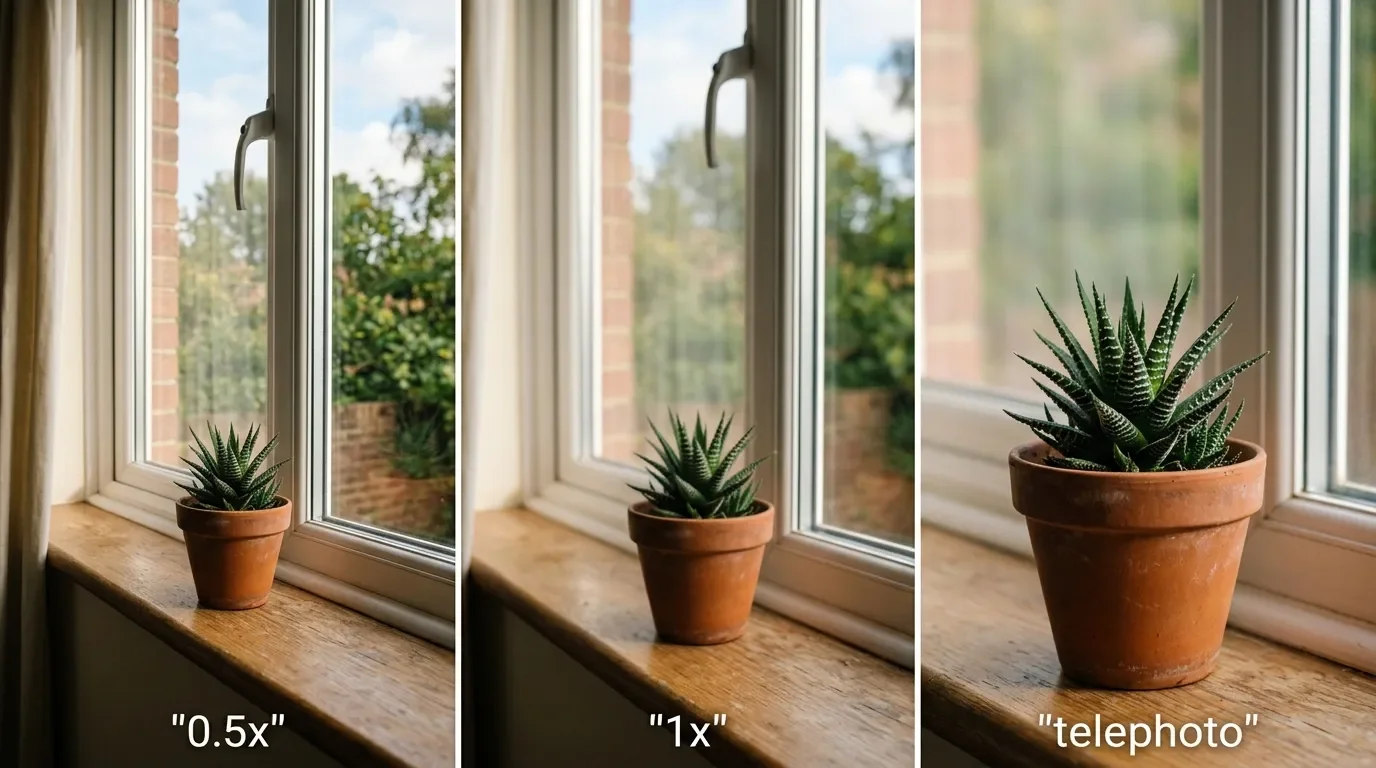
Here's a diagnostic trick that separates "software weirdness" from "one dead module" in about ten seconds. Cycle through your zoom levels – 0.5x, 1x, telephoto – and test focus at each.
A phone that focuses fine at 0.5x but never at 1x is telling you something specific: the main camera module (or its OIS assembly) is faulty, because each zoom level uses physically separate hardware. It's also the first thing I check when someone hands me a phone at work – it tells me in seconds whether we're in software territory or repair territory.
One caveat on the newest models: the base iPhone 17 has no dedicated telephoto (its 2x is a crop of the main sensor) and the iPhone Air has only the single main camera – so on those two there are fewer real lenses to cycle through. If every zoom level fails together on one of them, that points back at software or the main module rather than one isolated lens.
Fix 6: Rule Out the App
Force-quit the Camera app (swipe up from the app switcher) and reopen it. Then – and this is the more useful test – try a third-party camera app. If the stock Camera app won't focus but another app will, you're looking at a software problem, not dead hardware. That distinction matters, because it means a repair won't fix anything. An update might.
Fix 7: Restart Your iPhone
Yes, really. The camera pipeline is software orchestrating hardware, and a reboot clears out whatever background process has quietly wedged itself. It's on Apple's official list for a reason. Thirty seconds, zero risk, and it resolves more "broken" cameras than anyone wants to admit.
If a normal restart doesn't do it, try a force restart – sometimes called a hard reset. It clears deeper hung processes that a regular reboot leaves untouched, and it's saved me more than once when the Camera app was frozen solid.
On any iPhone 8 or newer: press and quickly release Volume Up, press and quickly release Volume Down, then press and hold the Side button until the Apple logo appears – keep holding past the power-off slider, it can take 10 seconds or more. Nothing gets erased; it's just a firmer reboot than the usual one.
Fix 8: Update iOS
This one has receipts. Back in 2017, iOS 11.2 shipped with an autofocus bug on the iPhone 8, 8 Plus, and X that Apple fixed days later in 11.2.1. And it's not ancient history: right now there's an active Apple Communities thread full of users reporting tap-to-focus failing in the stock Camera app after iOS 26.
The takeaway: autofocus regressions are a real, recurring category of iOS bug, and point updates fix them. Settings > General > Software Update. If your symptoms started right after an update, this section is probably your answer – and it's worth checking whether the current point release mentions camera fixes.
Fix 9: Reset All Settings (Not a Factory Reset)
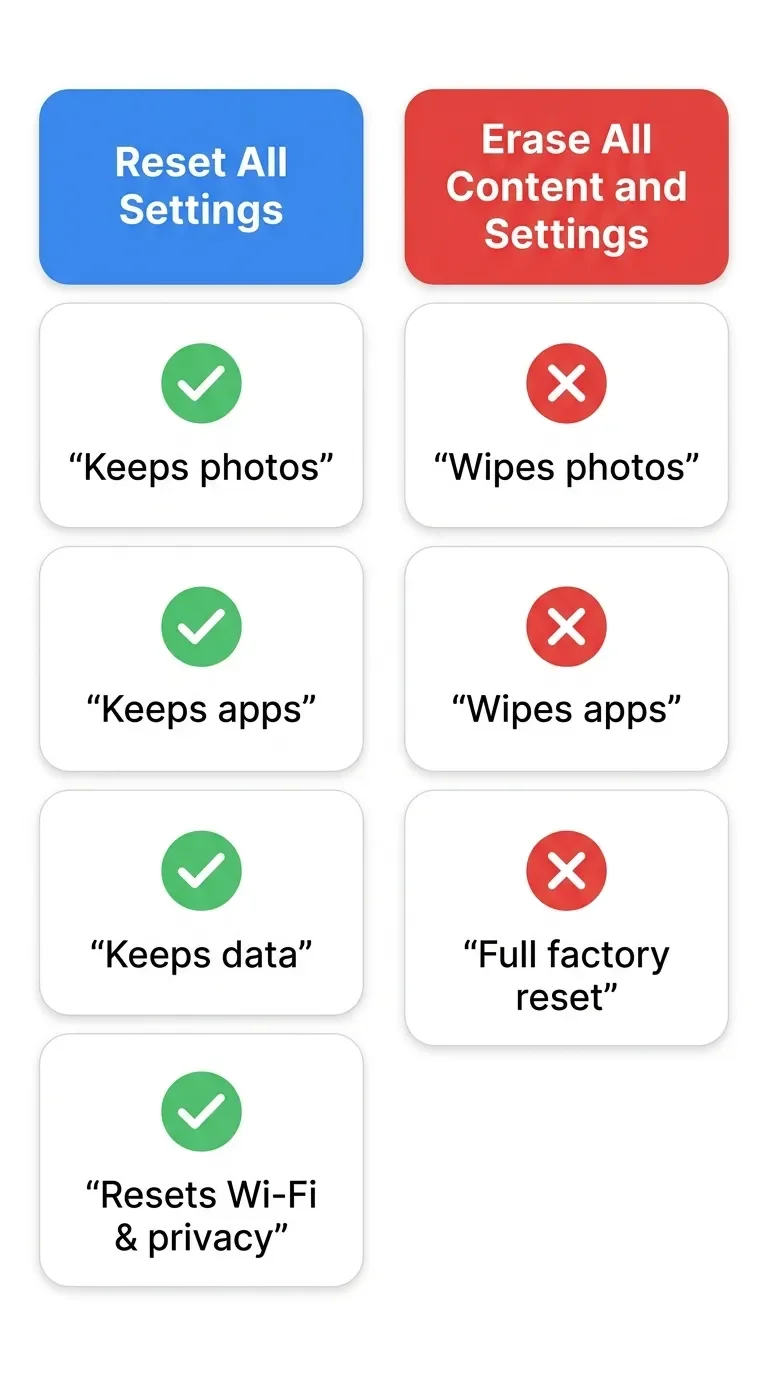
Last software resort, and the naming here trips people up constantly – my inner law student appreciates how much confusion two similar labels can cause.
Reset All Settings (Settings > General > Transfer or Reset iPhone > Reset) returns network settings, keyboard dictionary, location, privacy settings, and Apple Pay cards to defaults. It deletes no photos, no apps, no data. You'll re-enter some Wi-Fi passwords. Mildly annoying, not destructive.
Erase All Content and Settings wipes the phone. Plenty of sketchy guides recommend it for camera issues. Ignore them – if nine fixes haven't worked, a full wipe almost certainly won't either, because at this point the problem is very likely mechanical.
Still Blurry? The Signs It's Hardware
At the store, a few symptoms make me stop suggesting software fixes immediately:
A buzzing, zapping, or grinding sound from the camera area while the Camera app is open. It’s like a subtle zapping that stops the moment the app closes. That's the autofocus motor fighting a battle it has lost.
Focus hunting that started right after a drop. iFixit's blurry-camera troubleshooting points at a damaged OIS/autofocus module – the moving parts get knocked out of alignment, and no toggle in Settings realigns them.
One lens permanently blurry while the others are sharp (see Fix 5).
Quick reassurance on a related worry: a faint rattle when you shake a powered-off or idle iPhone is widely reported as normal – the stabilized lens element floats when the camera isn't active. Noise during use, plus failed focus, is the bad combination.
The Special Cases
Two scenarios worth knowing about. First, if you have an iPhone 14 Plus whose rear camera shows no preview at all, check Apple's free service program – devices manufactured between April 2023 and April 2024 qualify for a no-cost repair. Narrow scope, but free is free.
Second, if you mount your phone on a motorcycle (or clamp it to anything that vibrates hard), Apple warns that high-amplitude vibration can permanently degrade the OIS and autofocus system. Permanently, as in: no software fix, ever. A customer once told me his camera had been replaced multiple times before anyone thought to ask about his bike. Use a vibration-dampening mount, or better, a cheap action cam.
Repair Options & Real Costs (US & EU)
If you've landed here, the good news is that a camera repair is usually far cheaper than a new phone.
With AppleCare+, camera damage falls under "other accidental damage" – a $99 service feeper incident in the US (the $29 tier only covers screen and back glass).
Out of warranty, prices depend on the model. Don't take my word as a quote – run your exact model through Apple's repair estimator before deciding anything.
A few things I tell customers who ask about cheaper routes:
Independent repair shops can be excellent value, and many can get genuine Apple parts – but the repair is then covered by the shop's warranty, not Apple's.
DIY is genuinely doable if you're the type – iFixit rates a rear camera swap as moderate difficulty, one to two hours, and on iOS 18+ a genuine module can be calibrated with Apple's Repair Assistant. But opening the phone likely ends its water resistance, and here's the ironic part: Apple documents that nongenuine camera parts cause exactly the symptoms you're trying to fix – focus errors, soft images, crashing camera apps. Cheap parts can buy you the original problem back.
One misdiagnosis to avoid: if your photos look scratched or hazy rather than out-of-focus, the problem may be the lens cover glass in the phone's back – a separate, cheaper part than the camera module. Swapping the module won't fix scratched glass.
Verdict: The 3 Fixes That Solve Most Focus Problems
After years of handing phones back across a counter, the honest summary is this: clean the lens, remove the case and magnetic accessories, and restart the phone. Those three resolve the overwhelming majority of "broken" iPhone cameras I see – usually before the customer has finished explaining the problem.
If you're past those and into lens-isolation tests and settings resets, pay attention to the hardware signs. A camera that buzzes, rattles during use, or stopped focusing the day it hit the pavement isn't going to be talked back to life by a software toggle. Get a quote, weigh it against your phone's value, and remember that $99–$249 for a repair beats $800+ for a replacement in almost every case.
And keep a microfiber cloth in your bag. Genuinely. It's the highest-value camera accessory you can own, and it costs about two euros.
Did one of these fixes bring your camera back, or are you staring down a repair bill? Tell me which step did it, and what your phone was doing, in the comments below – the weird edge cases are genuinely useful for updating this guide.
If you want more of this kind of thing – plain-English iPhone troubleshooting from someone who does it for a living, minus the ten paragraphs of filler before the fix – subscribe to my Tech newsletter. I only send it when I've got something actually worth your inbox.


FAQ
-
A drop is the one cause on this list that software can't touch. The impact can knock the OIS and autofocus module out of alignment, and iFixit's blurry-camera troubleshooting traces exactly that post-drop focus hunting to a damaged stabilization assembly. If the trouble started the moment your phone hit the floor – especially with any rattle or buzz during use – skip straight to the repair section. No toggle in Settings realigns bent hardware.
-
The rear cameras simply have more that can go wrong. They carry the OIS and the more complex moving-focus hardware, as Apple describes, so they have more failure modes than the front camera. Run the lens-isolation test from Fix 5: if only one rear lens is soft while the others are sharp, that specific module is the problem, not your whole camera system.
-
Not on its own. A faint rattle when you shake an idle iPhone is widely reported as normal, since the stabilized lens element floats freely when the camera isn't active. What's not normal is a buzzing or zapping sound while the Camera app is open and struggling to focus. Noise during use plus failed focus is the combination that means hardware.
-
A lens protector can, a screen protector generally can't. A scratched, hazy, or slightly crooked lens protector sits directly in the optical path, which is why removing any film is step one on Apple's list. Community experience is genuinely split, with the most consistent complaints showing up in low light, so if you shoot a lot at night, test with the protector off before blaming the phone.
-
No. Reset All Settings only returns network, keyboard, location, privacy, and Apple Pay settings to their defaults – it deletes no photos, apps, or data. The option you're thinking of is "Erase All Content and Settings," which does wipe everything. Two similar names, wildly different outcomes, so read the button twice.
-
Yes, and it's worth knowing before you chase the cheapest quote. Apple documents that nongenuine camera parts can cause the exact symptoms you're trying to fix: focus errors, soft images, and crashing camera apps. Genuine parts installed by a reputable shop are fine, but a bargain module can hand you the original problem right back, minus your warranty.





MacBook not turning on? Step-by-step fixes for MacBook Air, Pro, Neo and Intel models – from force restart and charger checks to when you actually need a repair.